
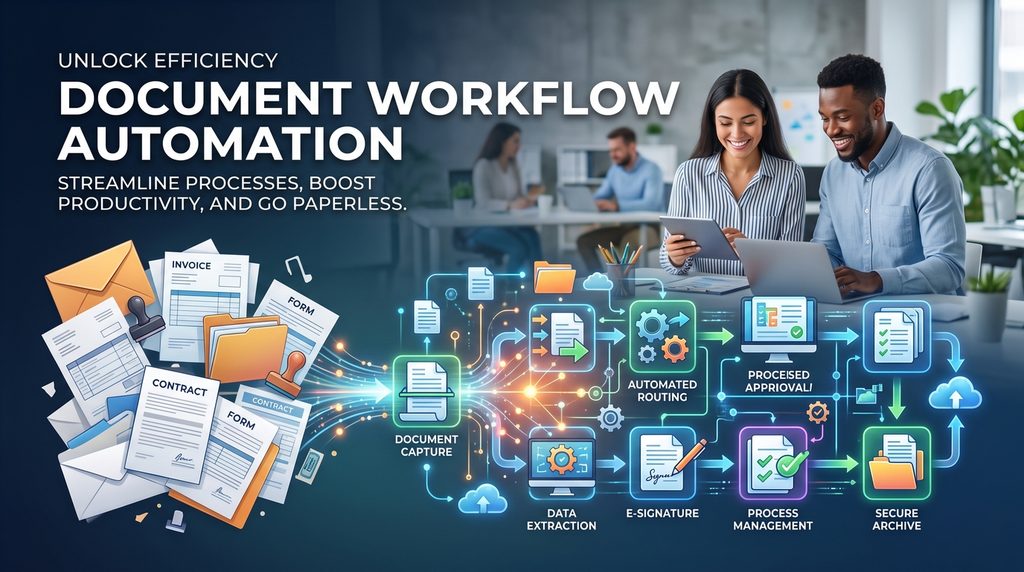
A survey conducted by Crownrms found that an alarming 68% of employees are losing more than half an hour each day just trying to track down documents. And thats just the beginning. Throw in the time people spend copying and pasting data direct from PDFs, chasing down approvers via email and recreating the same report every single week and document handling quickly becomes one of the biggest hidden expenses of any business.
Document workflow automation automates the whole lifecycle of a document – from capturing it in the first place right through to storing it away. So files just get passed around your business without anyone needing to spend their time copying, emailing or filing them by hand.
Our workflow automation consultants have delivered more than 200 such automation projects, and document workflows are among the most common ones. This is the guide to tell you all about what these workflows actually are, which automations most businesses start with, show examples that we developed for clients, and how we build them.
Document workflow automation is using RPA tools to get documents through a business process without all the manual handling. A file arrives or gets created and the system figures out what to do with it, finds the right people to show it to, keeps an eye on what happens to it and then files it away in the right place.
Most document workflows have four stages: capture, generation, approval and storage. A completely automated document workflow joins all four of these together so a scanned invoice can be read, checked, approved and archived with minimum manual effort and guaranteed 100% accuracy.
In our experience, that’s exactly where a lot of organisations fall down. They automate one stage (e.g. sending a scheduled reminder for an approval or setting up a shared folder) and then leave the rest to be done manually. Which means they only get half the benefit. The real value comes from joining all the stages together.
Substantial time savings. One engineering consultancy we worked with saved over 80 working hours a week after we automated data extraction from iAuditor to populate Word client audit report templates. The hours previously spent copy-pasting data went back into billable work.
Fewer errors. Manual rekeying introduces typos in invoice totals, dates and account numbers. An automated workflow reads the value once and carries it through every downstream system unchanged.
Faster decisions. Approvals that used to sit in an inbox get routed the moment a document arrives, with automatic reminders. Documents stop waiting on someone to notice them. For example, we built an entire invoice approval workflow system for a financial services company, which dramatically increased transparency throughout their billing process. You can watch our interview with Michael Diamond, the CFO of this company, talking about the business impact of this automation on his team below.
A complete audit trail. Every decision, comment and version is recorded automatically, which matters for audits and compliance frameworks.
Lower cost per document. Once the workflow runs itself, processing more documents does not require more people.
These are the most common document workflows our clients ask us to automate. Each can run on its own or as part of a larger process.
Invoice processing and accounts payable. We can read supplier details, invoice number, PO, dates, line items and totals from incoming invoices, check them, route for approval and then update the finance system.
Contract lifecycle and e-signature. We can send contracts through legal and commercial review, and then out to each person to sign on via DocuSign or Adobe Sign, with every version tracked.
Employee onboarding packs. We can generate offer letters and contracts from a template, collect signed documents and ID, and trigger an onboarding checklist when a new starter is created.
Expense and receipt capture. Let employees photograph a receipt in a mobile app, read the merchant, date and amount, and send it into an expense approval flow.
Form-to-document generation. Turn a submitted form, survey or inspection record into a finished Word or PDF report, then send it off via email or file it automatically.
Purchase orders and procurement approvals. Route PO requisitions by value and department, with thresholds that escalate larger amounts to senior approvers.
Records retention and archival. Apply retention rules automatically, so documents are archived or deleted on schedule rather than just piling up indefinitely.
Email attachment filing. Save attachments from a monitored mailbox into the correct library, named and tagged consistently.
Below is how each stage of a document workflow actually works, with some business process automation examples from projects we’ve delivered.
Capture turns a document into data. Optical character recognition (OCR) can read the text inside a scanned PDF, photo or image, and document processing can then figure out which bits of that text are the invoice number, the date or the balance.
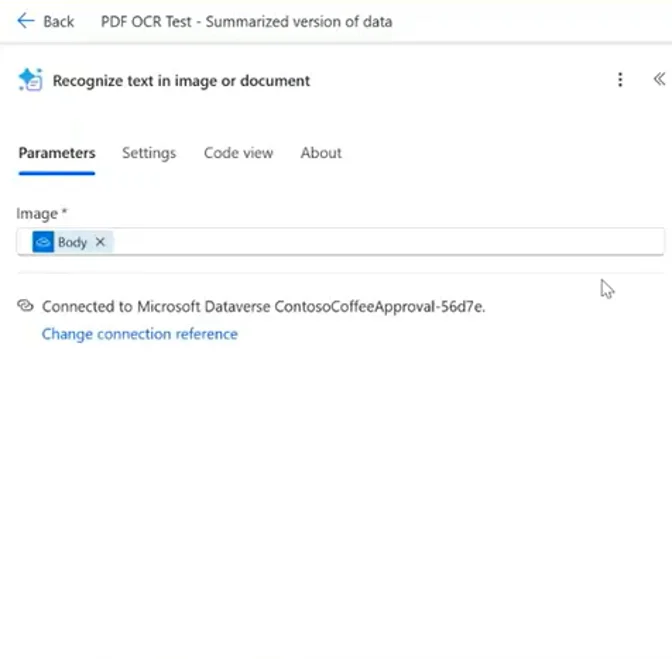
Our Power Automate consultants built a flow for a client who had a folder of PDF bank statements that were being typed in by hand. The flow picks up each file, runs OCR to read the page, uses an AI prompt to pull out the bank name, account number and balances, and writes one row per statement into Excel – which then feeds a Power BI report.
There are two options available in the Power Platform. AI Builder handles cloud documents and returns full text or defined fields with confidence scores, while Power Automate Desktop reads text from screens and older applications that don’t have an API. Our full walkthrough is in our guide to Power Automate OCR.
Document generation works by automatically extracting the data from your systems and inserting it into a template to produce a finished document. Frustratingly, the data can come from a variety of places: forms, SharePoint lists, Excel, Dataverse or even an API, and the output could be a Word file, a PDF, or both.
Our project with Lift Consultancy, a UK engineering consultancy, is the most impactful example of this automation. Their engineers were still going the old-fashioned route manually transferring inspection data from iAuditor into Word reports. We hooked iAuditor up to SharePoint and put together some Power Automate flows that populate standardised Word templates, saving over 80 working hours a week – a nice chunk of time regained.
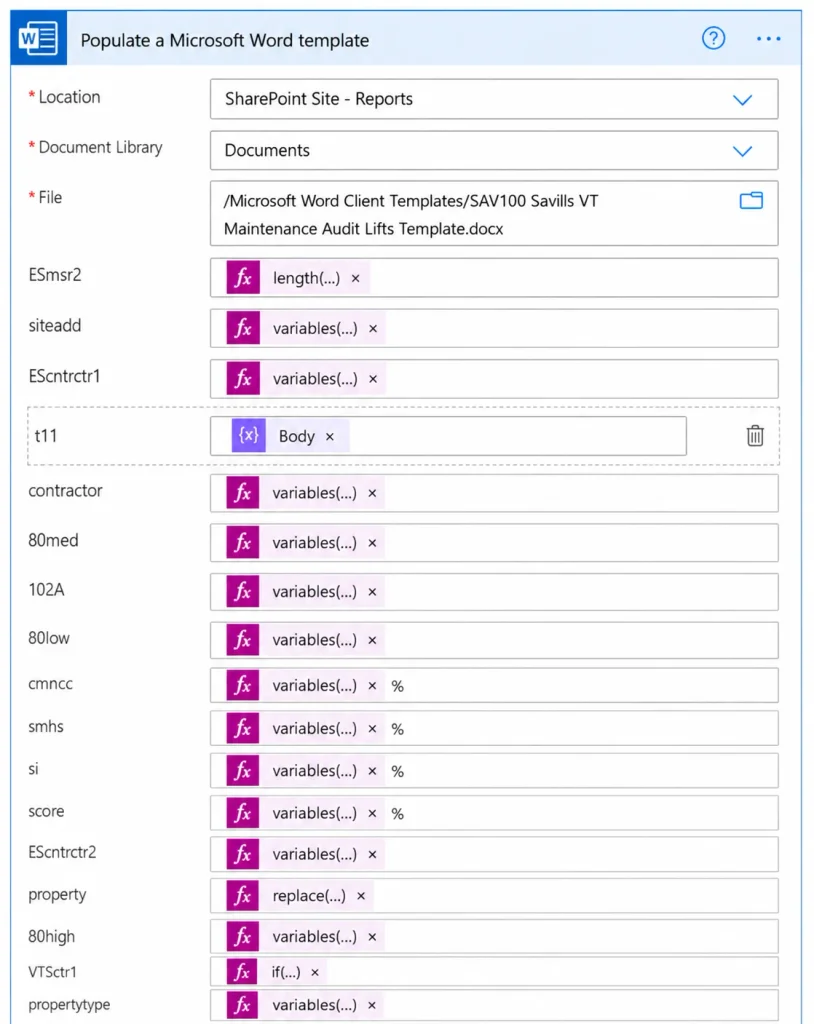
The flow maps each value out to a content control in the template, handles all those pesky repeating tables for variable numbers of rows, converts the finished file to PDF, and emails it off with a dynamically generated file name. If you’re interested in how it all went down, you can follow the step-by-step build in our guide to populating Word templates with Power Automate.
Approval is usually where most manual document workflows come to a grinding halt. Automating it means the document gets sent to the right person automatically, waits for a decision, and moves on from there based on the outcome.
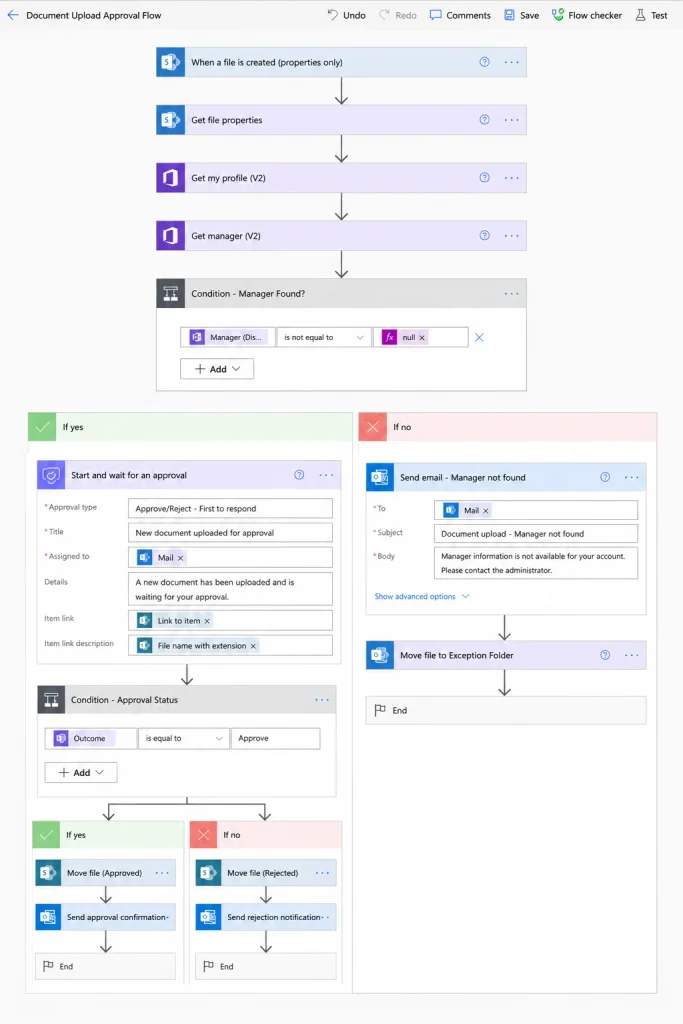
Our RPA consultants put together a workflow that kicks off whenever a document is uploaded to a SharePoint folder. It looks up the uploader’s line manager in Microsoft Entra ID, sends out an approval request, then files the document in an Approved or Rejected folder based on what the manager has to say. If no manager is assigned, the document gets chucked into an exception folder for manual review.
It’s the detail of looking up approvers dynamically rather than hard-coding names that really makes this bit work. New managers, company restructures and staff changes get picked up automatically without anyone having to go in and fiddle with the flow.
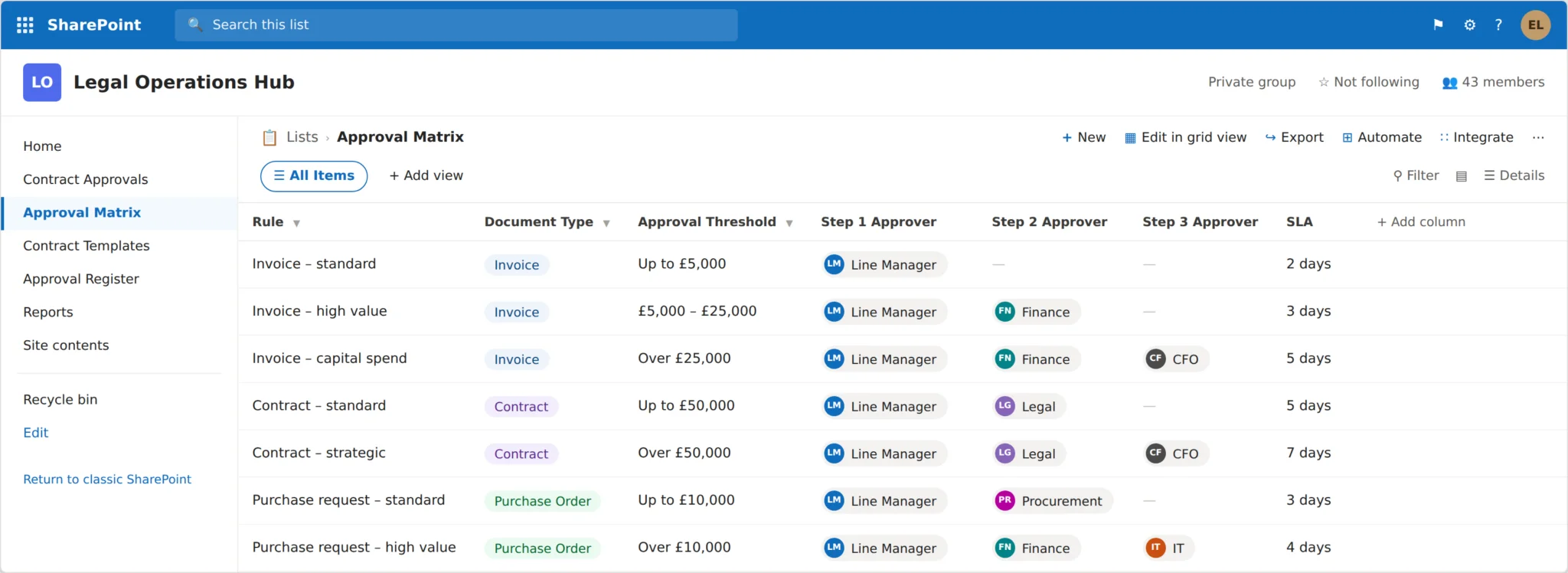
Of course, more complex processes need sequential approvals, where a document passes through several approvers in order, or approval rules based on value and department stored in an approval matrix. And because those rules are stored in SharePoint, the business can change them up without anyone having to touch the workflow. Our full guide covers Power Automate document approval workflows.
The final stage is where all the documents live. A document library that’s properly configured means every single file has a single home, consistent tagging, version history and controlled access.
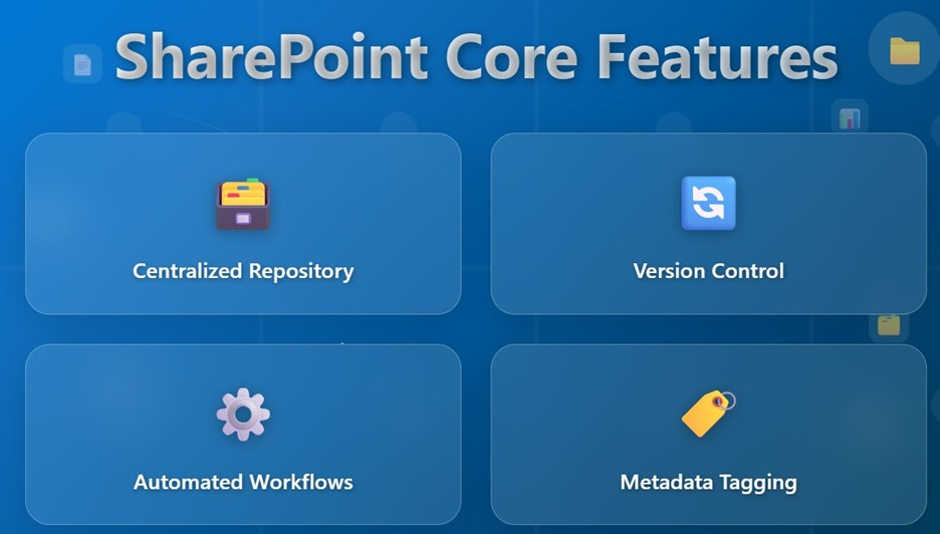
Version control deals with the familiar problem of multiple ‘final’ files. SharePoint saves a version every time you edit, records who made the changes and when, and lets you roll back to a previous version if needed. And check-in and check-out stops two people from trying to edit the same document at the same time.
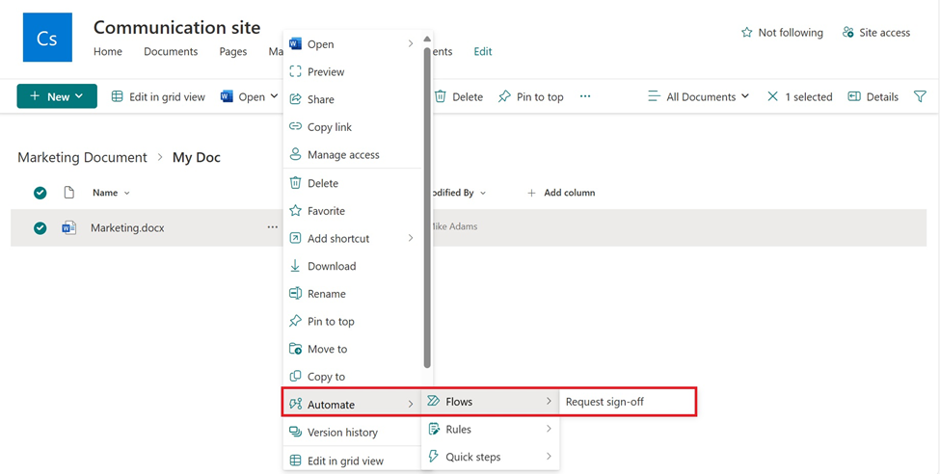
Storage is also key because that’s usually what triggers the other three stages. A file landing in a folder kicks off the approval process, and a generated report is written back to the library with a link recorded against the source record. More detail is in our guide to SharePoint document management.
Metadata is the structured information that gets tacked on to a document – its type, department, owner, status, value and dates. In a manual process, it’s optional, but in an automated document workflow it’s what makes all the decisions possible.
Much of the metadata is created in an audit trail automatically as the document workflow executes every step. This includes timestamps, information about approvers, comments, etc.
It drives routing. A workflow can’t decide where to send an invoice unless it knows the amount and department – and it’s all thanks to metadata. Rules like invoices over £5,000 requiring CFO approval are all about metadata comparisons, not reading through the document.
It records state. Columns like Approval Status, Approval Date, Approver Comments and Document Owner get updated as the flow runs, and users can see exactly where a document is without having to ask anyone.
It replaces folder hierarchies. Tagging documents by type, client or department makes them findable through search and filters, rather than trying to remember which messy folder structure was used.
It enables retention and compliance. Retention policies are all about metadata, so documents get archived or deleted based on type and date rather than manual housekeeping.
It makes reporting possible. Because status and timestamps are stored as fields, they can be read into Power BI to show approval times, volumes and bottlenecks across the whole document estate.
Our business process automation consultants found that weak metadata is the number one reason a document automation project underdelivers. We usually spend some time early on agreeing the columns before building out the flow, because changing them later means reworking every workflow that uses them.
Automating document workflow means you get a much better record than you would with a manual one – because logging is just a by-product of the process, not something someone has to remember to do.
Approval Decisions Are All on Record – Who approved or rejected a document, when, and any comments they left are all logged. We usually recommend making comments mandatory on rejection, so the submitter knows exactly what to change.
Version History Shows Document Changes – Every edit is saved with a timestamp and author, and check-in comments describe what changed and why.
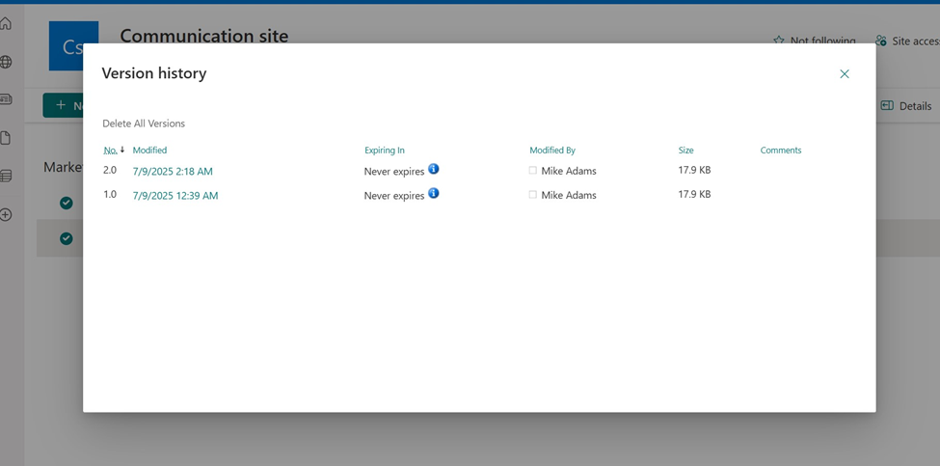
Access is controlled and logged. Permissions are in place to restrict who can view or edit sensitive files, and audit logs track document activity. This is what supports frameworks such as GDPR, HIPAA and ISO 9001, where you need to be able to prove that documents followed a defined process.
Power Automate run history shows which workflows succeeded or failed – which makes it a lot easier to track down any issues before they start affecting users.
Management can see how things are performing. Because approval data is stored as fields, we often build a Power BI dashboard on top to show average approval time, rejection rates, outstanding approvals and bottlenecks in each department.
For sensitive documents like payroll, medical, legal and financial files, we also apply Power Platform data governance policies to control which connectors can handle your business data, and store credentials in Azure Key Vault rather than inside flow actions.
Older automation reads documents using fixed rules, expecting the invoice total to sit in the same place every time. That works until a document arrives in a different layout. Adding AI to the RPA implementation process, sometimes called intelligent document processing, lets the system understand a document rather than just scan it, which is what allows it to cope with files that vary from one supplier or format to the next.
We use AI in three places when we build a document workflow.
Pulling the right details out of a document. Once the text has been read off the page, we tell the AI which details to look for (e.g. the supplier name, invoice number and total) and it finds them wherever they appear, then hands them back in a tidy, structured form the rest of the workflow can use. In the bank statement example earlier, this is how the bank name, account number and balances are picked out no matter where they sit on the page.
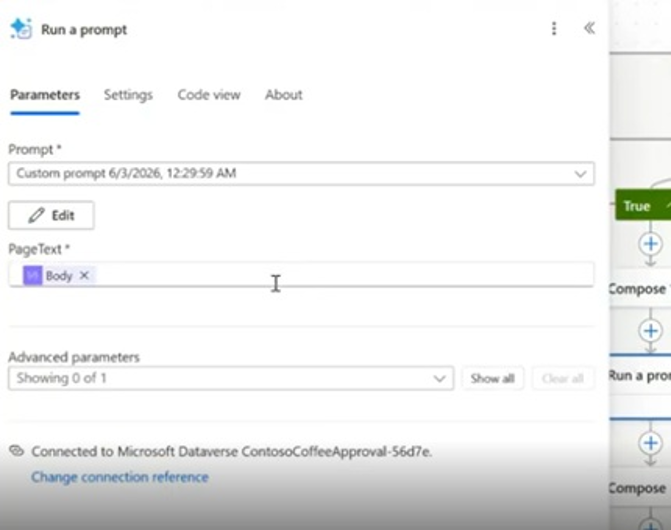
Flagging when it isn’t sure. The AI attaches a confidence level to each detail it reads, and that can be low on a poor scan or an unusual layout. When it is, we send that document to a person to check before the process continues so a human steps in exactly where the system is least certain, while everything it is confident about flows straight through.
Reading scans and handwriting. The technology copes well with both printed and handwritten text, though how well depends on the quality of the scan, the language and the layout. We always test real documents from each supplier or department before going live, rather than trusting a general accuracy figure.
AI can also help build the automation itself, drafting a first version from a plain description of what you want. In our experience it gets simple cases moving quickly, but anything involving decisions, several approval steps or connections to other systems still needs a specialist to set up properly.
The rule we work to is simple: AI should speed up reading and sorting documents, not make unsupervised decisions about anything that carries financial or legal weight.
Document workflow projects often fail because of the process, not the tech. A workflow built around an unclear approval chain is just automating the confusion. This is how our RPA developers tackle a project.
We Map the Current Process First – We sit down with the people who handle the documents today and record what actually happens, including all the workarounds. This usually brings to light steps that nobody had documented.
We Agree the Metadata & Rules Before Building – Which fields matter, who approves what, what the thresholds are, and what happens when something is missing. Getting this wrong is really expensive to fix later.
We Build and Integrate – We use Power Automate, AI Builder, SharePoint and Power Apps, and add RPA where a system has no API, and API integration where one does.
We Test With Real Documents – Not samples. Real files from each supplier, bank or department, including the messy ones, because a technically successful flow can still produce a blank field or a cropped image.
We Hand Over and Support – We document the solution, train the team, and stay available as processes change.
We do these as fixed-scope projects rather than open-ended engagements, so you know the cost before we start.
Many of our clients have achieved significant time savings after outsourcing RPA to us
80+ hours saved per week – Lift Consultancy’s engineers stopped transferring inspection data into Word reports by hand after we connected iAuditor to SharePoint and automated report generation.
Bank statements processed without re-keying – A folder of PDF statements now flows through OCR and AI extraction into a single spreadsheet, feeding a Power BI report instead of a manual transcription job.
Approvals routed without maintenance – A client’s approval workflow resolves the correct approver from Microsoft Entra ID on every run, so organisational changes never break the process.
If your documents are still stuck in the cycle of being retyped, emailed around for approval or saved on someone’s desktop just because that’s what’s always been done – there’s probably a pretty simple way to automate things.
Tell us what’s the biggest document process time-suck in your business and we’ll take a look and walk you through how it could be automated.
Most commonly SharePoint, OneDrive, Outlook, Excel and Dataverse, plus finance and line-of-business systems through their APIs. Where a system has no API, we use RPA to work with its interface directly.
The answer is yes, OCR can handle the text in printed and handwritten documents. However how well it does it all depends on the quality of the image, the language in question and how it’s laid out. We test our systems with real world documents from all sorts of sources before launching them.
We handle that dynamically, by grabbing the approvers from a Microsoft Entra ID or some approval rules we set up in SharePoint – saves us from having to hard-code email addresses into the workflow.
Either really. We build and hand over to most of our clients, but we also do Power Automate training if they want to be able to maintain their workflows in house.


