

Many business process automation use cases involve streamlining everyday operations across departments to improve efficiency, reduce errors, and ensure processes run consistently.
As a business automation consulting company, we have developed over 50 workflow automation solutions for finance teams, HR departments, operations teams, and marketing organisations that needed to streamline manual processes. These solutions connect business systems, automate approvals, process documents, and generate reports automatically, allowing teams to manage growing workloads with greater efficiency and visibility. Our client portfolio includes Heineken, Autodesk and Dermalogica, with work spanning business automation, dashboard development and reporting.
This article covers 12 of the most common and valuable workflows our customers request. These are practical automations for tasks such as checking departmental budgets before approving expenses, tracking unpaid invoices, identifying missing timesheets and alerting marketing managers before campaigns overspend.
For each use case, we explain how the workflow operates, what it changes for the team using it, and where human approval should remain part of the process.
Business process automation (BPA) is the use of technology to run repetitive, rule-based steps in a business workflow without someone doing them by hand. A trigger starts the process, like a submitted form, an incoming email or a scheduled time, and the automation takes care of what follows: routing approvals, updating records, moving files and sending notifications.
Take a simple purchase request. Instead of an employee emailing a manager and waiting, they fill in a form. The workflow sends it to the right approver, records the decision and lets the requester know the outcome. Nobody has to chase anything.
Here’s how the two approaches usually compare:
| Manual process | Automated process |
| Requests arrive by email, paper or spreadsheet | Requests come in through a structured digital form |
| People chase approvals and follow-ups | Approvals are routed automatically with reminders |
| Data gets retyped between systems | Data moves between systems on its own |
| Status lives in someone’s inbox | Everyone can see status in one central place |
| Reports are compiled by hand | Reports refresh and send on a schedule |
| The process stalls when a key person is away | The process runs the same way every time |
Most of the focused workflows below take us approximately 10–50 development hours, depending on the systems involved and the complexity of the rules. Larger data integrations, extensive security requirements and company-wide rollouts require separate scoping.
The time saved depends on how frequently the process runs. For example, removing six minutes of administration from 200 requests saves 20 working hours per month. Reducing a weekly reporting task from five hours to one saves 16 hours over four weeks.
Below are several real-world examples of how automation is used in areas such as finance, human resources, operations, customer service, marketing, and IT. Each example shows how businesses can replace manual processes with automated workflows that save time, improve visibility, and support better decision-making.
Finance teams handle large volumes of repetitive work such as invoice processing, expense approvals, and financial reporting. When these processes rely on emails and spreadsheets, they slow down approvals and make it difficult to maintain accurate records. Business process automation helps finance teams streamline document handling, improve data accuracy, and ensure financial information is always up to date.
Our Invoice approval workflow handles repetitive tasks such as capturing invoices from email, routing them for approval, and updating financial records.
We implemented this solution for Leeward Management, a global financial services firm. By automating this process, we achieved critical benefits:
Controlled Scaling: The automation allows the company to grow quickly without finance losing control of billing. Non-finance staff can raise invoices through an app, but finance retains a streamlined approval step to verify that the pricing and non-standard fees are correct before anything hits the books.
Visibility on Invoice Status: We implemented dashboards that provide real-time tracking of which invoices are paid, outstanding, or overdue.
Proactive Credit Control: The system actively flags unpaid invoices so relationship managers can follow up with the client before the team starts doing more work for an account in arrears.
We automated the workflow so incoming invoices were captured automatically from email and stored in a central document library with searchable metadata. The system then routed approval requests to the relevant manager, who could approve or reject directly from a notification. Once approved, the finance records were updated automatically.
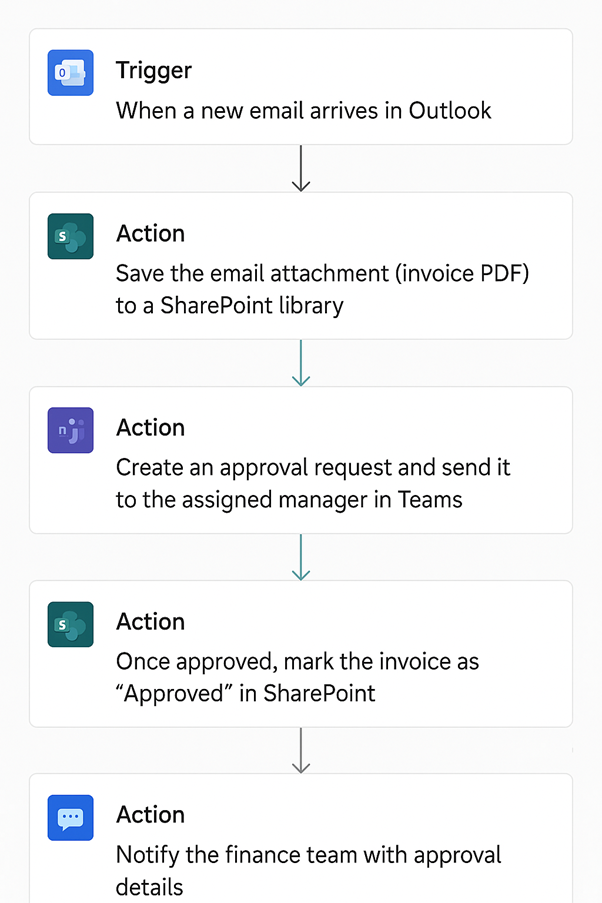
This automation eliminated manual invoice handling, accelerated approvals, ensured all invoices were centrally stored, and helped the company maintain accurate and audit-ready financial records.
Managing expenses manually easily leads to overspending. We build automated expense approval workflows that proactively check the remaining budget for a specific department before routing the request to a manager. If the department’s budget is exhausted, the system flags the request immediately, keeping company spending strictly in line.
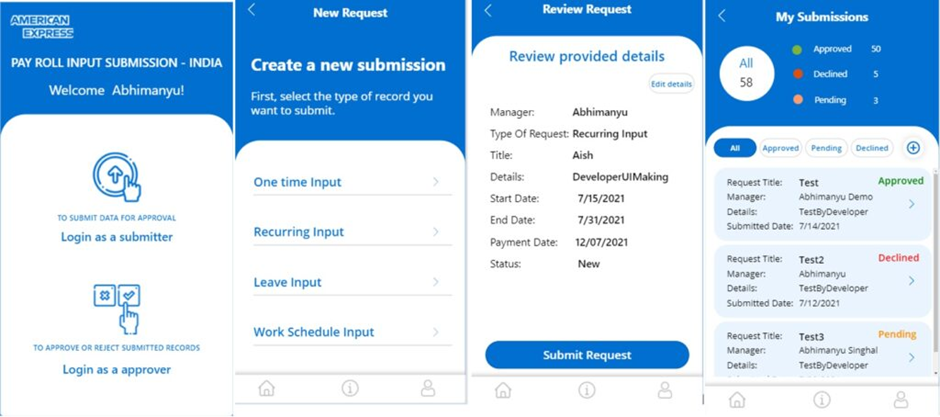
Our Power Automate experts implemented a centralised expense approval system for a finance department where claims were previously submitted via email attachments.
Employees now submit expenses through a simple application where receipts are attached digitally. Requests are automatically routed to the correct manager for approval.
The automation reduced approval times by over 65%, eliminated follow-up emails, and gave the finance team a single view for expense records.
HR teams manage leave requests, timesheets, onboarding and a long list of approvals. As headcount grows, email and spreadsheet processes break down fast. Automation gives HR structured requests, automatic approvals and one place to track everything.
Leave management is one of the most common HR processes that benefits from automation. Without a structured system, leave requests are often submitted through emails and tracked manually in spreadsheets. This approach makes it difficult for HR teams to monitor requests, while managers struggle to understand team availability when planning projects.
We worked with a company that had no centralised system for managing employee leave requests. Employees emailed managers or HR when they wanted time off. For every request, HR had to open an Excel sheet, check the employee’s PTO allowance for the year, count how many days they had already taken and work out how much they had left. Managers then had to check whether anyone else on the team was already off on the same dates before approving the request with an email reply.
Because every one of these checks was done by hand, requests got missed, leave balances were sometimes miscalculated, approval statuses were unclear and overlapping leave still slipped through and disrupted project planning.
Our RPA consultants implemented an automated leave request workflow where employees submit requests through a structured form. Requests are automatically routed to managers for approval, and the status is updated in a central list visible to HR.
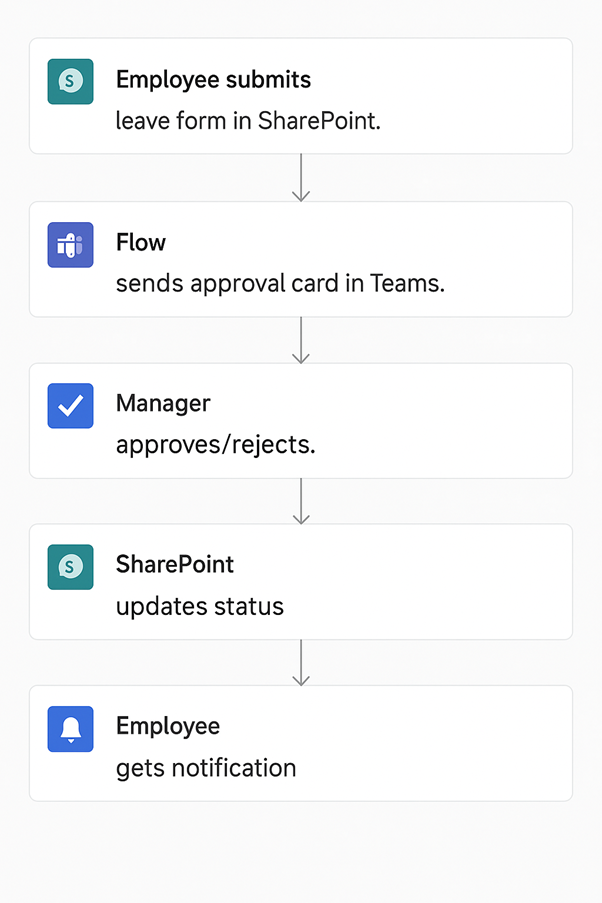
The result: Manual tracking stopped, no requests slipped through, and HR and managers gained a clear view of team availability, which made planning projects around time off much easier.
Tracking employee working hours is an important HR and operations process used to monitor attendance, calculate payroll, and understand workforce productivity. In many organisations, employees record their working hours manually in spreadsheets or timesheets. This approach often leads to missing entries, inaccurate records, and additional administrative work for HR teams.
Our ClickUp Power BI dashboard helps managers monitor working hours, time-tracking compliance, and employee utilisation. It is useful for professional services, consulting, agencies, and other businesses where project managers, operations managers, and department heads need visibility into how team capacity is being used.
Our Power BI developers custom-built this dashboard using ClickUp data. It analyses hours logged by each employee, utilisation rates, workload distribution, and hours spent across projects. Managers can filter the data by employee, team, project, and reporting period to identify missing time entries and understand where capacity is being allocated.
Low recorded hours can highlight incomplete ClickUp entries, while consistently high utilisation can identify employees who may be overloaded. Managers can use these insights to redistribute work, plan hiring, and keep workloads at sustainable levels.
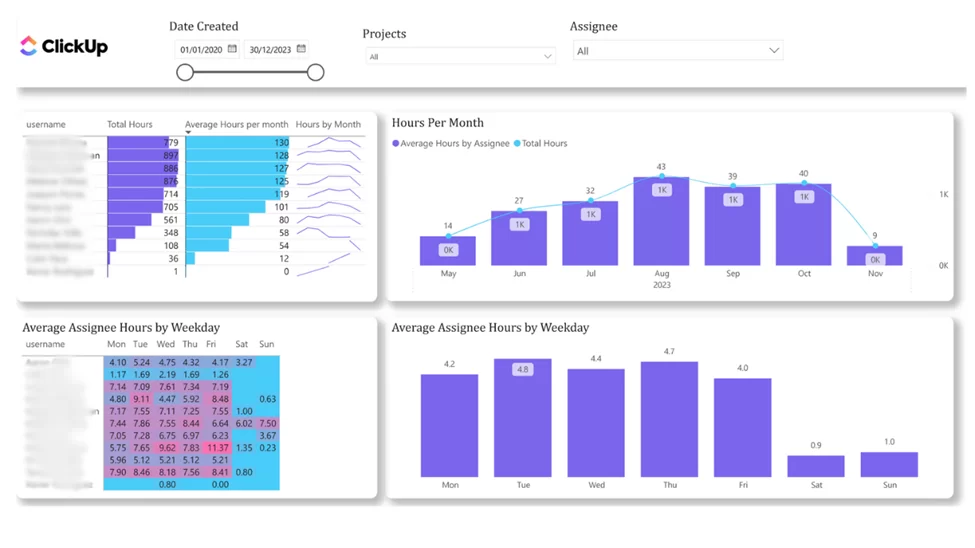
The automation improved attendance accuracy and eliminated manual timesheets. HR teams reduced administrative work, while managers gained real-time visibility into employee activity and productivity.
Operations teams keep the business running with reporting, task coordination and document management. These processes are repetitive by nature, which makes them some of the easiest wins for automation.
Scheduled reporting is a common automation use case for teams that need decision-makers to receive timely updates without relying on manual follow-up. In many organisations, dashboards already contain the right insights, but reports still have to be exported and shared manually. This often creates delays, inconsistent formatting, and dependency on one person to distribute updates.
In the project our client discussed in the above video, we replaced the client’s manual data extracts with an automated pipeline built on an Azure SQL database. We also automated the calculation of their most complex KPIs using DAX measures in Power BI, so the numbers are always consistent and up to date without anyone having to rework them by hand.
The impact was immediate. When we first started working with the client, their team was spending around 15 hours every week refreshing reports. Today, that same work takes just 2 hours, freeing up 13 hours a week for analysis and decision-making instead of data wrangling.
Automating task creation helps teams turn incoming requests into structured work without manual admin. Instead of reading emails, copying details, and assigning tasks by hand, businesses can convert requests into ready-to-action tasks automatically. This reduces repetitive work, improves consistency, and helps teams focus more on delivery.
In the above video, our consultant demonstrates an automated workflow designed to prevent missed tasks from emails by automatically creating task cards in Microsoft Planner. By linking a Trigger (email arrives) directly to an Action (task created with pre-filled fields), manual data entry is eliminated, ensuring no deadline or assignment gets forgotten
Our team built this type of automation for project managers who regularly received work requests by email. They previously had to open each message, interpret the request, create a task manually, copy over the subject, description, and deadline, and assign it to the right person. This process took time, created room for errors, and slowed down project execution.
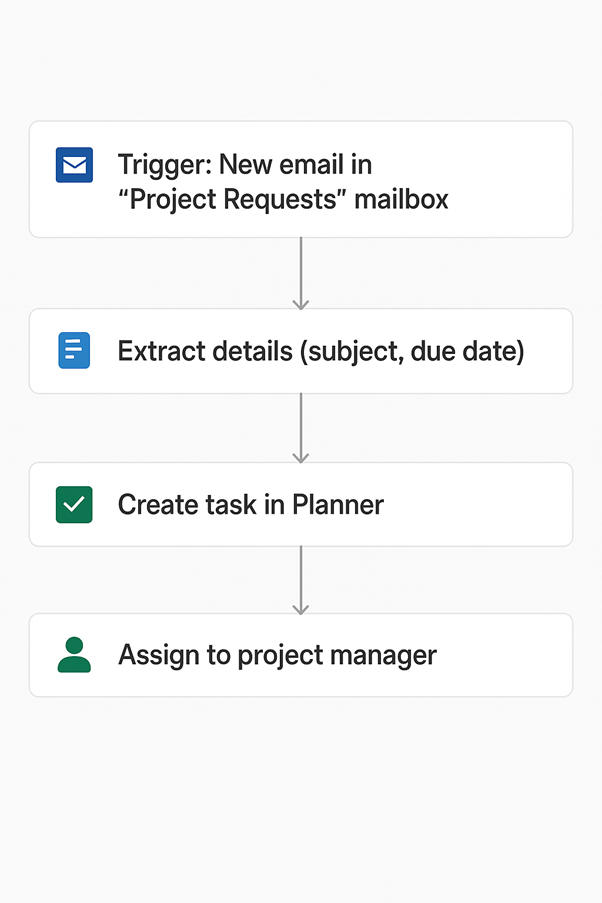
The result: Project managers stopped spending time on task entry. Details were captured accurately, requests stopped going missing and the team gained a central view of incoming work, which made assigning and coordinating tasks much faster.
File organization automation involves intelligently routing files to relevant folders based on data tags. This is highly relevant for law firms, for example, when they need to store legal files for every client in a separate, secure folder. It typically works by creating a custom interface like a Power App where staff load documents and enter metadata (client name, type of document, etc.). The system then automatically routes the file to the exact right location
We solved this problem for an organisation where employees across different departments were saving files into one shared folder. Over time, the folder became cluttered with no naming conventions or organised subfolders. We built an automated workflow that monitored the folder, identified file types, and moved each file into the correct subfolder automatically.
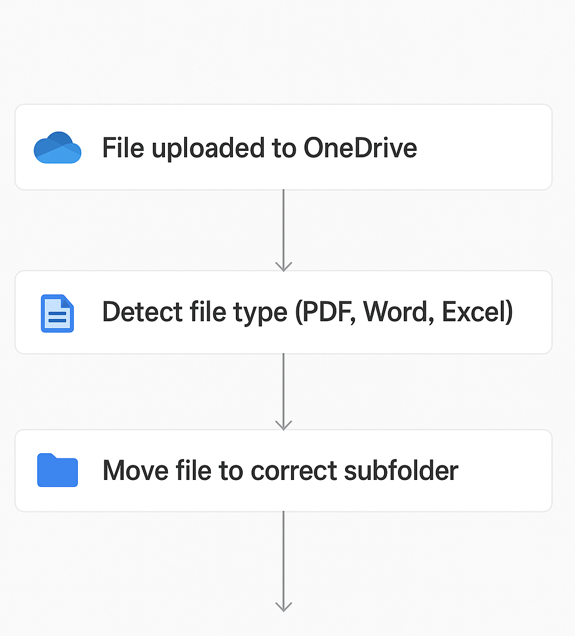
This automation made documents much easier to find and reduced the risk of files being misplaced or overlooked. Employees spent less time searching through disorganised folders, which improved productivity and reduced frustration. It also supported better collaboration by giving teams a cleaner file structure that could scale across projects and departments.
Customer support teams rely on feedback to measure service quality and improve processes. Automation ensures feedback is collected consistently and stored in a central system for analysis.
Customer feedback collection is an important support process because it helps businesses measure satisfaction and identify service issues after tickets are resolved. Getting customer feedback shouldn’t require manual chasing. Our automation handles getting reviews from customers by triggering multiple, intelligently spaced follow-ups via email or SMS after a service is completed, maximizing your response rates without requiring staff to send manual reminders.
Customers receive a standardised message with a feedback form, and all responses are stored in a central system for tracking and analysis.
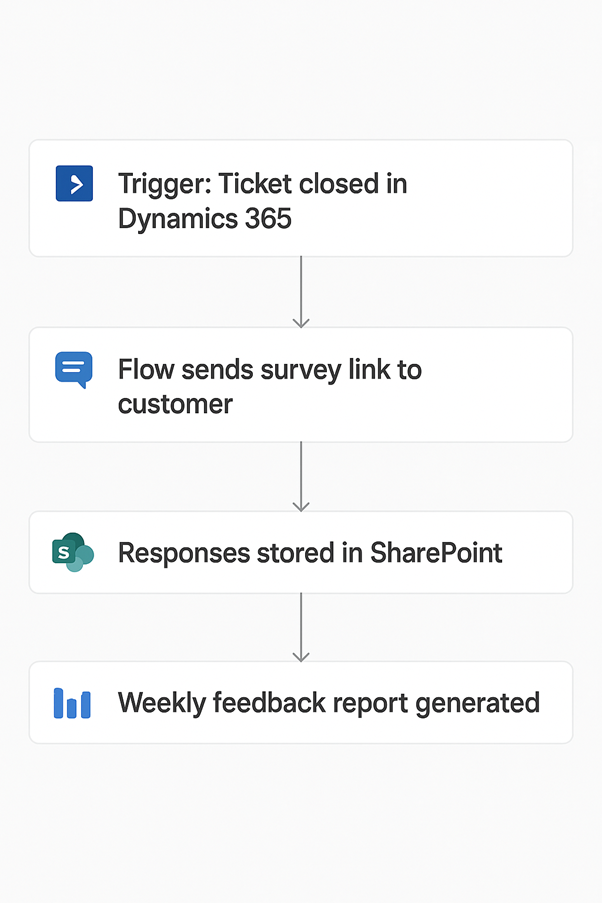
Every resolved ticket now triggers a feedback request, which improved consistency and lifted response rates. The team stopped doing manual follow-ups, and managers gained a single view of customer satisfaction data.
Marketing teams must monitor brand mentions and maintain consistent content publishing. Automation helps teams respond quickly to customer interactions and manage campaigns more efficiently.
Keeping track of paid ad spend manually can lead to budget blowouts. By the time someone opens the Google Ads dashboard and notices a campaign has overspent, the money is already gone. We build automated alerts that notify your team the moment a Google Ads campaign hits its monthly budget limit, or when the budget is being used up faster than it should be. That gives your team time to scale campaigns down before a small overspend turns into a big one.
The alerts plug straight into the tools your team already uses every day. Instead of logging into yet another platform, your marketers get a message in Microsoft Teams or an email in Outlook the moment something needs attention. Each alert tells them which campaign triggered it, how much has been spent so far and how that compares to the budget, so they can act straight away without digging for the details.
You decide what counts as a problem. You might want a heads up when a campaign reaches 80% of its monthly budget, a warning when daily spend runs well above its usual pace or an alert when a single campaign suddenly starts eating into the budget of others. We set the thresholds around how your team works and adjust them as your campaigns grow.
If you already use Power BI for reporting, we can connect the same Google Ads data to your dashboards. Your team can then see spend trends over time alongside the real-time alerts, which makes it much easier to spot patterns and plan budgets more accurately next month.
Scaling organic traffic is labor-intensive, but AI automation can handle the heavy lifting. Researching keywords, writing drafts and going back through old posts to add internal links can eat up hours of your team’s week before a single article goes live. We deploy workflows that take care of these repetitive steps, so your writers and marketers can spend their time on the parts that actually need a human touch.
It starts with keyword research. Our workflows pull search data for the topics you care about, group related terms together and flag the ones worth targeting based on search volume and how hard they are to rank for. Instead of starting from a blank spreadsheet, your team gets a ready-made shortlist of keywords to work from.
From there, the workflow can generate SEO-optimized blog drafts built around those keywords. Each draft comes with a suggested title, headings, a meta description and a structure that matches what’s already ranking for that search. Your team reviews and edits the draft to add their own expertise and brand voice, which means you get the speed of automation without publishing generic content that reads like it was written by a machine.
Tools like SendPulse allow teams to set up chatbot comment triggers and respond instantly, either in the comments or via a private DM. This ensures every interaction receives a timely reply, reduces manual effort, and keeps the team focused on more complex customer issues.
IT teams frequently manage tasks such as extracting data, integrating systems, and maintaining reliable data pipelines across multiple platforms. When these processes are handled manually, they become slow, repetitive, and prone to errors. Business process automation helps organisations collect and process large volumes of data more efficiently while ensuring the information remains accurate and consistently available for reporting and analysis.
Web scraping is commonly used by organisations that need to collect data from public websites for market research, competitor monitoring, or reporting. However, when this data is gathered manually, employees must repeatedly copy information from web pages into spreadsheets or databases. This process is time-consuming, inconsistent, and difficult to scale as the volume of data increases.
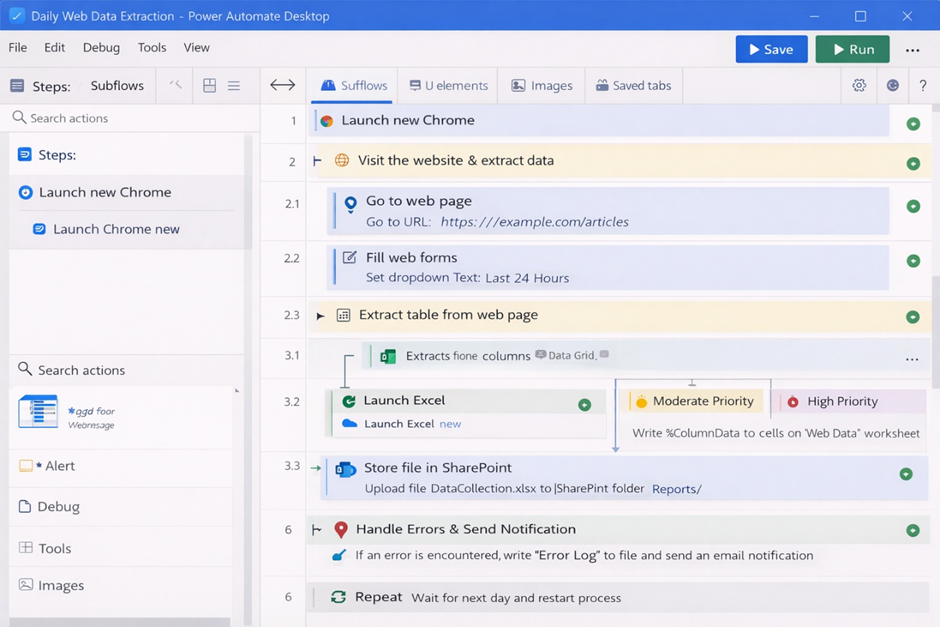
We developed an automated workflow that navigates the target website, extracts the required data fields, and stores the information in a structured dataset for analysis. The automation runs on a scheduled basis, ensuring the data is collected regularly without manual intervention.
The automation reduced manual data collection by over 80% and ensured information was captured consistently every time. Teams gained access to reliable and up-to-date datasets without spending hours copying data manually. This improved reporting accuracy, supported faster analysis, and enabled decision-makers to work with current market insights.
Supply chain teams manage processes such as inventory tracking, stock replenishment, and asset location monitoring. When these processes rely on spreadsheets or disconnected systems, it becomes difficult to maintain accurate stock levels or track where items are located. Business process automation helps supply chain teams centralise inventory data, improve visibility, and ensure stock movements are recorded in real time.
Inventory management is a common supply chain process that benefits from automation. When inventory is tracked manually in spreadsheets, businesses often struggle to maintain accurate stock levels, locate items quickly, or understand how inventory is distributed across locations or customers.
We worked with a company that rents office plants to corporate clients and struggled to monitor inventory across locations. Staff spent several hours each week updating spreadsheets and often had difficulty locating specific items or understanding current stock levels.
To solve this problem, we developed a custom inventory management application that allows warehouse staff to scan item barcodes and update stock automatically. The system also generates shipping labels when orders are placed and tracks where each inventory item is located. In addition, we built a reporting dashboard that shows how many items are assigned to each client and where they are deployed.
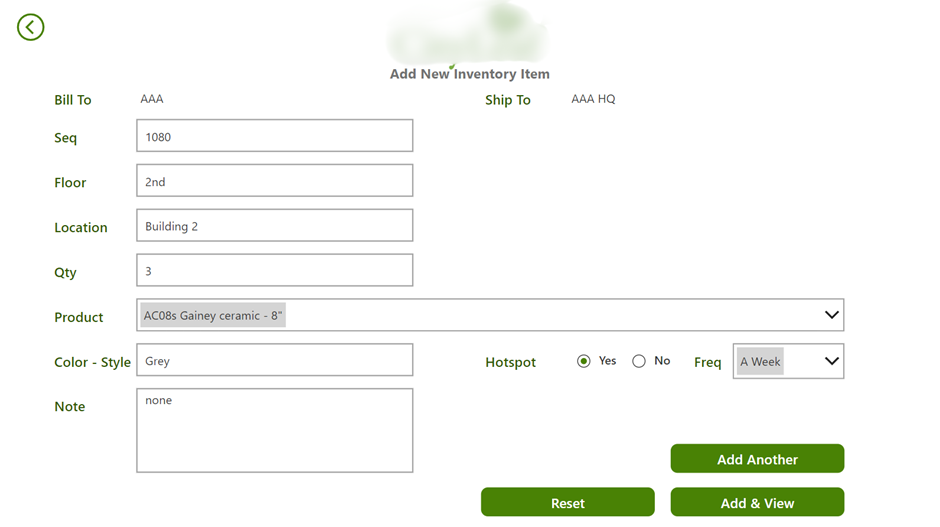
This automation removed the need for manual spreadsheet updates, improved inventory accuracy, and provided a real-time view of stock levels and asset locations. As a result, warehouse teams could manage inventory more efficiently while management gained clearer visibility into supply chain operations.
You don’t need to automate everything at once, and you shouldn’t try. The best first projects usually tick four boxes: they happen often, they follow clear rules, they cause real frustration, and they touch only a few systems.
Looking at the 12 examples above, the quickest wins tend to be single-trigger workflows like leave requests, expense approvals, feedback surveys and file sorting. Each starts with one event, follows one path and delivers value almost immediately. Bigger builds like the inventory app, invoice capture with record updates or scheduled web data collection take more planning because they connect several systems or need a custom app. They also tend to deliver the largest long-term savings.
A practical approach is to start with one quick win, prove the value to your team and then use that momentum for a larger project.
When it comes to building these workflows, choosing the right platform is critical. The tool you pick shapes how secure your data is, how easily your automations connect to the systems you already use and how much it will cost to scale as your business grows. Here is a breakdown of the leading automation software on the market and where each one fits best.
The Power Platform (Power Automate, Power Apps and Power BI) is our top choice for enterprise-grade automation, and it’s the platform we build every workflow on. It integrates deeply with the Microsoft 365 ecosystem, making it incredibly secure for handling sensitive finance, HR and operational data. Your automations inherit the same security, permissions and compliance controls that already protect your Outlook, Teams and SharePoint, so there’s no need to hand your data over to another vendor.
It also covers more ground than most people expect. Power Automate handles cloud workflows between apps, Power Automate Desktop adds robotic process automation for older systems, Power Apps lets you build simple internal tools on top of your workflows and Power BI turns the results into live dashboards. Having all of that under one roof means fewer tools to manage and fewer places where things can break.
Zapier is the industry standard for connecting thousands of third-party web apps. It’s ideal for fast, multi-step workflows (like routing web leads into a CRM) without requiring complex API coding. Small teams often like it because setup takes minutes and the interface is easy to pick up. The trade-off is that costs can climb quickly as task volumes grow, and it sits outside your Microsoft environment, which matters if you’re moving sensitive data around.
Make provides a visual, drag-and-drop canvas that excels at highly complex, logic-heavy workflows. It’s a popular pick when automations need advanced conditional pathways and heavy data transformations, and many users find it more affordable than Zapier at higher volumes. Like Zapier, though, it runs as a separate platform, so businesses already invested in Microsoft 365 often find it simpler to keep that logic inside Power Automate instead.
For legacy systems that lack modern APIs, UiPath provides Robotic Process Automation (RPA). It uses digital “bots” to mimic human clicks and manual data entry across user interfaces, bridging the gap between old and new software. It’s a strong option for large enterprises running RPA at scale, but it can be expensive and complex to roll out. For many businesses, Power Automate Desktop delivers the same kind of screen-level automation at a lower cost and connects directly to the rest of their Microsoft workflows.
Implementing business process automation requires a structured approach to ensure workflows deliver real operational improvements. Instead of automating everything at once, organisations should focus on processes that are repetitive, rule-based, and time-consuming. Our workflow automation consultants always start there, with the high-volume manual work that’s easiest to measure and lowest risk to change.
1. Identify Processes Suitable for Automation
Start by identifying workflows that involve repetitive manual work such as approvals, data entry, reporting, or document handling. These processes usually occur frequently and follow clear rules, which makes them ideal candidates for automation.
Examples include invoice approvals, employee leave requests, report distribution, and task creation from emails.
2. Map the Current Workflow
Before building automation, document how the existing process works. Identify each step, the people involved, and the systems used.
This helps reveal bottlenecks, unnecessary steps, and points where errors occur. A clear process map ensures the automation reflects the real workflow and removes inefficiencies instead of replicating them.
3. Design the Automated Workflow
Once the process is mapped, design the automation logic. Define triggers, actions, approvals, and system integrations.
For example, a workflow may start when a form is submitted, route the request to the appropriate manager, update records automatically, and send notifications to stakeholders.
4. Test and Deploy the Automation
Before rolling out automation across the organisation, test the workflow with sample data and real scenarios. This ensures triggers work correctly, approvals flow properly, and system integrations behave as expected.
After testing, deploy the automation and make it available to the teams who will use it.
5. Monitor and Improve the Process
After deployment, monitor the automated workflow to ensure it performs as expected. Track metrics such as processing time, error rates, and user adoption.
Continuous monitoring allows organisations to refine workflows, expand automation to additional processes, and maximise long-term efficiency gains.
Business process automation removes recurring tasks such as extracting data, updating reports, and moving information between systems. Automated workflows run these steps on a schedule or trigger, allowing employees to focus on work that requires analysis or judgement.
For one digital marketing agency, Vidi Corp automated reporting across more than 80 client accounts. The solution saved 50 working hours per week and removed a quarterly lead-reporting task that previously took 20+ hours.
Automation reduces the time between receiving data and completing the next step in a workflow. APIs, databases, and automated reporting can move and process information continuously instead of waiting for someone to initiate each stage.
Vidi Corp helped War Room Operations automate data flows using REST APIs, Azure, and Power BI. Report generation dropped from 48 hours to under five minutes, while the client reported a 40% faster turnaround on strategic decisions.
Automated workflows apply the same rules every time data is transferred, transformed, or entered into another system. This reduces the opportunities for mistakes caused by repeated manual data entry.
One of our client’s automated REST API feeds reduced data-entry errors by 80%. The same project increased data integrity across business units to 99.7%.
Business process automation can connect systems through APIs, databases, and automated data pipelines. This creates a consistent flow of information between departments and reduces the need to consolidate separate datasets manually.
Vidi Corp consolidated data from six systems into one central database for a client. This reduced manual data consolidation tasks across departments by 95%.
Automation can reduce the resources required to maintain recurring processes such as reporting, data preparation, and reconciliation. The biggest savings occur when a workflow removes a substantial amount of recurring administrative work rather than automating isolated tasks.
Neterra replaced Excel-based report creation and maintenance with automated Power BI reporting. According to its CFO, the solution saved the cost of one full-time business analyst position dedicated to creating and maintaining those reports.
The 12 business process automation use cases above show how much time teams get back when approvals, documents, reporting and data collection run on their own. Whether you’re in finance, HR, operations, customer service, marketing or supply chain, there’s almost certainly a process in your business that fits one of these patterns.
You can see more of our work in our project portfolio, or learn about our business process automation services. If you’d like to talk through what you could automate first, get in touch with our team.
Common business process automation examples include invoice processing, expense approvals, leave requests, employee onboarding, automated reporting, customer feedback surveys, inventory tracking and turning email requests into tasks. Most follow the same pattern: a trigger starts the process, the workflow routes it automatically and the results are recorded in one central place.
Start with processes that happen often, follow clear rules and involve only a few systems. Approval workflows like expenses and leave requests are usually the easiest place to begin because they deliver value quickly with little risk.
Business process automation (BPA) automates an entire process from start to finish across systems, using workflows, integrations and business rules. Robotic process automation (RPA) uses software bots that mimic a person clicking and typing in an application, and it’s often used where a system has no way to connect directly. RPA can be one part of a wider BPA project.
It depends on how many systems are involved. A single approval workflow can often be built and tested in a few days, while projects that connect several systems or need a custom app usually take several weeks.
Basic workflows can often be built visually without code. Enterprise-grade automation usually needs more: expressions, API calls, error handling and custom connectors. That’s why most enterprises pair internal citizen developers with a specialist partner for the complex builds.
Popular options include workflow platforms, RPA tools and low-code app builders. We use Microsoft Power Automate for workflows, Power Apps for custom apps and forms and Power BI for reporting, because they work natively with Microsoft 365.


