
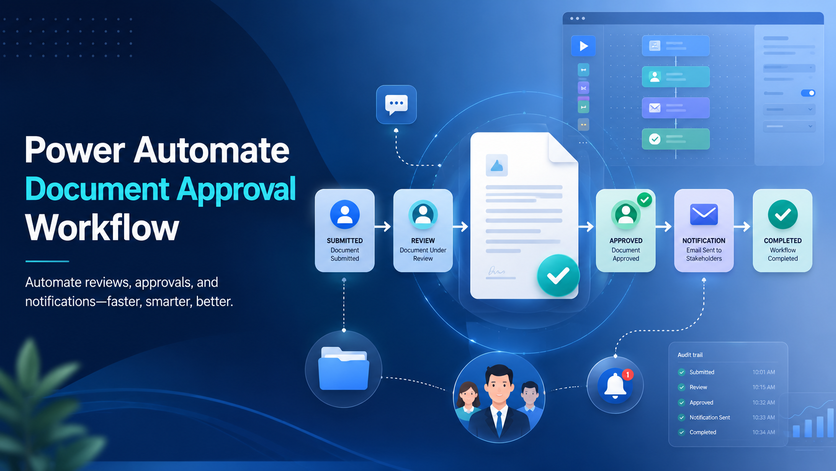
Power Automate document approval workflows do a fantastic job of automating how documents get reviewed, approved and tracked across an entire organisation. Gone are the days when you’d manually forward files by email and then have to chase approvers for updates – Power Automate sends documents straight to the right people, keeps an accurate record of every approval decision and updates the document status in an instant. This all adds up to a much faster, much more consistent approval process with a complete audit trail for documents like contracts, invoices, purchase orders and policies. Built on SharePoint and Power Automate, a SharePoint document approval workflow like this becomes a single source of truth for every review and approval decision.
Our Power Automate consultancy regularly designs and implements Power Automate document approval workflows for organisations in all sorts of sectors – finance, HR, procurement, legal and operations. Every business is different with its own approval rules, compliance requirements and document management procedures, so the workflows we build are tailored to each client’s specific Microsoft 365 environment. This guide will use real-life screenshots to show how a modern document approval workflow is put together, configured and managed.
Recently, we built a Power Automate document approval workflow that kicks in automatically whenever someone uploads a document to a SharePoint folder. This is one of our best Power Automate flow examples that checks who the user’s manager is through Microsoft Entra ID, uses the Approvals connector to send them an approval request, and then routes the document on the basis of the outcome. If the document gets approved, it gets moved to an ‘approved’ folder and the user gets a notification. If it gets rejected, the document gets moved to a ‘rejected’ folder and a rejection notification goes out. If there’s no manager assigned, the workflow automatically bung the document into an exception folder and alerts the user.
A Power Automate document approval workflow is an automated cloud process that sends a submitted document to one or more approvers, sits on its laurels until a decision is made and then updates the document on the basis of the decision. When someone uploads a document, the workflow automatically sends it to the right person, waits for a decision, updates the document’s status, and carries on from there based on the result. In other words, document approval in SharePoint stops being a manual email chase and becomes a hands-off, automated process.
Four Microsoft 365 components typically all work together here. SharePoint Online stores the documents and the associated metadata. Power Automate takes care of the workflow logic, including triggers, conditions and actions. And the Approvals connector sends approval requests to people via Outlook, Microsoft Teams or the Power Automate mobile app.
Unlike a simple email notification, a document approval workflow keeps a structured record of every approval decision. Users can see who approved or rejected the document, when the decision was made and any comments that were provided – all of which creates a reliable audit trail rather than relying on email conversations.
Common business process automation use cases for this flow would be things like invoices, vendor contracts, HR policies, marketing assets, engineering specifications – basically, any business document that needs to go through a formal review before it gets processed or published. That’s exactly the kind of scenario a SharePoint document review workflow is built for. The sections below will look at how all these components work together in a real document approval workflow that we recently implemented for one of our clients.
Let’s get started by answering a few key questions:
Next, define the business rules that are going to control the workflow. For instance, invoices over £5,000 might require the CFO’s approval, while contracts might need approval from both Legal and Finance before they can be signed. We’ll also need to decide how reminders get sent, how escalation rules work, how approval deadlines are handled and what happens to documents that get rejected.
A lot of organisations use document approvals to boost governance and support quality or compliance frameworks like ISO 9001. Document approval is one of the most common jobs that comes through our workflow automation consulting work. Recording all those approval decisions, comments, timestamps and document versions gives you the traceability you need for audits and shows that documents are going through the process according to defined business procedures.
Finally, decide how you’re going to store and keep approval history. Most organisations keep all that approval status, comments, timestamps and document metadata in SharePoint so that you can do reporting, audits and record-keeping. This is one of the most common SharePoint use cases based on our experience.
Before we started building the Power Automate workflow, we got the SharePoint document library all set up first. In our client implementation, every time someone uploads a file to a dedicated SharePoint folder, it automatically triggers the approval process – so the document library is basically the foundation of the entire SharePoint automation.
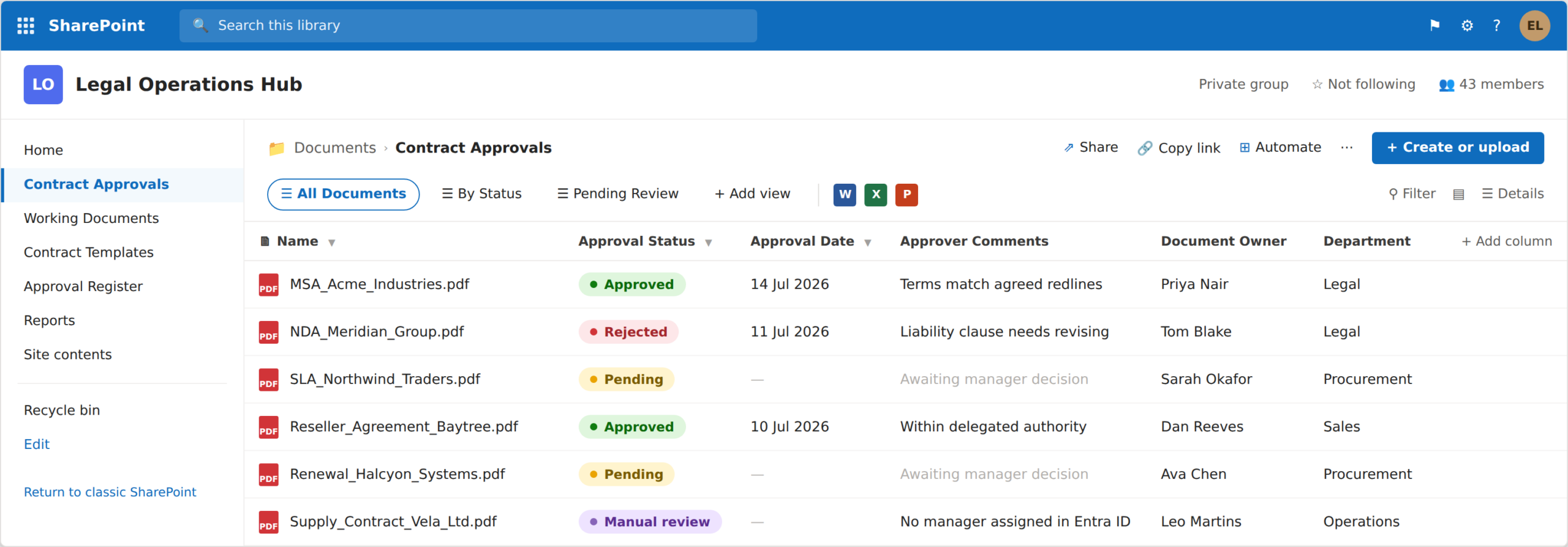
But it’s not just about storing documents – SharePoint also holds all the metadata that Power Automate uses throughout the approval process. Columns like Approval Status, Approval Date, Approver Comments, Document Owner and Department get automatically updated as the workflow goes along, so users can see exactly where each document is at – without having to go in and open the flow itself.
We also built the library structure with the workflow in mind. Once a decision is made on a document, it gets automatically filed away in a separate folder for approved or rejected documents. But if a user’s upload can’t be processed – like when they don’t have a manager assigned – it gets kicked over to a manual review folder for someone to take a closer look. And with SharePoint permissions in place, it makes for a much more scalable and easier to manage document approval process all round – one that’s also super easy to audit and keep up to date.
We put together a Power Automate document approval workflow for a client recently, which shows how you can automate the whole thing – turning what used to be a manual review process into a fully automated document review workflow. We ditched manual approver assignments and instead had Power Automate figure out who should be the right person to sign off on the document. This lets the same workflow run smoothly across the whole organisation, without having to keep track of new approvers for each department every time there’s a change.
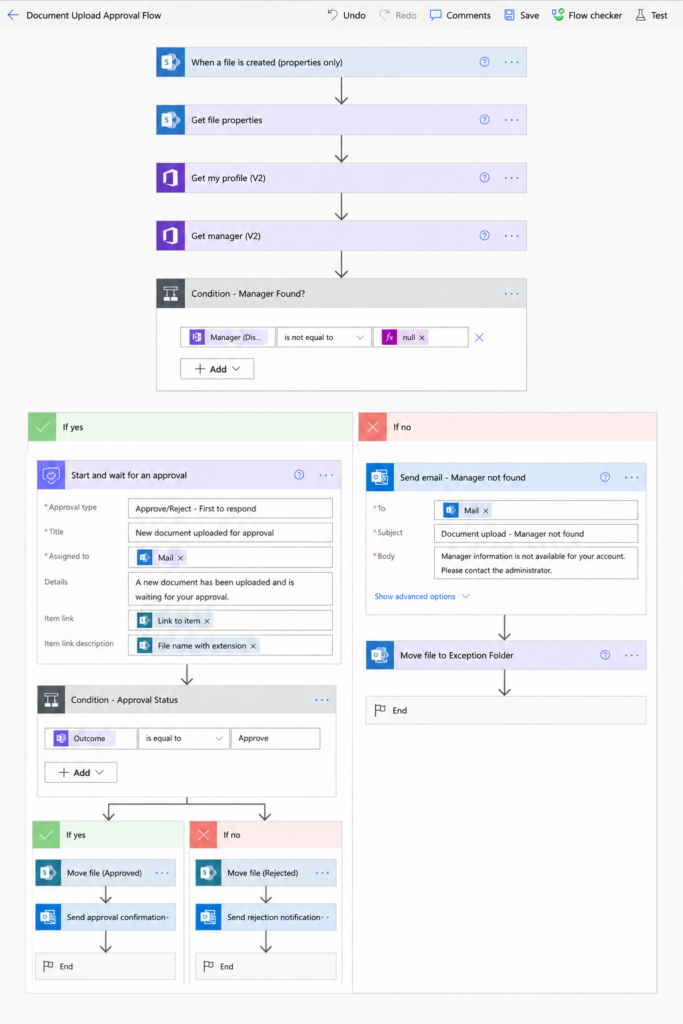
When a new document gets uploaded to SharePoint, Power Automate pulls out the file details and uses the Get manager (V2) action to grab the uploader’s line manager info from Microsoft Entra ID. If a manager is found, the workflow kicks off an approval request using the Start and wait for an approval action and then waits until someone makes a decision before moving on. Approved documents get moved to an Approved folder, rejected ones go into a Rejected folder with the approver’s notes, and users without an assigned manager get kicked over to an Exception folder for manual review.
Using Microsoft Entra ID to sort out approvers on the fly means the workflow is heaps easier to keep up with as the organisation changes – new managers, restructuring, and staff changes all just get picked up automatically. That means way less admin effort and you still get to make sure documents are always going to the right person to review.
The Start and wait for an approval action is the real star of our document approval workflow. Once Power Automate has figured out who the employee’s manager is, it fires off the approval request and then just waits until someone responds to carry on.
When our Power Automate developers are setting up the approval action, there are a few key settings we focus on getting right:
Approval requests go out via Outlook, Microsoft Teams, and the Approvals app – so users can respond from the one app they use most.
And to make sure everything is on record, we automatically log the approver’s comments, the decision they made, and all the relevant dates – that creates a complete audit trail, helps the submitter understand what went wrong if their document got rejected, and keeps the organisation on track for all their governance and compliance requirements. We often recommend making comments mandatory if a document does get rejected.
Once the approver has made a decision, the workflow decides what happens next and just takes care of the rest – that way every document ends up in a known state and users can always see what’s going on.
If the document gets approved, the workflow updates the SharePoint approval status, puts the file in the Approved folder, and lets the document owner know the approval process is all done. And since we record the outcome in SharePoint, users don’t need to go digging around in Power Automate to see the current status.
If the document gets rejected, the workflow goes ahead and logs the rejection, saves any comments from the approver, and fires off a message to the document owner with all the feedback. That gives them a clear idea of what needs to change before they can resubmit the document.
Rather than just treating a rejection as the end of the process, a lot of orgs implement a revision loop. The document gets sent straight back to the author, gets updated based on the approver’s feedback, and then gets resubmitted through the same workflow all over again. That creates a nice controlled approval cycle where every decision, comment, and status change gets recorded – which is perfect for keeping tabs on governance and auditing needs.
Most organisations quickly outgrow a basic single-approver process to be honest. Depending on the type of document, approval thresholds, and departmental responsibilities, you’re often going to need more advanced routing logic to get everything sorted. More advanced approval flow is one of the classic Power Apps use cases since Power Apps enable you to supplement automated workflows with screens for taking user input.
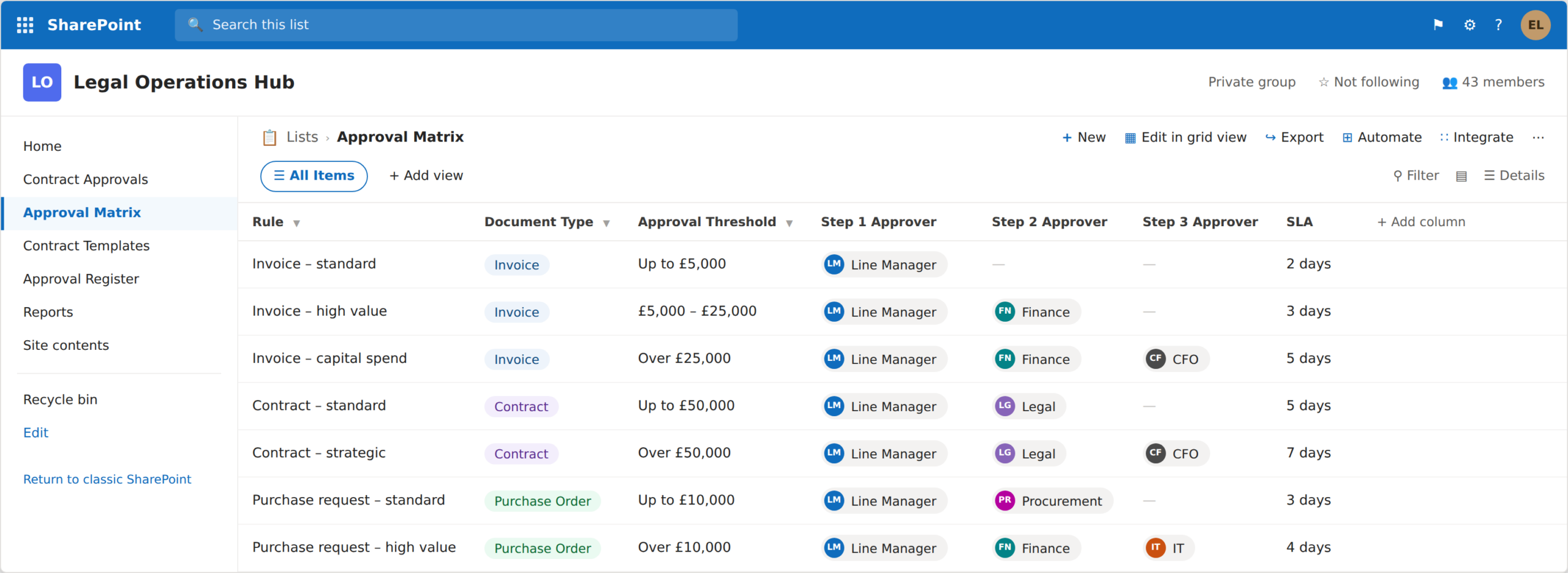
Sequential approvals send the document on its merry way through a bunch of different approvers, in order. For example, a purchasing request might need approval from the requester’s manager first, before going to Finance and IT for review. Each one has to sign off on it before the workflow can move on. Instead of assigning approvers manually, dynamic routing dictates who should give the thumbs up on a document based on the rules that make sense for your business. Approvers get selected using the employee’s manager, department, document type, contract value, or a central approval matrix stored safely in SharePoint. This means you can change approval rules without having to modify your workflow itself.
When we do enterprise workflow automation, we often break down complex approval processes into separate Power Automate flows, rather than cluttering everything into a single workflow. For example, one flow might handle the initial manager approval, while another flow gets triggered once that stage is done and takes care of approvals from departments like IT, Finance or Legal. This modular approach makes complex workflows so much easier to maintain, troubleshoot and extend as your business processes change over time.
Once your document approval workflow is up and running, the focus shifts from getting it done to ongoing monitoring and maintenance. When we work with IT teams, one thing that’s top priority for them is making sure the workflow is reliable, easy to fix and provides incredible visibility into every approval decision they make.
For business users, the most important information is usually stored in SharePoint. Approval status, comments from the approvers, timestamps and document metadata – all that gives a crystal-clear history of each document without needing to dig up Power Automate. This makes it dead easy for people to understand where a document is in the approval process and why a particular decision was made.
IT teams, on the other hand, rely on Power Automate’s run history to dig into failed workflows, track down unexpected behaviour and confirm approvals have been processed successfully. Reviewing run history regularly helps you catch issues before they start affecting users and gives you peace of mind that the workflow is running as it should be.
Lots of organisations also build Power BI dashboards to report on approval performance. Dashboards can highlight stats like average approval time, rejection rates, outstanding approvals and departmental bottlenecks. These insights help you figure out how to improve approval processes while keeping the trail of breadcrumbs that makes governance and compliance audits so much easier.
Power Automate Copilot can be a useful starting point for creating document approval workflows. Just describe the process in your own words, and Copilot will do its best to throw up a workflow based on Microsoft’s existing Power Automate templates which you can then fiddle with to match your business needs.
From what we’ve learned, Copilot does a great job with simple approval scenarios like sending a document to a single approver and recording the response. But more complex workflows usually need extra configuration to get right – that means things like dynamic routing, multiple approval stages, exception handling, integrations with SharePoint or other systems and organisation specific business rules to check.
If you’re building your first approval workflow, Copilot can give you a great head start by getting the initial flow done in no time. As your needs get more complicated, we usually find that some manual work is needed to make sure the workflow stays scalable, maintainable and runs in line with your organisation’s processes. If you’re designing a document approval workflow with multiple approval stages, integrations or advanced routing logic, our Power Automate experts can help design and implement a solution custom-tailored for your Microsoft 365 environment.
Power Automate document approval workflows help organisations standardize how documents are reviewed, approved and tracked. Whether you’re approving contracts, invoices, HR policies or other business documents, automating the process improves visibility, cuts down manual effort and gives a reliable audit trail.
From what we’ve learned, the most successful implementations start with a well-defined approval process before any workflows get built. From there, Power Automate and SharePoint give you the flexibility to handle everything from simple manager approvals to super complicated, multi-stage workflows with dynamic routing and lots of integrations across Microsoft 365.
If you’re planning a Power Automate document approval workflow or want to modernize an existing approval process, contact our experts to get help on design and implementation of a document approval workflow solution that matches your organisation’s business rules, governance requirements and Microsoft 365 environment.
Power Automate Approvals are designed primarily for Microsoft 365 users within your organisation. If external stakeholders need to review documents, it’s not uncommon to share the document using SharePoint and capture their feedback via another mechanism, while an internal user records the final approval decision to keep a complete audit trail.
From what we’ve learned, it’s a good idea to avoid hard-coding email addresses whenever possible. Instead, stash approvers in SharePoint, Microsoft Entra ID or an approval matrix so changes to managers, departments or business rules can be made without touching the workflow itself.
Absolutely. Approval workflows can route documents differently based on business rules such as document type, department, project or contract value. This lets a single approval solution cover multiple business processes while ensuring each document follows the right approval path.
The answer to this really depends on what’s outlined in your company’s governance and compliance policies. While SharePoint and Power Automate do actually hold onto operational information, a lot of organisations also keep a record of approval history in a dedicated list, database, or reporting solution, in order to have that extra layer of traceability for audits and other regulatory needs.
Sequential approvals need each person to approve before the next stage can kick off. But parallel approvals fire off to a bunch of approvers all at the same time, this is often used when multiple departments all need to have a look at the same document before it can get the green light.


