
SharePoint automation is a game-changer for organisations that want to get their Microsoft 365 house in order. Rather than relying on emails, spreadsheets, and endless manual follow-ups, automation sweeps in to make SharePoint document management, task delegation and workflow a whole lot easier. It uses pre-set triggers and actions to move files and data through SharePoint without needing constant input.
At Vidi Corp, our SharePoint consultants built over 1,000 automated SharePoint workflows for more than 600 clients – the likes of EY, Delta Airlines and American Express, to name a few. What we’ve seen is that most businesses are struggling with the same issues: approval bottlenecks, version control messes, and a lack of visibility into what’s going on – but the good news is these problems can be sorted with the right automation strategy.
In this article, we’re going to take a closer look at how to automate SharePoint workflows in real-life situations. We’ll cover the key tools like Power Automate and Power Apps, along with practical examples, step-by-step guides and top tips to help you build reliable, scalable workflows that actually work.
SharePoint automation is all about using workflows and rules to move data, documents and tasks through pre-set steps without anyone having to manually intervene. Forget about someone having to check a document library, send approval emails, or manually update spreadsheets – automation takes care of these routine tasks for you, because you define what triggers them in the first place.
The main tools include Power Automate flows (which handles complex workflows across multiple sites and systems), SharePoint rules (which do lightweight automation like sending basic notifications), and Power Apps (which handles form-driven validation and conditional fields). Some companies extend their capabilities by using third-party tools integrated via APIs when the native options don’t quite cut it.
Automated SharePoint workflows kick off based on a trigger: a new document is uploaded to a document library; someone changes a field in a list item; a deadline is looming; or a user submits an entry through Microsoft Forms. Unlike those clunky old on-prem approaches with SharePoint 2010/2013 workflows or InfoPath, modern Microsoft 365 tools make it easy to seamlessly integrate across Teams, Outlook and external systems.
Consider a contract approval scenario: a new file lands in your “Contracts – 2026” library and automatically zips off for sequential approvals, updates status metadata and sends out notifications via Teams adaptive cards – all without any human intervention to forward documents or check on the status update.
Every automation workflow has some standard components: a trigger gets the ball rolling, conditions figure out the branching logic, actions do the actual work, approvals pause for human input, and outcomes deliver the results.
Complex workflows branch off depending on the conditions. If the contract is approved, one path moves it to an “Approved Contracts” folder called “Final”; if it gets rejected, another path triggers a rejection notification and logs the outcome. Any effective workflow has a clear endpoint – the contract is done, everyone’s notified, and audit trails are in place for compliance.
Power Automate and SharePoint rules are the go-to tools for most automation scenarios, while third-party tools extend your capabilities for more complex cross-system orchestrations. Since classic SharePoint Designer workflows got the chop (2010 engine shut down 2020, 2013 engine sunset 2026 for Online), cloud-native approaches are the only way to go.
Power Automate is Microsoft’s top tool for automating SharePoint processes and connecting data across multiple systems. It lets you build workflows that move data around, trigger actions, and standardise operations without having to write custom code. In SharePoint environments, it’s commonly used to automate document handling, list updates, approvals and integrations.
It supports three main types of flows. Cloud flows run in the background, automating things like approvals, notifications and data movement between SharePoint and other systems. Desktop flows automate repetitive tasks on legacy or desktop applications by mimicking user actions. AI Builder flows add some extra smarts by extracting data from documents, classifying content or enriching workflows with AI-driven decisions.
Our consultants have many Power Automate examples in our portfolio for all sorts of SharePoint automation scenarios – from moving data between SharePoint lists and files to saving email attachments into SharePoint libraries, integrating third-party systems via APIs, extracting data from PDFs or forms, and generating Word documents from SharePoint data using templates.
Pricing varies depending on how much you use it. The per-user plan starts at about $15 per user/month for standard cloud flows, while the per-flow plan (around $100 per flow/month) is a better option for shared business processes. More advanced features like premium connectors and AI Builder come on higher-tier plans or are priced separately based on usage.
SharePoint rules are a built-in way to automate things without needing to step away from your SharePoint lists and document libraries. Site owners can quickly set up simple workflows to send notifications when specific things happen – like when a document status gets changed from “Pending” to “Approved”. They’re a great way to automate the basics, without having to go find some other tool.
Here’s how they work – you can set conditions on list or library data and use those to trigger actions. For example, if a manager wants to be notified whenever a document is uploaded to the “Approved” status, that’s a no-brainer. Because SharePoint does the heavy lifting on the logic side, it filters out any unnecessary executions, keeping the whole process nice and tidy.
Based on our experience providing SharePoint managed services, for simple use cases – like sending alerts or updating status – SharePoint rules are the way to go. They’re great for keeping teams in the loop on document changes, new uploads or changes to lists. And since they come for free with Microsoft 365 licences, there’s no additional cost to get started.
But here’s the catch – they’re pretty limited in what they can do, and are usually used alongside Power Automate, which handles all the heavy lifting for multi-step workflows or integrations with other systems.
Power Apps is where you go to build custom apps that interact with SharePoint and other data sources. It’s all about getting rid of all those boring spreadsheets and paper forms, and standardising how data is collected and managed.
We have all sorts of Power Apps examples in our portfolio, depending on what clients need. Canvas apps give you full control over design and user experience, while model-driven apps are based on the underlying data structure. These apps can connect directly to SharePoint lists, so you can create, edit and manage data in a nice, user-friendly way.
In practice, our Power Apps consultant use Power Apps to build solutions like request management systems, data entry tools, approval apps, and mobile apps for field workers. And the best part is, there’s a ton of common use cases for SharePoint – like replacing email-based requests, creating structured forms, or letting employees interact with SharePoint data from their phones.
Power Apps comes with most Microsoft 365 licences, and basic versions start at around $5-20 per user per month. But if you want to go big, you can get premium plans with advanced connectors and more.
Of course, there are always third-party options to extend SharePoint automation, especially when you’re dealing with structured workflows and enterprise processes. We’re talking Nintex, FlowForma Process Automation, and WEBCON BPS here – each with its own strengths and weaknesses.
Nintex has been one of the go-to options, but since it’s reaching end-of-life, people are moving on to Power Automate or other platforms. Nintex pricing starts at around $910 per month for cloud workflow automation, which is pretty steep.
FlowForma Process Automation is a no-code tool built for Microsoft 365 environments. It’s all about form-driven workflows, approvals and document processes. Pricing starts at around £2,000-£3,000 per year per process or department.
WEBCON BPS is an enterprise-grade workflow platform that’s all about complex workflows, integrations and audits. It’s super flexible and powerful, but requires a structured implementation. Pricing is custom, but starts around €30-€50 per user per month.
Business process automation is a no-brainer, and we’re seeing it have a huge impact across all sorts of departments. Here are some high-impact use cases where automating tasks delivers immediate value – from HR to Finance to Sales and Operations.
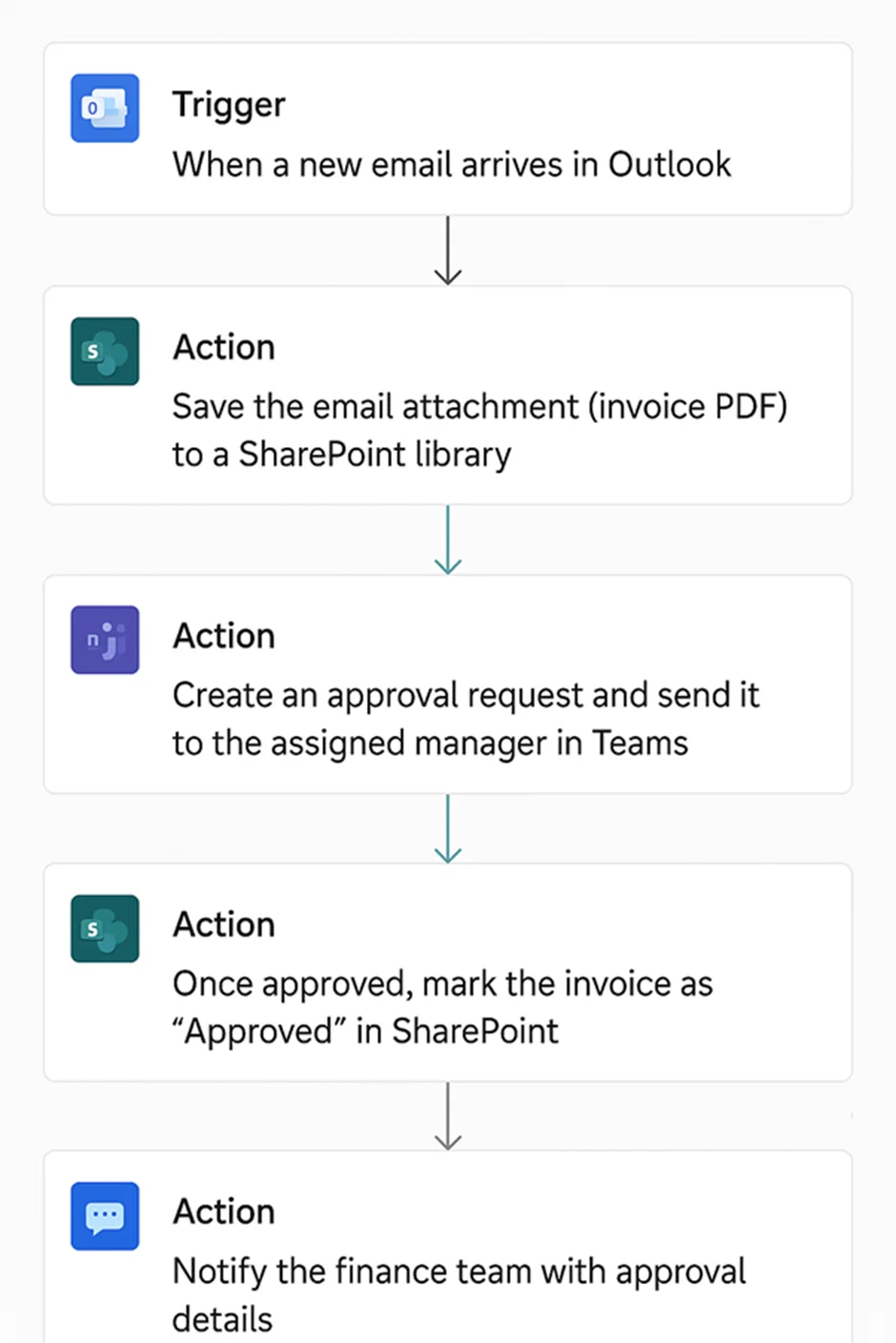
Power Automate is a powerhouse for automating email and SharePoint workflows. It’s super useful for processing emails, downloading attachments, extracting data and triggering workflows based on new emails. Our Power Automate developers recently used it in a real-life project to automate invoice processing for a finance team that was drowning in emails from suppliers.
Each invoice had to be manually downloaded, stored, forwarded for approval, and entered into finance systems – a real recipe for disaster and delay. We built an automated workflow using Power Automate and SharePoint that captured invoices from a shared mailbox, stored them in SharePoint with structured metadata, and routed them to the correct approver via Teams for one-click approval.
This solution knocked manual handling out of the process, chopping approval delays in half through real-time notifications, and putting all invoices into a centralised, audit-ready repository. As a result the team saw a boost in processing speed, a reduction in errors, and consistent, timely supplier payments.
Automating document creation in SharePoint is a pretty common automation use case for Power Automate – generating docs from structured data. This kind of workflow is often used for reports, proposals, inspections or compliance documents, where repeatedly copying and pasting data into Word templates becomes a slow, error-prone process as the volume of documents increases.
Our client Lift Consultancy did just that with the help of our RPA consultants – they relied on their technicians to manually copy audit data into Word reports after each client visit. As the business started to grow, this process became a major drag on productivity, causing delays and inconsistencies in formatting, and adding a significant administrative burden across multiple sites.
We automated document generation using Power Automate, SharePoint, and standardised Word templates. When new audit data was submitted, the system automatically populated documents with the correct details, tidied up formatting and generated reports without any manual input needed.
The solution freed up over 80 hours a week, improved consistency across all documents, and scaled with the business as it grew. This allowed the client to bring on new consultants more quickly and handle over 40% growth without adding to the administrative workload.
Approval workflows are probably the most common SharePoint automation use case. They usually cover processes like expense approvals, purchase requests, or document sign offs, swapping email-based back-and-forth for structured workflows.
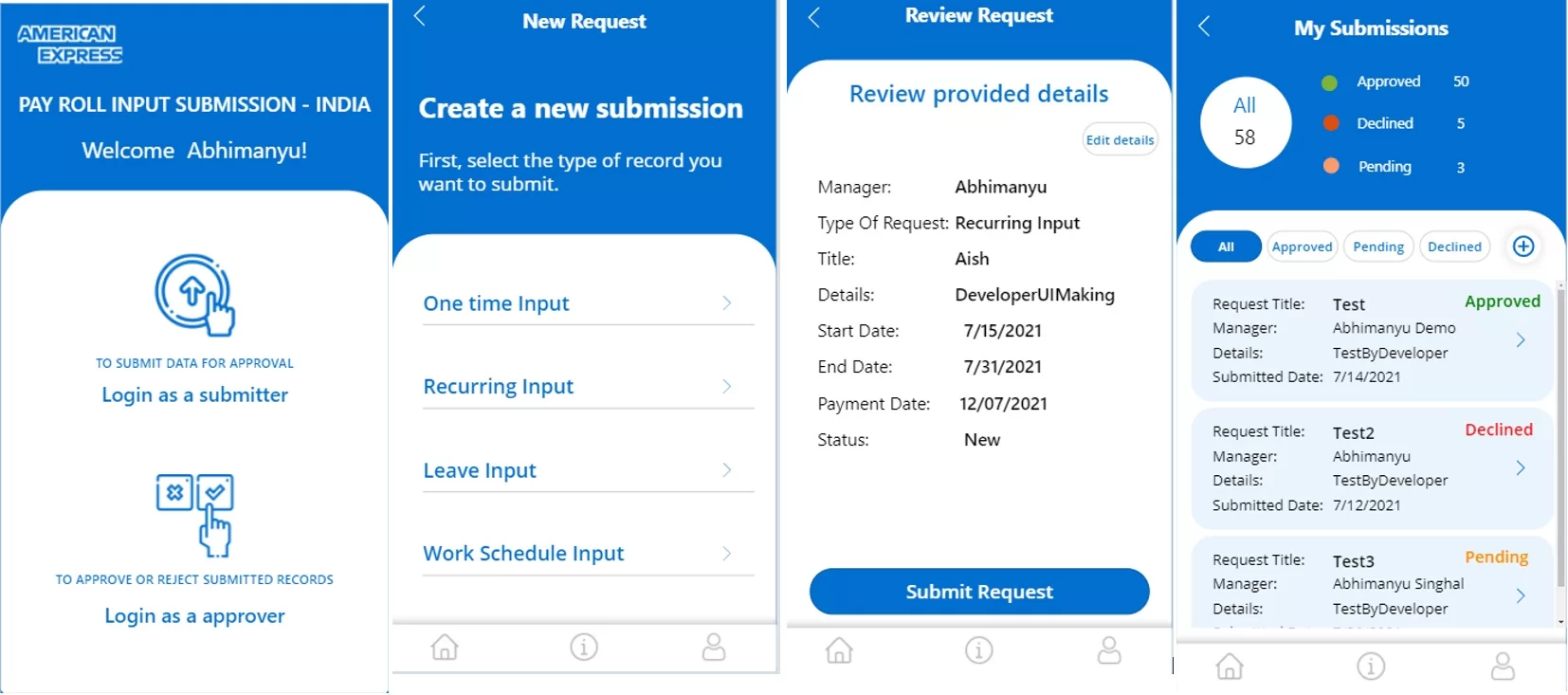
In a project for American Express, our business process automation consultants built a Power App that was connected to SharePoint to manage expense submissions. Employees could submit expenses and upload receipts with just a few clicks, while managers got instant notifications to approve or reject requests straight from the app, with the option to add comments and set automatic reminders.
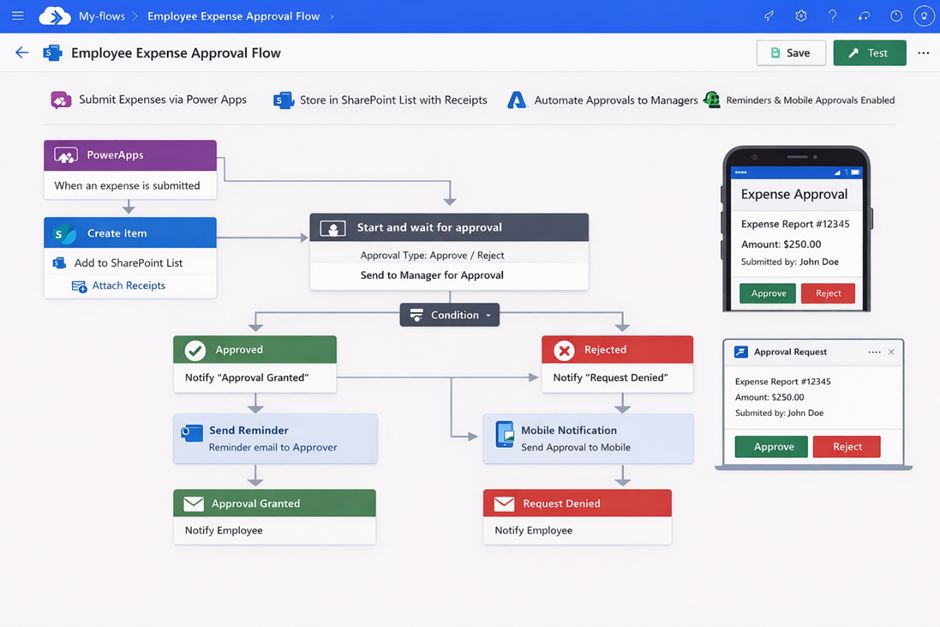
The workflow was fully automated using Power Automate, which meant that all submissions were tracked, approvals were routed correctly, and data was stored centrally in SharePoint. Finance teams could access real-time reports and export all records for audits and monthly closing.
Approval times were slashed by over 65%, and employees no longer had to chase for responses. Managers could approve requests from any device, while finance got a single, reliable source of data, cutting accuracy and payment delays.
Beyond just the standard ‘Alert Me’ emails, Power Automate lets you build sophisticated notification workflows with all sorts of business logic. For example, a project task list with due dates will trigger reminders seven days before deadlines, escalating to managers if items are still incomplete.
When designing your notification workflow, use the ‘Only trigger when’ condition to prevent unnecessary runs on high-volume lists that exceed 50,000 items. This will stop API calls and prevent throttling. Instead, use “Get items” with OData filters like DueDate lt ‘@{utcNow()}’ and Status ‘Incomplete’ to target only overdue items.
The approach transforms reactive email chasing into proactive, automated stakeholder communication.
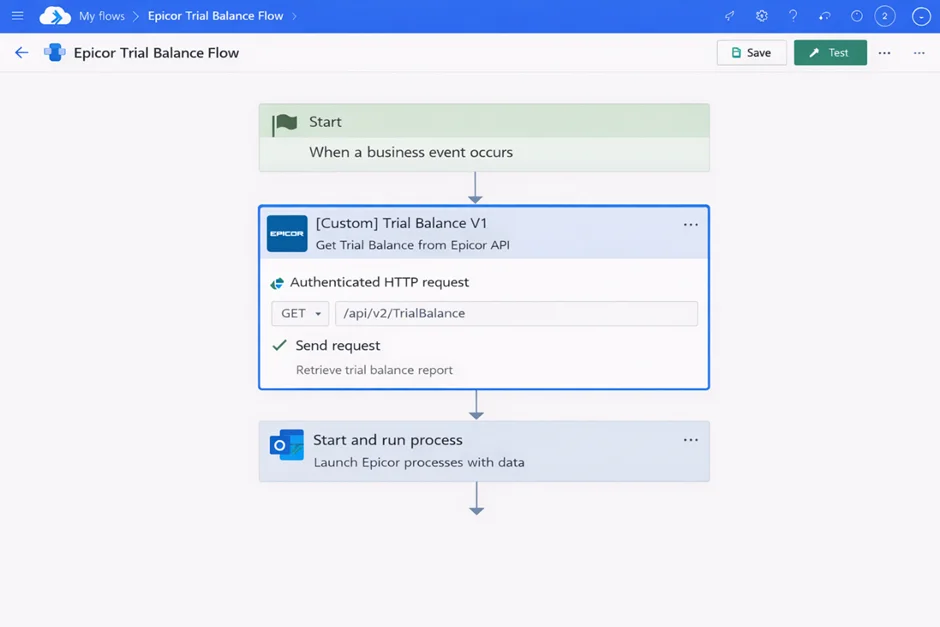
SharePoint List automation is used to keep data up to date and structured without needing manual input. These workflows usually run as scheduled or event-based cloud flows, making sure that SharePoint Lists stay in sync with external systems in the background.
In another project our data integration consultants worked on, a finance team was using Epicor but was manually extracting trial balance reports. Although the data existed in the system, there was no automated way to bring it into their reporting workflows, which caused delays and inconsistencies.
We built a custom Power Automate connector that integrated directly with Epicor’s API. The solution automatically extracted data and wrote it directly into a SharePoint List, making it available for reporting and further automation right away.
This approach is used when clients don’t want to use a SQL database. SQL databases can be expensive, and sending data to them requires a premium connector. By using SharePoint Lists instead, the client got a low-cost, fully automated solution while keeping reliable, up-to-date data for reporting and operations.
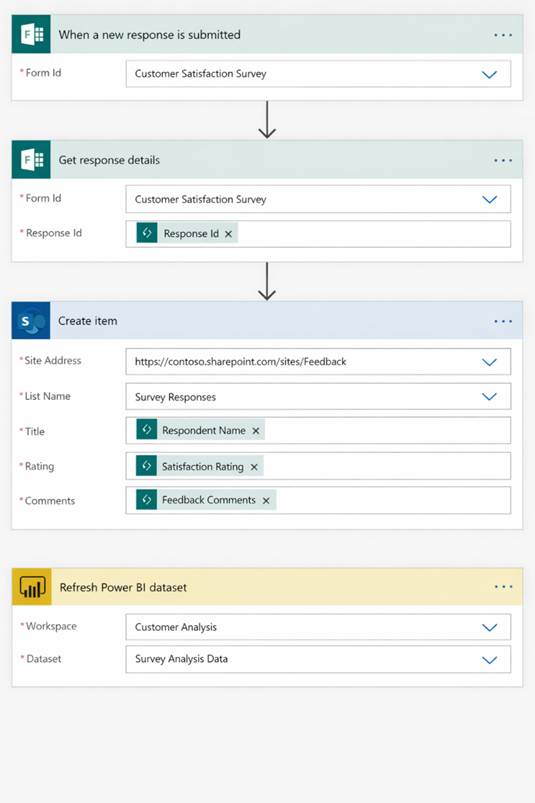
SharePoint form automation collects, stores, and structures data without relying on emails or manual entry. It usually involves capturing inputs through Microsoft Forms and automatically writing them into a SharePoint List for further processing and reporting.
In another project, our Power Platform consultants implemented a solution using Microsoft Forms and Power Automate. When a user submits a survey, Power Automate automatically captures the responses and sends them into a structured SharePoint List. This gets rid of the need to manually transfer or organise responses.
The SharePoint List then acts as a central data source connected to Power BI. This lets teams analyse survey results in real time, build dashboards and track trends without additional data preparation.
It creates a simple, fully automated data pipeline from form submission to reporting. It ensures data consistency, reduces manual work, and makes insights available for decision-making right away.
Poorly thought-out automations create more chaos than they resolve. We learned that when providing SharePoint development services, before building workflows, it’s necessary to take a step back and map out your current manual processes: figure out who’s in charge, what service level agreements (SLAs) need to be met, where key decision points are, and how you’ll measure success.
Governance is important from day one. Establish naming conventions ( Dept-Process-Version ) to avoid confusion, keep all your documentation in one place (we use a central “Automation Catalog” on our SharePoint site) and make sure people know who’s in charge of each workflow. If you’re automating something super important, use a service principal instead of an employee account so the flow doesn’t break if someone changes jobs.
SharePoint automation gets tangled up with security in all sorts of ways – permissions, Azure AD groups and sensitivity labels all come into play and impact what flows have access to what. Microsoft Purview retention policies ensure that automated archiving flows don’t accidentally delete something it’s not supposed to. And that means you should always check the retention status before moving any documents from “Active Projects” to archives
Data loss prevention ( DLP ) policies can block some actions, like sending sensitive information out of your tenant. Configuring robust DLP solutions prevents unauthorized outbound data transfers during automated flow executions. Get security and compliance on board before you build automations that touch financial data, HR records or customer PII. And make sure site settings and site collection features line up with what you need for automation.
There are some key limits you need to be aware of during your RPA implementation : SharePoint’s list view threshold (5000 items) , large library behaviour (100,000+ items) and API throttling (2000 calls a day per user). Use filtered triggers, process data in chunks rather than all at once and try to avoid running big “Get items” scans on stuff that’s changing all the time.
If something goes wrong with a flow, configure your “run after” settings to catch the failure and send a notification to your admins. Log the error to a “Flow Errors” list and review the run history every quarter to see if your flows are getting more complex and need some tweaks. Proper error handling can save you from accidentally deleting data and keep things consistent.
Automations only deliver value if users actually understand them and trust them. When you launch a new automation, put up some announcement posts on your SharePoint home site, make some short training vids and create some FAQ pages to answer the obvious questions.
Make sure your users can see what’s going on with the automation – use some visual cues like color-coded status columns and icons to show when something’s waiting for approval. Use Microsoft Forms connected to Power Automate to collect feedback and keep improving your workflows. And for goodness sake, document all your automations so you don’t have to worry about “shadow workflows” that the IT folk and process owners can’t even see
1. Identify a process you want to automate
Choosing the right SharePoint use case is the most important part. Look for a process that’s repetitive, follows a clear set of rules and is used often enough that automating it will make a real difference. Things like approval workflows, document routing, data entry, notifications and shuffling data between SharePoint Lists and other systems are all good candidates
2. Map the current workflow
Document how the process works today before you start trying to change it. Identify who submits the data, who approves it, what makes the next step happen, what exceptions exist and what the final output should be.
3. Pick the right SharePoint automation tool
Most of the time, simple alerts can be handled with SharePoint Rules, but if you need to automate something a bit more complex Power Automate is usually the way to go. If you need a custom interface for submitting or updating data Power Apps might come in handy.
4. Get your SharePoint data sorted
Most automations rely on having clean, well-structured data in your SharePoint lists and libraries. Make sure you’ve got the right columns and permissions in place to support the workflow you’re building
5. Build the workflow logic
Start with a trigger – e.g. a new item being created in a list, or a document being uploaded – then define the actions that need to happen next. This might include sending notifications, updating list items or creating new documents.
6. Test the workflow with real-world scenarios
Use real-life examples to test the workflow – including edge cases – to make sure it’s working as intended and doesn’t have any nasty surprises hiding under the surface.
7. Launch and monitor the automation
Once the workflow is live, keep an eye on how it’s performing. Track any errors, gather feedback from users and refine the process over time to keep the automation running smoothly and reliably.
Microsoft Copilot for Microsoft 365 and AI Builder are changing the game for SharePoint workflows. You can now describe a process in plain language and get suggested workflows back – and AI can even classify documents and route them without manual tagging. This means automation is now accessible to non-technical users and takes less effort to build and maintain.
Workflows are also getting smarter – using AI to analyse bottlenecks, identify inefficiencies and suggest improvements over time. And automation is spreading beyond SharePoint, connecting all sorts of other tools and platforms through APIs and webhooks.
The new unified SharePoint and Teams Workflows experience has just made all this a whole lot easier. You can now create approvals, trigger automations, and use pre-built templates all from within your normal work environment – not as a separate task. That makes automation part of your day-to-day operations rather than something you have to think about separately. To really get the most out of these new-fangled automation tools, you should be thinking of automation as a long game and a work in progress. Pick a very important workflow and get it automated, then document everything in a neat little ‘Automation Catalog’ and just keep building from there. That way, you can make steady progress and actually start to swap out all those clunky email-based processes for something that’s actually streamlined and connected.
The thing is, when you get SharePoint automation right, you can ditch all those manual, email-driven processes and replace them with nice, neat, structured workflows that actually scale. We’re talking about everything from simple little nudges to proper integrations with all sorts of external systems – and done right, it makes a world of difference. You’ll be way more efficient, way less prone to errors and your team will have a much better idea of what’s going on.
The key here is to start small, build up bit by bit and just keep getting better at it. As tools like Power Automate, Power Apps and all that AI malarkey start to get more powerful, the businesses that get in on the ground floor with automation are going to be way better off in the long run.
If you’re looking to whip your SharePoint workflows into shape, or even just need some help designing a solution that’s actually going to scale, give us a shout. Our team will help you find the places where automation can make the biggest difference and get you some actual results you can measure.


