
A Google Analytics audit is a structured review of your GA4 setup that finds tracking gaps, duplicate events, and broken attribution before they distort the reports you make decisions on. Most setups have at least one of these problems quietly running in the background, which is why the numbers can look fine on the surface and still be wrong.
As a Google Analytics audit agency, we have run GA4 audits for more than 200 companies, from Revolut to small and mid-sized ecommerce stores, and worked on GA360 properties where the accuracy and governance bar is high. Across all of them the pattern is the same: tracking that technically works, but data that is incomplete, duplicated, or not tied to what the business actually cares about.
For example, in a recent project, we performed a GA4 audit for 5 Shopify websites where we achieved a 25% increase in customer visibility across channels and 20% increase in customer events across Facebook and Google Ads.
In this article, we’re going to walk through how we typically approach a GA4 audit, what we check, where we usually find issues, and how to turn audit findings into a clear action plan.
Since the switch to GA4 in 2023, the whole idea of a “Google Analytics audit” has changed significantly. It’s no longer just about checking a few settings or validating reports. In reality, it means taking a close look at how GA4 is set up, how data is being collected, and whether the data reporting is actually supporting your decision-making.
When our Google Analytics consultants do GA4 audits for clients, we treat them as a full-on data quality check. The goal is to make sure that the numbers actually reflect real user behaviour and can be trusted when it comes to making marketing and product decisions.
A GA4 audit is a structured review of the whole setup – and we mean the whole setup. That includes property settings, data streams, event and conversion tracking, filters, integrations, and tagging through tools like Google Tag Manager. We also take a look at how data flows between systems and whether key business actions are being captured correctly.
The focus here isn’t on “turning features on” in the interface. It’s about data accuracy and usefulness. More often than not, we find that tracking technically works, but the data is incomplete, duplicated, or not aligned with business goals, which makes it useless for analysis.
Based on our experience in marketing analytics consulting, GA4 audits should be done at least once a year. They’re also essential after major changes like website redesigns, new funnels, expansion into new markets, or GA4 updates like attribution changes or consent mode adjustments. These changes can easily break or distort tracking without anyone even realising. We also recommend doing a GA4 audit before creating marketing dashboards to make sure that you can trust the data.
This process is also a fair bit different from legacy Universal Analytics audits. GA4 doesn’t use views, relies on an event-based data model, and applies different attribution logic. Data retention and sampling behaviour have also changed, which means old audit checklists no longer apply and need to be rethought from scratch.
Before you trust the numbers in GA4, it pays to check the setup underneath them. Most of the problems we find in an audit are not one dramatic break. They are small things that stack up over time, a tag firing twice here, a filter left in testing there. On their own each one looks minor. Together they are enough to make a report say something that is not true.
The checklist below covers the twelve areas we look at first, in the order we tend to work through them. You can run every one of these yourself inside GA4 and Google Tag Manager, and none of it needs a paid tool. What it needs is a bit of patience and a clear idea of what each check is confirming.
To make it easier to work through, we have put the whole thing into a free template you can download and fill in as you go.
| Check | Look for | Priority |
|---|---|---|
| 1. GTM installed once | One container, not two | Critical |
| 2. Config tag firing once | Published, one page_view per page | Critical |
| 3. Property settings | 14-month retention, Signals on, right reporting identity | Important |
| 4. Events fire correctly | Once, on the right trigger, snake_case names | Important |
| 5. Only real conversions marked | Purchases and leads, not scrolls | Important |
| 6. Forms fire on submit | On submit, not on the first keystroke | Critical |
| 7. Ecommerce and revenue | Full funnel fires, revenue matches your store | Critical |
| 8. UTMs and channel grouping | Lowercase and consistent, low Unassigned | Important |
| 9. Filters active | Internal and bot filters set to Active | Important |
| 10. Cross-domain tracking | One session across site, subdomain, checkout | Important |
| 11. Consent respected | Banner in place, tags fire after consent | Critical |
| 12. Integrations linked | Google Ads, Search Console, BigQuery importing | Important |
Run through these once and you will have a clear read on whether your GA4 data can be trusted. If a few of the critical items are failing, it is worth sorting those before you make any real decisions on the numbers, since a confident report built on broken tracking is worse than no report at all.
If you would rather see what this looks like in practice, here is our audit process, and a real audit you can download.
If you would rather not do it yourself, this is the kind of work we do day to day, and we are happy to take a look!
Many GA4 setups we review were rushed during the 2022-2023 migration from Universal Analytics. Those same setups are now driving reporting in 2026 – but without anyone revisiting whether the data is still accurate or complete.
And that becomes a problem because GA4 isn’t 100% accurate by design. It relies on JavaScript tracking, which means some data loss is unavoidable. Ad blockers, browser privacy settings, cookie consent banners, server latency, and tracking script errors all stop events from firing, so a 10-15% gap between GA4 and platforms like Shopify or CRM systems is normal in most setups.
The issue is not small discrepancies, but incorrect patterns in the data. When tracking is misconfigured, businesses often overinvest in channels that appear to be performing well because of duplicated conversions, incorrect attribution, or broken tagging logic. We have seen Google Analytics cases where paid campaigns looked profitable in GA4 but were actually underperforming once the tracking was sorted.
There are a few clear signs that a GA4 audit is needed. Sudden traffic drops after a website redesign usually indicate broken tracking or missing tags. Conversion numbers that don’t match your CRM or payment processor suggest issues with event setup or deduplication. Unexplained spikes in “Direct” traffic often point to missing UTM parameters or attribution problems. Missing data for specific products, pages, or regions is another common indicator of gaps in tracking.
Legal and privacy changes have also made GA4 setups more fragile. GDPR, CCPA, ePrivacy rules, and cookie consent frameworks directly affect how and when tracking is allowed to run. If consent mode or tagging is misconfigured, you can lose a significant portion of your data without realising it, or collect data in a way that creates compliance risks.
In most GA4 audits we run, the issues are rarely caused by one big mistake. Instead, they come from a combination of small configuration problems that compound over time and distort the data.
We often see issues with native GA4 integrations, especially with platforms like Shopify. These integrations are built for standard setups – usually relying on Shopify’s native checkout and predefined tracking logic. The problems start when a setup becomes too complicated. As soon as a client starts adding their own custom checkout options, extra scripts or third-party apps, bits of the tracking start to malfunction or become inconsistent. This usually ends up with missing transactions, events getting duplicated, or channels getting completely mixed up.
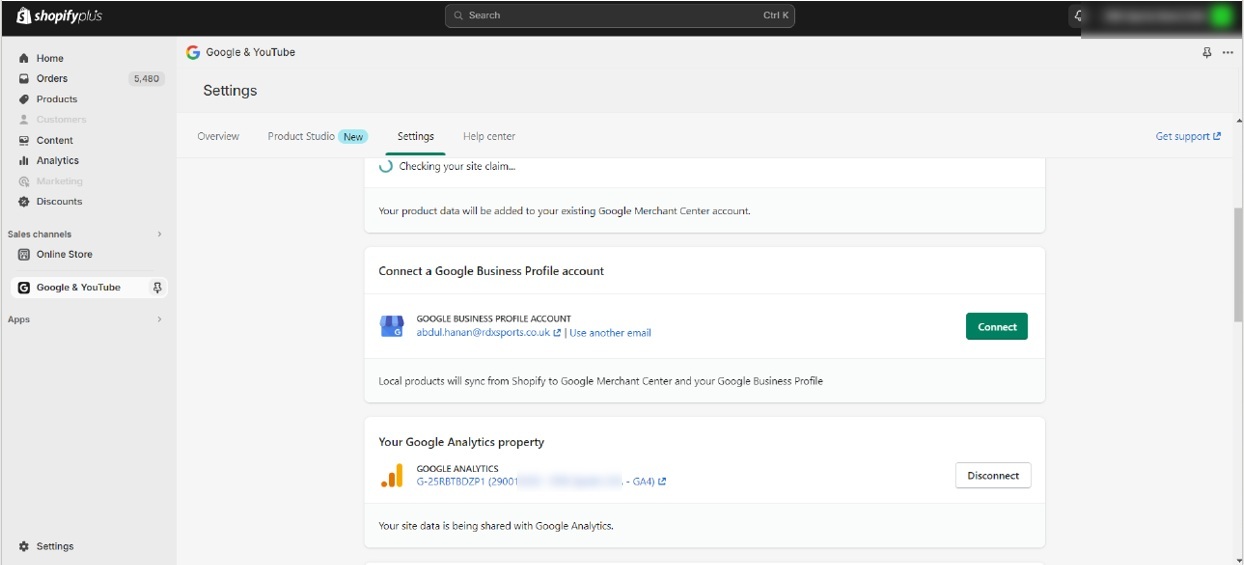
One audit we did revealed that the website was relying on the Google and YouTube apps to spit out the e-commerce data layer. While this setup technically ticked off GA4’s Enhanced Ecommerce schema boxes, it had one major flaw – the data layer couldn’t be tweaked or customised to suit the client’s needs.
Because of this, the client couldn’t sort out common issues like missing parameters or wrong values for things like product categories or IDs. They also couldn’t add extra data to the mix that would be really useful for business, like profit margins, customer type or custom dimensions.
This kind of setup doesn’t necessarily break the tracking, but it severely limits how useful the data is for analysis and decision-making. You end up with reports that look pretty good on the surface but lack the depth needed to really make a difference.
Because of these limitations, we usually recommend moving to a GTM-only implementation. This gives the client full control over the data layer, allowing them to fix inaccuracies, standardise the tracking and capture the extra data needed for more advanced analysis
Another common issue is plugins causing problems. Some plugins, especially the ones that affect performance, security, or cookie consent, can block or delay the tracking scripts.
This stops GA4 tags from firing correctly, resulting in gaps in session data, missing events or incomplete user journeys. These issues are often sneaking around in the background and only come to light during an audit
Trigger configuration is one of the most common technical mistakes we see. A classic example is using a pageview trigger for conversions.
If the conversion is tied to a “thank you” page, users can just reload that page and fire the same conversion multiple times. This ends up inflating performance metrics and making some channels look more effective than they really are.
Tracking often breaks after website updates. We regularly audit setups where tracking was all set up for the old layout and never got updated after a redesign.
Changes to URLs, buttons, forms or page structure can stop events from firing or shift them to the wrong elements. This results in key interactions being either lost or recorded incorrectly without anyone really noticing.
Before we start any GA4 audit, we make sure we’ve got the right access levels and a good overall understanding of how the business uses its data. Without that, it’s all too easy to miss important issues or misinterpret what the tracking is supposed to be measuring.
In practice, getting ready for an audit is simple but super important. Here’s what we always ask for before we get started:
We also rely on a small set of tools during every audit to validate data and troubleshoot issues:
This setup lets us work fast and focus on identifying real data issues rather than just hazarding a guess on how the tracking is implemented.
If a client has a specific concern, we focus on that first off. Otherwise, we run a structured audit covering the key areas that impact data accuracy and usability, including GTM implementation, GA4 settings, data streams and tagging, event and conversion tracking, traffic quality and filters, cross-domain tracking, integrations (Google Ads, Search Console, BigQuery, CRM), and privacy and consent config.
We always start the audit with Google Tag Manager because most tracking issues come from there. That’s where all the tags, triggers and event logic are defined, so even a small misconfig can affect all downstream data.
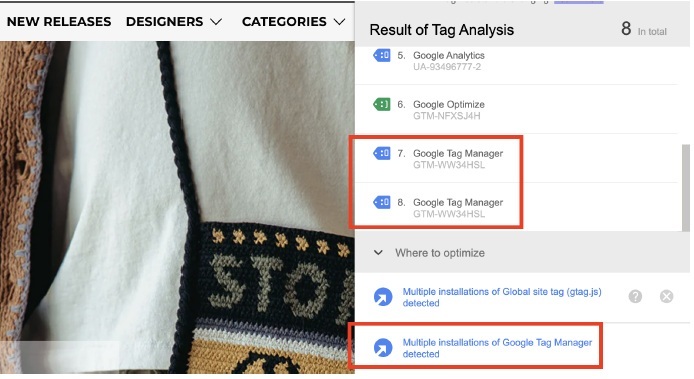
For example, in one audit our ecommerce google analytics consultants found that the GTM script was installed twice in the website’s source code. This meant every tag was firing twice and resulting in duplicated events and artificially inflated conversion numbers. The fix was simple enough – use only one installation method – but the impact on data accuracy was way bigger than we expected.
This part of the audit is all about ticking a few super-critical property-level settings that are often misconfigured and quietly affect data quality.
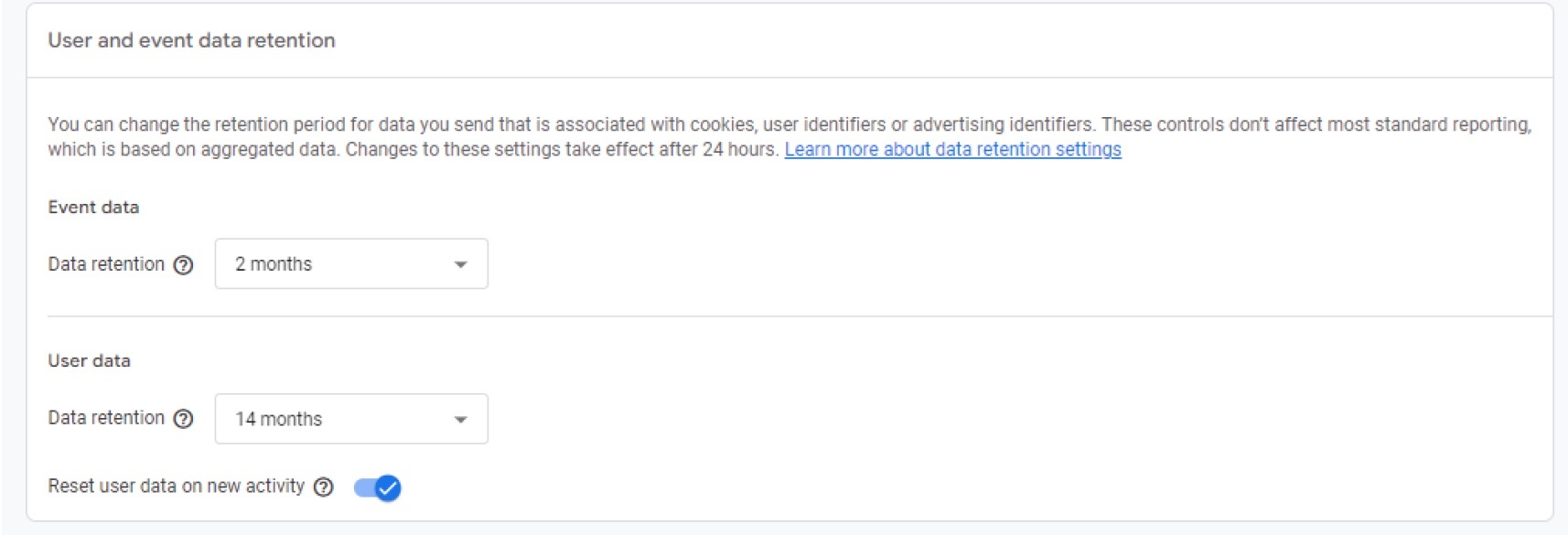
We first take a look at the data retention settings. GA4 free properties only store event-level data for either 2 or 14 months – or to be specific, 2 months, 14 months or something else (we can be more specific if needed) – and our general recommendation is to set this to 14 months unless there’s a very good reason not to. The thing is, if you only have 2 months of data, you will severely limit your ability to properly analyse trends and compare performance over time.
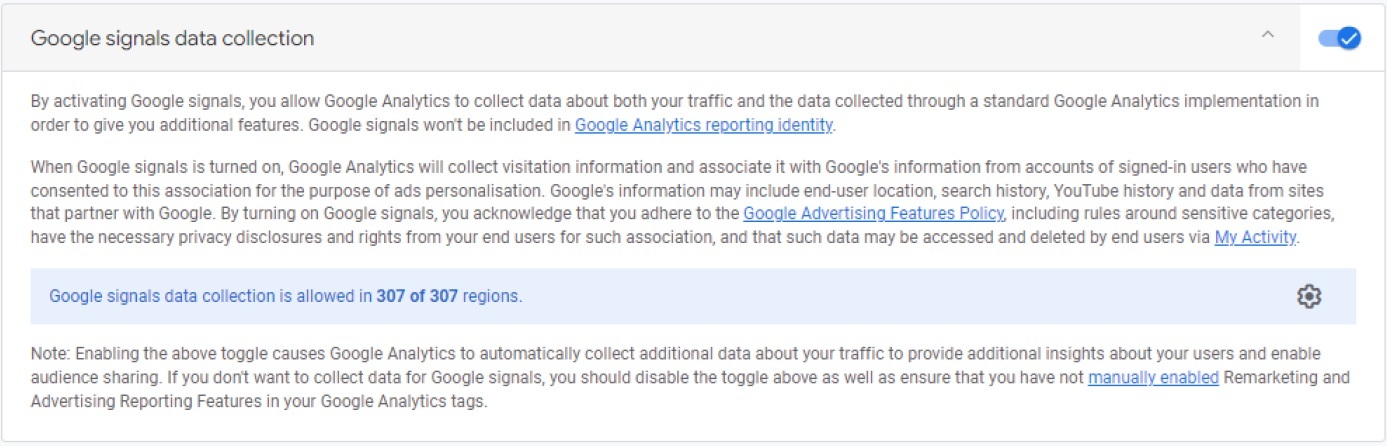
Now another key step is making sure Google Signals is up and running correctly. We check it’s enabled and that you’ve ticked the User Data Collection Acknowledgment box. This setup lets GA4 collect demographic data such as age, gender and interests – which is helpful for remarketing, but you do need to make sure you’re complying with GDPR and CCPA consent requirements.
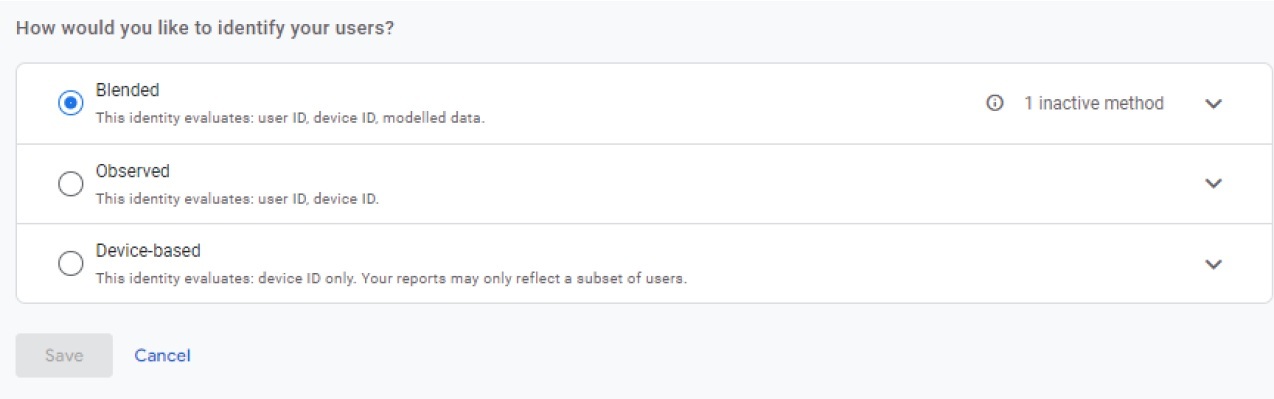
We also review the Reporting Identity setting – in most cases, this is set to “Blended”, which is what we generally recommend for websites with login functionality. This works by combining device ID, user ID and modelled data to give you a better chance of identifying users across devices. Just to stress, this doesn’t change the underlying data, it just changes how it’s reported – so it’s well worth testing different options to see which one works best for you.
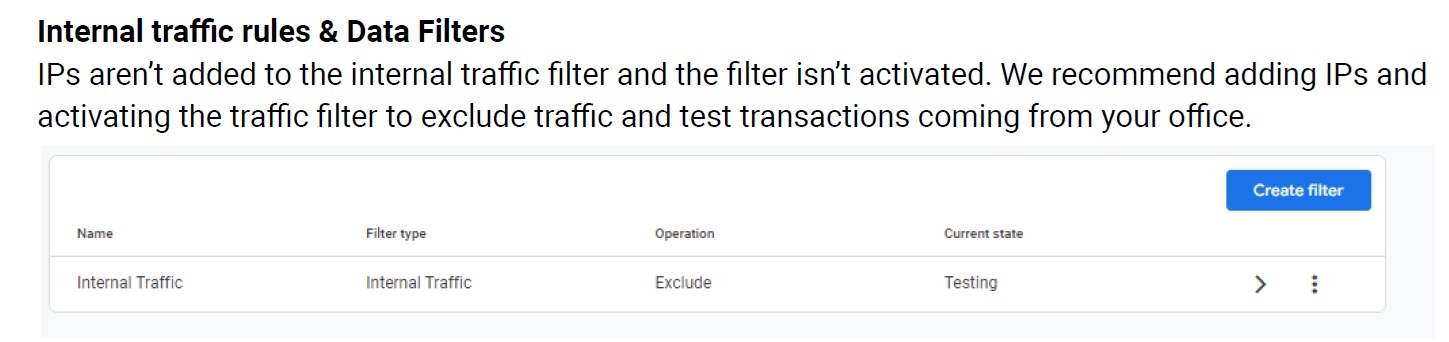
Finally, we review your internal traffic definitions and unwanted referrals under Data Settings > Data Filters. This means excluding office IPs, test environments and any known referral sources that should be nowhere in your reports, to make sure the data reflects how real users behave rather than internal activity.
In this part, we’re checking that the data structure in GA4 is clean and that tracking works consistently across the site.
To start with, we confirm that there’s just one primary Web data stream for the main domain (like www.example.com), plus any required app streams. We often find there are duplicate, test or outdated streams still active, so we either label them clearly or get rid of them to avoid any confusion in your reports.
Next, we check that the measurement ID (G-XXXXXXX) in the Web stream matches what’s deployed via GTM or gtag.js across all production pages. If there’s a mismatch anywhere, you might end up with fragmented data or sessions getting split across properties.
Finally, we have a scan through key pages using browser developer tools or tag debugging tools to make sure the GA4 tag fires just once per page. This helps us catch double-tagging issues – which can happen when you’ve got both GTM and hardcoded gtag.js active at the same time, and just ends up inflating your metrics.
In this step we’re looking to see if your key user actions are being tracked correctly and if the data really does reflect what’s going on in your business.
We start by checking that each tag is firing as it’s supposed to, and the correct trigger is being used. Even when the tags are present, incorrect triggers can mean the events fire too early, too often, or not at all – which is no good at all.
We then take a look at the Events list in GA4 Admin. Here, we look for any noisy or redundant events, inconsistent naming (like “form_submit” vs “formSubmission”), and any deprecated events that are still firing. Cleaning this up is actually pretty important to make reporting usable and avoid any confusion.
Next, we map your key business actions to some clearly defined GA4 events. This usually includes things like contact form submissions, add_to_cart, begin_checkout, purchases, newsletter sign-ups or trial starts. Each important step in the user journey should have a dedicated event with consistent naming and logic.
We also review which events are marked as conversions. Only genuinely successful actions should be included, such as purchases, qualified leads or booked demos. Low-intent actions like scrolls or page views should not be marked as conversions, as they just distort performance reporting.
Attribution is one of the most common areas where we find misleading data, especially when campaign tagging is being done inconsistently or not at all.
We start by looking at how conversions are being distributed across channels and checking for any patterns that don’t align with how your business actually runs its marketing. For example, we often see conversions attributed to Facebook under “Organic Social”, even when the client is actively running paid campaigns. Now this isn’t always wrong, but it usually means you need to review and standardise your campaign tagging – especially with Meta ads.
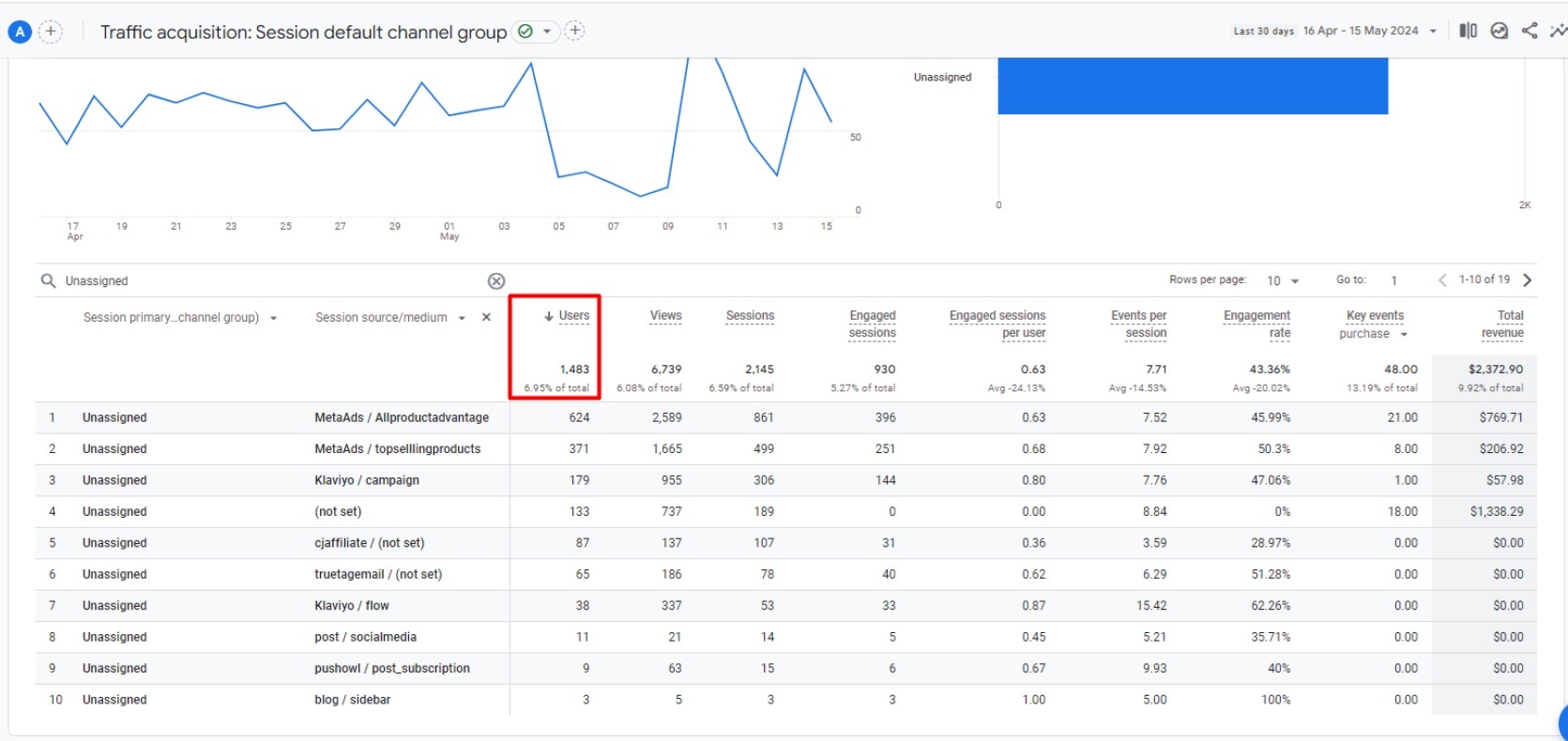
Another common issue is traffic being categorised as the “Unassigned” default channel group. In one audit, we found 6.95% of all users were classified this way. This is usually because UTMs aren’t following Google’s channel grouping rules.
For example, if you’re using “MetaAds” as a source and “Allproductadvantage” as a medium, that will prevent GA4 from correctly categorising the traffic. In this case, we recommend switching to a structured format like “Facebook” for source, “cpc” for medium and “Allproductadvantage” for campaign. This lets GA4 correctly group the traffic under Paid Social.
Fixing attribution is essential for paid search analysis – and that means making sure we’re classifying stuff in a way that actually makes sense. Once UTM tracking is set up with a consistent structure, channel reporting gets a whole lot clearer and more dependable, making it easier to make good decisions.
This part of the audit is all about B2B websites or businesses that provide business services, where lead generation is the main thing they’re trying to do.
We go through and make sure that all the lead forms – contact, quote, demo bookings and newsletter signups – are set up to track properly using the right form_submit events or equivalent logic. Each form needs to have a clear idea of what happens when it’s submitted successfully.

For example, one time we did an audit and found out that a “GA4 Email Signup Form Submit” tag was turned off, and more to the point, it was set up wrong in the first place. The trigger was firing when the user started typing in their email address, rather than when they actually completed the signup.
This meant that the data was counting people who were just getting to the sign-up form, not the people who actually went ahead and signed up. So the conversion numbers in the reporting didn’t show the real picture.
Our suggestion was to go back and make sure the trigger was set up to fire only when the form was successfully submitted. We also said they should probably rename the event so it follows the GA4 naming conventions (for example, “form_submit”) and to check if this event could use something called Enhanced Measurement instead of setting it up themselves.
We also steer clear of tracking conversions by looking at thank you page views, because that’s just not reliable. Users can reload the page a bunch of times, and that ends up causing double-counting and all sorts of other problems with the numbers.
For eCommerce performance analytics, we look at the full purchase funnel to make sure that all the key GA4 eCommerce events are set up right. That includes view_item_list, view_item, add_to_cart, begin_checkout, add_payment_info, and purchase.
We also go through and check that the GA4 revenue matches up with what’s happening in the source of truth – like Shopify or WooCommerce. For example, we might compare how much money is coming in and how many transactions are happening in GA4 versus in Shopify for a specific time period – like 2026-03-01 to 2026-03-07 – to see if there are any discrepancies and where the numbers are getting lost.
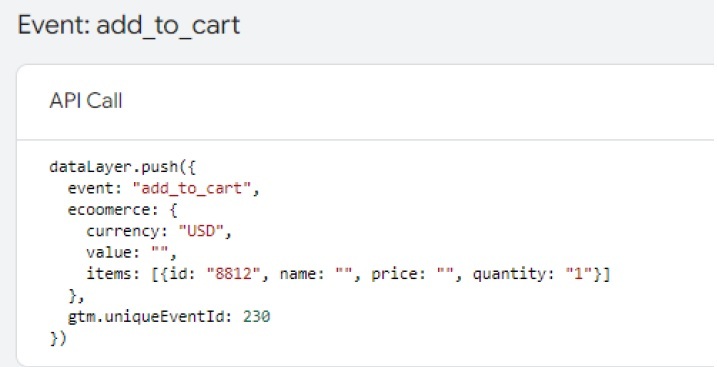
Apart from making sure all the events are firing, we also check that all the important variables are getting captured in the right place in the data layer. We did an audit once where we found that the add_to_cart event was firing in the right place, but then some key information, like the price and the item name, weren’t getting recorded. We also noticed that the tech behind it was still using the old UA way of doing things – like “id” and “name” – which isn’t what GA4 is looking for.
We also check that user data is getting included in the purchase event. Sometimes, the fields like email or phone number get left out of the data layer. But if that data does get included, it lets businesses take advantage of some better conversions across platforms like Google Ads and Meta, which makes attribution a lot more accurate.
Some of the common problems we see include missing refund tracking, multiple currencies but not converting them properly, and not having enough data on mobile devices, especially compared to desktops. These issues don’t necessarily break reporting altogether, but they do make the numbers a lot less reliable and harder to act on.
Clean traffic is just as important as getting the event tracking right. If there’s low-quality or internal traffic getting into the data, metrics like conversion rate, bounce rate and channel performance all get skewed.
We start by having a look at the traffic in GA4 by channel, medium and source to spot any weirdness. Sudden spikes in “direct” or “referral” traffic – especially after campaigns launch – usually suggest there’s some issue with attribution, or missing UTMs, or the tracking isn’t working right.
Although GA4 does try to automatically block known bots, we still check the traffic for any suspicious hostnames and referrers – like spam domains. If needed, we suggest adding more exclusions to keep the data clean.
We also validate UTM and campaign tagging conventions, which is especially important for paid media analytics. If the parameters like utm_medium aren’t being used the same way every time – like using “paid_social”, “cpc”, and “social” but not consistently – it fragments the reporting and makes it harder to analyse the channel performance.
This section of the audit is all about making sure user journeys don’t get broken when they move between domains or subdomains.
We check the GA4 cross-domain settings to make sure that all the relevant domains are included – like the main site, blog, and any third-party checkouts or authentication domains. That way, sessions don’t get broken when users move around between them.
Missing cross-domain tracking usually shows up as sessions getting interrupted, user counts getting inflated, or there being unusually high direct traffic on secondary domains. That makes it a lot harder to get a clear understanding of the full customer journey.
If a business operates on multiple domains for different brands or languages, we also assess whether they should be tracked in a single GA4 property with cross-domain tracking or split into separate properties. For example in a SaaS setup with a marketing site on example.com and a product on app.example.com, cross-domain tracking needs to work properly if you want users who sign up to be treated as a single session and not a new user when they hop from one place to another.
Site search tracking shows what users search for after they arrive on your website. This data can reveal missing content, confusing navigation, product demand, and conversion blockers.
During a GA4 audit, check whether the website has internal search functionality and whether GA4 is capturing the view_search_results event correctly.
Also review whether the search query parameters are configured properly. For example, many websites use parameters such as q, s, search, or query to pass search terms into the URL. If these are not set up correctly in GA4, search terms may not appear in reports.
Search terms should also be reviewed for privacy risks. GA4 should not collect personal information such as names, email addresses, phone numbers, account details, or other sensitive data through internal search queries.
When configured correctly, site search data can help identify what users expect to find, what content is missing, where navigation may be unclear, and which searches are happening before users abandon the site or fail to convert.
URL parameters can make GA4 reports harder to read when one page appears as many different page paths. For example, the same page may be reported multiple times because of query strings, tracking parameters, filters, or campaign tags.
During a GA4 audit, check whether query strings are creating duplicate page paths. Parameters from tools such as Facebook, HubSpot, email platforms, paid ads, site filters, and internal search can fragment page reports and make content performance look less accurate.
UTM parameters should also be reviewed. In most cases, UTM data belongs in acquisition reports, not page path reports. If UTMs appear in page URLs, the same page can be split across several rows, making it harder to measure landing page or content performance.
Uppercase and lowercase URL variants should also be checked. For example, /pricing, /Pricing, and /PRICING may appear as separate pages in reports even though they represent the same content.
In some cases, unnecessary parameters should be stripped in Google Tag Manager before data is sent to GA4. This helps keep page reports cleaner and easier to analyse.
However, not every parameter should be removed. Some parameters support useful reporting, such as product filters, internal search terms, content categories, or campaign-level analysis. A good GA4 audit should decide which parameters to remove, which to preserve, and how to keep reports clean without losing useful context.
UTM tracking helps GA4 understand where traffic comes from and which campaigns are driving results. During a GA4 audit, UTM setup should be reviewed to make sure acquisition reports are clean, consistent, and useful.
Start by checking whether UTM naming conventions are documented. Teams should have clear rules for source, medium, campaign, content, and term values so that campaigns are tagged consistently across channels.
Source and medium values should also be reviewed for consistency. In most cases, lowercase values are best because GA4 may treat different formats as separate entries. For example, Email, email, and EMAIL can create fragmented reports.
Paid social and organic social should be clearly separated. Paid campaigns should use a paid medium such as paid_social, while unpaid posts should use an organic medium such as social or organic_social.
The audit should also check how much traffic is appearing as Unassigned. High Unassigned traffic often means campaign tagging is missing, inconsistent, or not matching GA4’s channel grouping rules.
Email, affiliate, referral, paid search, and paid social campaigns should be tagged consistently. Without consistent tagging, GA4 may split similar traffic across multiple channels or place it in the wrong channel.
Redirects should also be tested. Some redirects can strip UTM parameters or referrer data before the user reaches the final page, which can cause traffic to be misattributed.
Finally, review whether custom channel groups are needed. If the default GA4 channel groups do not reflect how the business reports on marketing performance, custom channel groups can make acquisition reporting clearer and more useful.
One of the key areas where GA4 really starts to make sense for marketing optimisation is in integrations. And it’s here we most often find any missing or broken links that can really limit the value of the data you get back.
We start the process off by going through the GA4 Admin > Product Links section, making sure Google Ads, Search Console and BigQuery (if you’re using it) are all properly set up and running. We check that Search Console is linking up properly so GA4 is getting the organic search query and landing page data it needs, and that Google Ads is getting the conversions right.
For Google Ads, we make sure the auto-tagging is switched on, and GA4 conversions are being imported into Google Ads properly. If they’re not, you’re bidding on incomplete or wrong data, which is going to knock your campaign’s performance.
We also verify that the Search Console integration is up and running, to ensure GA4 is getting the organic search query and landing page data it needs. And where BigQuery is in use, we make sure the daily exports are running smoothly, the schema matches what you’re expecting, and the data location (EU vs US for example) is where it’s supposed to be, and matches your data residency requirements.
Privacy regulations have changed quite a bit since 2024, and your GA4 setup has to be up to date – so this is a big part of what we check for. It’s not just about making sure everything is technically correct.
First off we check that the tracking respects user consent – that means making sure GA4 tags only fire after users have accepted analytics cookies where they’re needed, based on the consent banner you’ve got set up.
We also check that Consent Mode (v2 if that’s the latest version you’re on) is set up and working properly, especially for EU traffic. So we check that consent signals are being passed from the CMP to Google tags and that the tracking behaviour is adjusted accordingly.
Next, we go through data controls like IP anonymization and location data settings. These need to line up with your organisation’s privacy policy and not collect any more personal data than they need to.
Finally, we separate out any compliance issues from the optimisation opportunities. Anything that’s got a legal or regulatory risk is flagged as a priority fix – the other stuff is just seen as ways to improve data quality and performance.
Enhanced Measurement in GA4 can automatically track common user actions such as page views, scrolls, outbound clicks, site search, video engagement, and file downloads. During a GA4 audit, these settings should be reviewed to make sure they are useful, accurate, and not duplicating custom Google Tag Manager tracking.
Page views should usually stay on, but they must be checked for duplicate firing, missing pages, messy URLs, and incorrect tracking on single page applications.
GA4 can automatically track 90% scroll depth. This is useful for blogs, guides, and landing pages, but custom GTM tracking may be better if you need 25%, 50%, 75%, and 90% scroll data.
Outbound click tracking helps measure clicks to third party websites, partner links, booking tools, payment platforms, and social profiles. Check that important external clicks are captured and that subdomains or checkout links are not wrongly treated as exits.
Site search tracking shows what users look for on your website. Check that GA4 captures the correct search terms, uses the right query parameter, and does not collect personal information.
GA4 can automatically track YouTube video starts, progress, and completions. Check whether important videos are tracked correctly and whether custom tracking is needed for non YouTube video players.
File download tracking helps measure clicks on PDFs, guides, brochures, templates, and reports. Check that file names are clear and that high value downloads are grouped or tracked with custom events where needed.
Enhanced Measurement can create problems when it overlaps with GTM tags, plugins, ecommerce tracking, or old migrated events. Common issues include duplicate page views, duplicate events, unclear file names, incorrect outbound clicks, and inconsistent event naming.
GTM is better when you need cleaner event names, custom parameters, multiple scroll thresholds, detailed form tracking, button click tracking, download categories, non YouTube video tracking, or virtual page views for single page applications.
A GA4 audit should decide which events should stay automatic and which should be handled through GTM for cleaner, more useful reporting.
An audit only does any good if the findings are turned into a plan of action. Usually, once we’ve finished the audit, we’ve got a clear scope of work for sorting out GA4 and improving data accuracy, and then we move on to the next phase, where we implement the fixes and set up additional tracking.
We tend to categorise findings into three priority levels – critical issues that affect data trust, legal compliance or revenue reporting and need sorting out now, important issues that help with attribution and tracking but don’t block any decisions, and low priority issues that are more about tidying up and making sure everything looks neat and organised.
All the findings get documented in a simple, clear format – usually with the issue, impact, recommended fix, who’s responsible for doing it, and when it needs to be done by. That way, you can track progress and make sure nothing gets missed.
For example, you might decide to fix those duplicate GA4 tags on checkout by mid-May 2026, and then sort out the proper server-side tracking for purchases by the end of Q2 2026. That kind of clear plan turns audit insights into tangible improvements.
And finally, audits are not a one-off thing. We recommend running them regularly, at least every 6 months for high traffic sites and every year for smaller ones – that way you can keep on top of tracking and make sure it remains accurate as your site and setup change over time.
Once your GA4 audit is completed and all the data problems are solved, you may want to take the next step in your data journey and start building Looker Studio dashboards to explore the data in more detail.
A GA4 audit is not just about checking that the technical bits are working. It’s about making sure your data reflects reality and gives you confidence in the decisions you’re making across marketing, product and revenue.
If your tracking hasn’t been looked at for a while, there’s a good chance that inaccuracies are messing up your reports. Fixing them will lead to clearer attribution, better budget allocation and more reliable performance insights.
If you want to review your setup and spot any gaps, get in touch, and one of our consultants will take a close look at your GA4 for you.
It is a structured review of your GA4 setup that checks whether your data is accurate and complete. It looks at how tags fire, how events and conversions are tracked, how traffic is attributed, and how your integrations and privacy settings are configured, so you can trust the numbers before you act on them.
A full audit covers your property structure and settings, tracking and event implementation, conversions and key events, data integrity, your integrations with Google Ads, Search Console, and BigQuery, consent and privacy, and how your reporting is built. The twelve checks in this article are the ones we start with.
Most audits are done within five to ten working days once we have viewer access to your property. The timing depends on the size of your setup, so a single site is quicker than an account with several data streams and complex ecommerce tracking.
At least once a year for most sites, and every six months for high-traffic ones. It is also worth running one after a website redesign, a move into a new market, or any major change to your tracking or consent setup, since those are the moments things quietly break.
You can run the twelve checks in this article yourself, and for a lot of sites that catches the worst of it. An agency audit goes further, with a 50-point review and a prioritized fix plan, which is worth it when the data is driving real budget decisions and you want to be sure nothing is missed.


