

Healthcare process automation is the use of technology to take over repetitive, rule-based work across clinical, administrative, financial, and patient-facing tasks, freeing staff for the work that needs human judgment. Get it right, and you cut processing time, remove manual errors, and handle more without adding headcount. Get it wrong, and you are left with brittle bots that break within months. The opportunity is large: research on PubMed estimates that administrative tasks account for 15 to 25 percent of US healthcare spending, with physicians spending close to two hours on paperwork for every hour with patients, and the CAQH Index estimates the sector could save around $18 billion a year by automating common transactions.
As experienced business process automation consultants, we have helped dental practices, care homes, and hospitals pick the right processes to automate and build solutions that keep paying off long after go-live. One client, a two-clinic practice, saved 10 to 12 hours of front-desk time every week by automating appointment scheduling and reminders.
This guide covers what healthcare process automation is, the types available, the processes worth automating first, the benefits, how to implement it, and how to choose the right tools.
Healthcare process automation uses technology to carry out routine tasks and connect the steps of a process so they run with little manual effort. A process is a series of steps that produces an outcome, such as registering a patient, processing a claim, or routing a lab result to the right clinician. Automating it means the system knows what comes next, who is responsible, and how to handle exceptions.
Take online appointment booking. Once a patient submits a request, an automated process can:
This connects people, processes, and systems so information moves across the organization without being re-keyed at each step.
| Process | Manual reality | After automation |
|---|---|---|
| Patient intake | Clipboard forms, staff re-key data | Digital intake updates the record automatically |
| Prior authorization | Phone calls, faxes, manual follow-up | Request submitted and tracked end to end |
| Claims | Errors caught only after denial | Claims checked and corrected before submission |
| Follow-up | Depends on staff remembering | Triggered automatically by patient status |
Healthcare process automation supports hospitals, clinics, private practices, specialty care centers, diagnostic labs, pharmacies, home healthcare providers, telehealth platforms, insurance and billing teams, and public health organizations.
Business process automation and healthcare process automation describe the same broad discipline: connecting the steps of a process so a whole workflow runs on its own instead of one task at a time. The work itself is done by three technologies, and they sit on a spectrum from fixed rules to AI that can act without being told each step. Here is how they fit together.
Robotic Process Automation (RPA) in Healthcare
Robotic process automation is the entry point. Software bots copy data and move through screens the way a person would, which suits older systems that were never built to connect to anything else, because the bot works through the existing interface rather than a formal integration. Common healthcare examples are eligibility checks, claims data entry, and moving records between systems.
Intelligent Process Automation
Intelligent process automation adds judgment on top of RPA. It reads documents, sorts cases by urgency, and surfaces recommendations, using AI to handle inputs that fixed rules cannot.
Agentic Automation
Agentic automation is the newest layer. An agent can plan and carry out a multi-step task, check its own work against policy, and pass a case to a person when it needs a human decision.
Most healthcare organizations use a mix, matched to the risk of each task. A rules-based bot is fine for an eligibility check. A claim that carries clinical or financial weight belongs with intelligent automation and a person in the loop.
Healthcare process automation relies on five components that work together to move information, tasks, and decisions through clinical and administrative processes.
| Component | What It Does | Examples in Healthcare |
|---|---|---|
| Trigger | Starts the process. Comes from a user action, a schedule, or a change in data. | A patient submits an appointment request; a clinician starts a referral; a new lab result lands in the EHR; an overnight job reconciles patient data |
| Actions | The tasks the process runs once triggered, often several in sequence. | Create or update patient records; notify clinicians or patients; schedule appointments; generate discharge documents; validate data before it is stored |
| Integrations | Move information between systems with no manual entry. | EHR systems; practice management software; laboratory information systems; patient portals; billing and insurance platforms |
| Decision Logic | Applies set rules so each case follows the right path. | Route urgent results to a specialist; escalate an unresolved case after 24 hours; vary patient messages by diagnosis or treatment status |
| Monitoring and Audit Trails | Records activity for compliance and improvement. | Execution history; user actions; approval decisions; data changes |
The tools below are the healthcare automation solutions and software we use most for HIPAA-compliant process automation. They work best together, with Power Automate running the logic and the others handling apps, reporting, storage, and data.
Microsoft Power Automate
Power Automate is useful for automating approvals, notifications, data synchronization, document processing, report distribution, and data integrations.
It works well when healthcare organisations already use Microsoft 365, SharePoint, Outlook, Teams, Power BI, or Dynamics 365.
It can also support AI Builder workflows for extracting structured data from PDFs and scanned documents.
Microsoft Power Apps
Power Apps is useful for building custom internal apps without creating a full software product from scratch.
Healthcare teams can use it for intake forms, request management, inventory tracking, field inspections, quality checks, leave requests, helpdesk tickets, and training workflows.
Power Apps can connect to SharePoint, Excel, Dynamics 365, SQL Server, and other data sources.
Power BI
Power BI is useful when automation needs to end with reporting, monitoring, and decision support.
Healthcare teams can use Power BI to monitor appointments, device usage, care indicators, finance metrics, staff utilization, procurement, or patient engagement.
It is especially valuable when data needs to be pulled from several systems into one dashboard.
SharePoint
SharePoint is useful for storing documents, managing permissions, tracking versions, and creating structured repositories.
Healthcare organisations can use it for policies, internal resources, staff documents, audit records, and workflow storage.
When combined with Power Automate, SharePoint can become the back end for many internal workflow systems.
SQL Databases and APIs
SQL databases and APIs are useful when healthcare data comes from multiple systems and needs to be centralised.
APIs can extract data from source platforms, while SQL databases provide a structured place to store and prepare it.
This approach is often used for real-time reporting, automated dashboards, and advanced analytics.
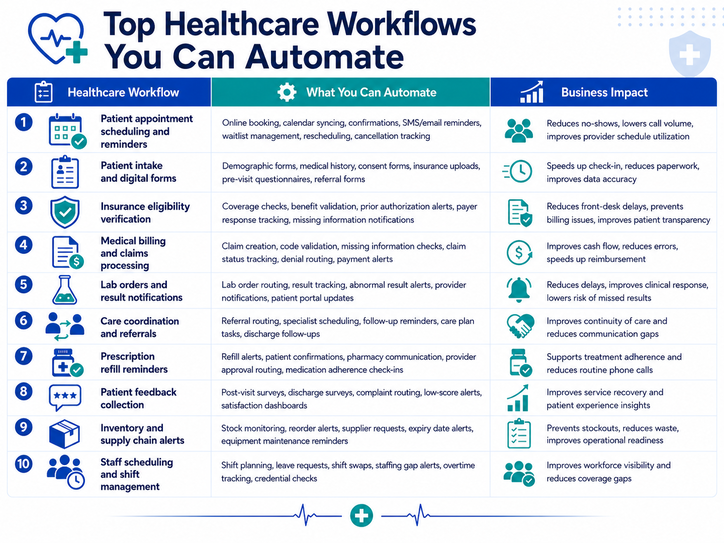
These 11 examples of automation in healthcare are the processes we automate most often, and where robotic process automation saves the most staff time. Each one below shows the trigger, the actions, and the Power Platform tools involved.
Appointment scheduling is a constant drain on patients and front-desk teams, and it is one of the clearest processes to automate. Where scheduling is still manual, staff spend 8 to 15 hours a week on calls, confirmations, cancellations, and reminders. We have built this Power Automate flow for several healthcare clients, and the result is consistent: front-desk teams get time back and no-show rates fall within the first month.
The process runs end to end without manual input. A patient submits an online booking request, the system checks provider availability, creates a calendar event, and sends a confirmation. Reminders go out 24 hours and 1 hour before the appointment. If the patient cancels or reschedules, the calendar and staff dashboard update in real time. If they do not show, a follow-up with a rebooking link is sent automatically.
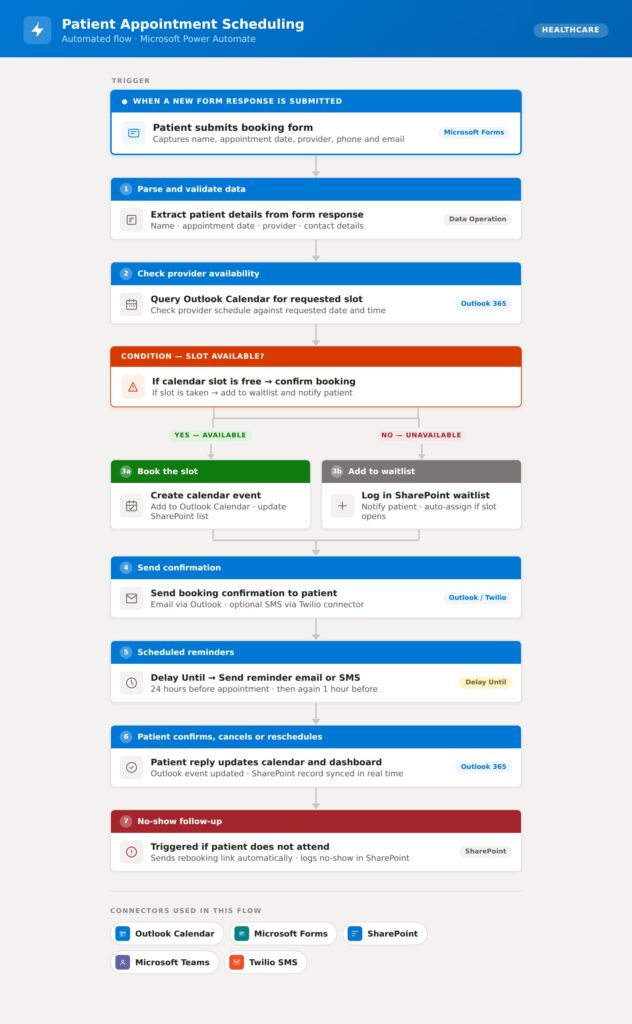
Power Automate runs the sequence using Outlook Calendar, Microsoft Forms, SharePoint, and Twilio for SMS. It starts with a Forms or HTTP trigger, uses a Condition action to check provider availability, then splits into a confirmed-booking path or a waitlist path. The reminders use a Delay Until step connected to Send an Email, with the delay set to a timestamp calculated from the appointment date. The diagram below shows the full trigger, action, and integration structure.
One client, a two-clinic practice that used to schedule by hand, reported that front-desk staff saved 10 to 12 hours a week after launch, with a clear drop in no-shows in the first month. The schedulers said the biggest change was the end of the morning confirmation calls that used to take hours every day.
Patient intake is one of the most paper-heavy parts of the healthcare journey and one of the easiest to fix with automation. Where intake is manual, front-desk teams check handwritten forms, scan documents, and re-enter data, often while the patient waits at the desk. Our digital intake process collects everything the patient needs to provide before they arrive.
The process triggers when an appointment is confirmed. A secure digital form goes to the patient covering demographics, medical history, consent, insurance details, and any pre-visit questionnaire. On submission, the system checks the form is complete, updates the patient profile if it is, and sends a targeted reminder for any missing fields. Documents are stored automatically in SharePoint or OneDrive, and the clinician receives the full intake pack before the visit.
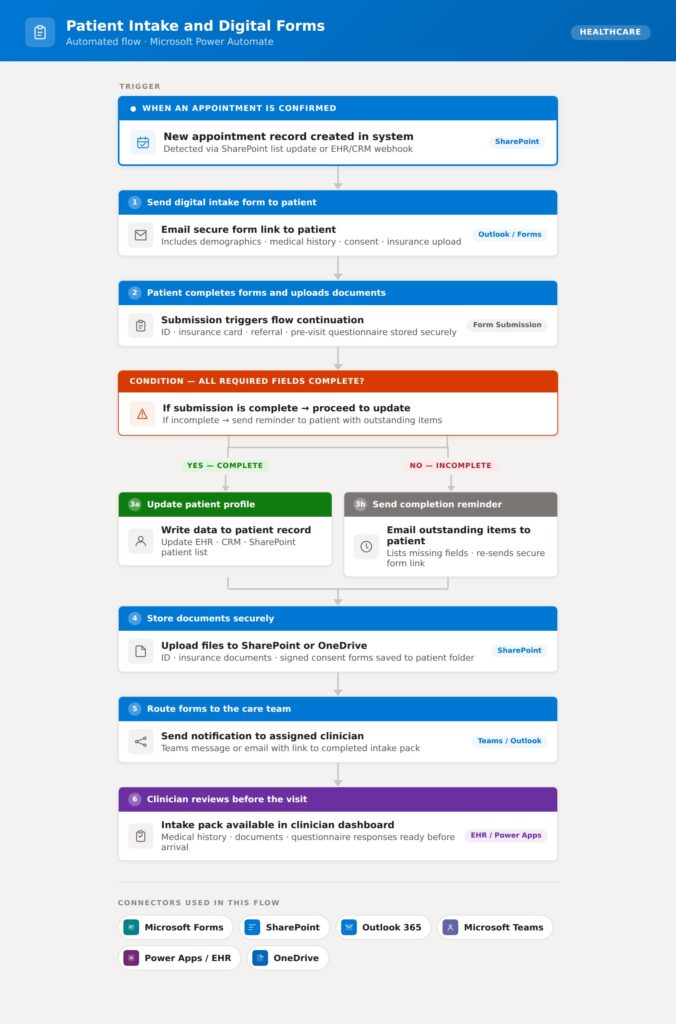
Power Automate sorts this out using Microsoft Forms or a connected form tool as the intake layer, SharePoint for storing documents and patient record updates, and Teams or Outlook to send a message to the care team. The condition block – checking if all required fields are in place – uses a standard Power Automate Condition action, and a branch to re-send the form link if anything is missing.
Front desk staff at one client site told us after an RPA outsourcing project with us that the single biggest change was eliminating the check-in bottle-neck entirely. Patients turned up with their paperwork already done, which meant receptionists weren’t stuck in data entry and clinicians got more face-time with patients instead of waiting for records.
Manual staff scheduling across a hospital or clinic is a nightmare because you’ve got to balance shift patterns, leave requests, on call assignments and all that jazz – all across multiple departments at once. And when something comes up at the last minute, it can take hours to sort out the knock-on effects. But from what we’ve built for healthcare clients, automating staff scheduling and shift management saves department managers and HR people between 6-10 hours a week. That’s a lot of time saved – mainly because we’ve taken the labour out of building the rota, chasing leave approvals and last-minute cover.
The flow kicks in as soon as a new scheduling period starts or someone submits a change. We check leave requests against the existing rota, approve or escalate them according to the team’s rules – and then update the rota without any manual editing required. The same thing happens with shift swaps – submitted via the Power App, checked against credentials and working hours and then approved or flagged within minutes. On call assignments are just generated from a defined rotation and sent to the right staff – no fuss. And if a department drops below the minimum number of staff needed at any point, a manager gets an alert right away so they can sort it out before it becomes a problem.
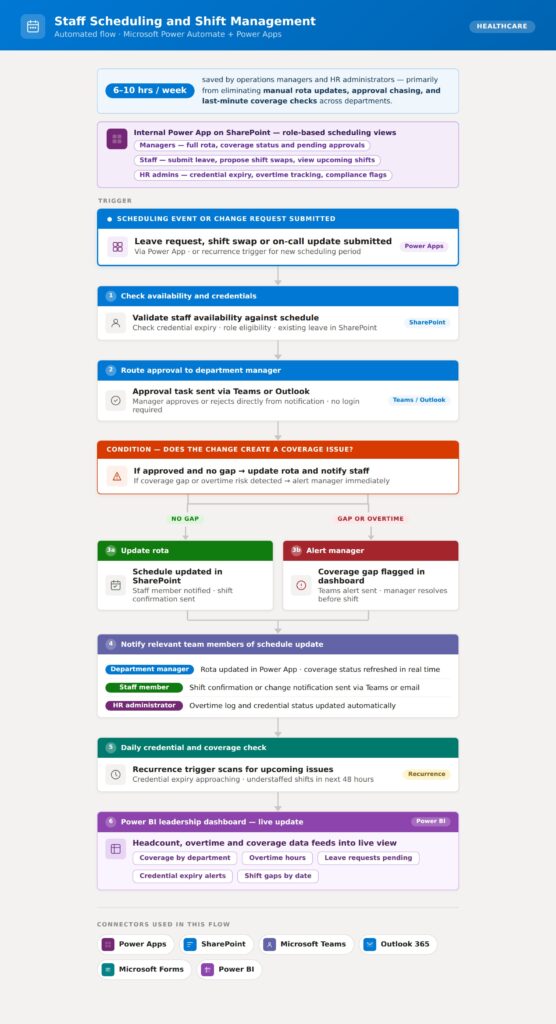
We’ve built a Power App on SharePoint so that managers, HR folk and staff all have the right access levels. Managers can submit and approve scheduling requests, view live coverage by department and shift and get alerts for gaps or overtime risks right in the app. HR folks can track staff credentials and working hours. Staff can view their own rota, submit leave or swap requests and get shift confirmations – all from the same place. Clinical leads get a weekly staffing summary delivered automatically to their Teams chats, covering coverage status, leave volume and any outstanding approvals.
Power Automate handles the flow using SharePoint as the schedule and request record, with condition blocks to make sure the approval process gets done right. Teams and Outlook handle notifications and confirmations. The Power BI connector feeds live shift data into a department coverage dashboard – which updates in real-time as the records change.
Care coordination falls over when communication between providers, specialists, nurses, patients and admin teams rely on manual handoffs – emails that go unanswered, phone calls that are unlogged and status updates buried in spreadsheets. When handoffs are automated, care teams spend less time chasing information and more time taking action on it. From the workflows we have built for care providers, automating coordination tasks typically saves clinical and admin staff between 8 and 12 hours per week – primarily by eliminating manual status updates, referral chasing and cross-team communication that currently happens outside of any system.
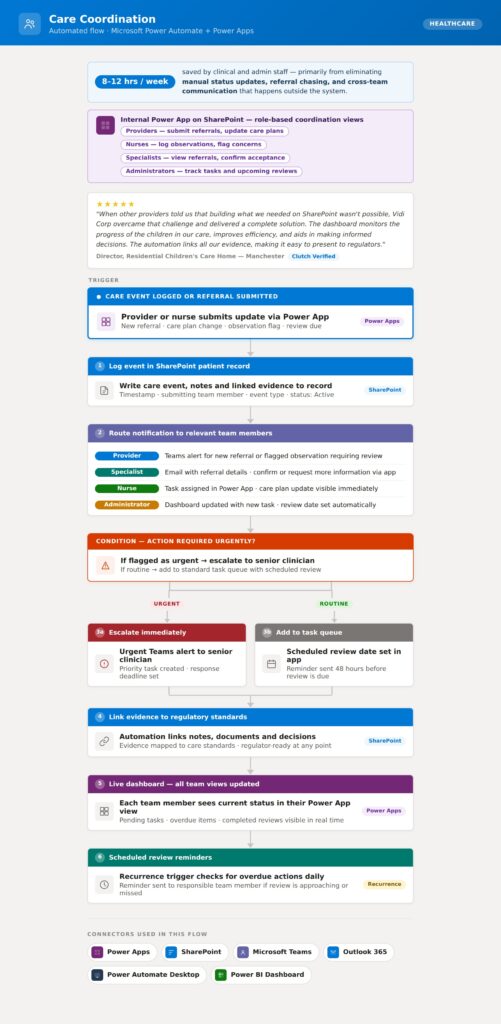
We build care coordination workflows using Power Automate for the automation layer and Power Apps on SharePoint as the collaboration and visibility platform. Each team member – providers, nurses, specialists and admin – has a role-specific view in the app. Providers submit referrals and care plan updates directly from the app. Nurses log observations and flag concerns which automatically triggers a notification to the responsible clinician. Admins track task status, upcoming reviews and outstanding actions across the whole caseload without needing to ask anyone for updates. Where regulators or external agencies require evidence of care activity, the app links all records, notes and decisions automatically – making it easy to present a complete picture on request.
The workflow links SharePoint for storing and managing tasks, Teams and Outlook for notifications and escalations, and Power Automate Desktop where legacy systems or external portals need some extra help to retrieve or submit information. A recurrence trigger runs scheduled care plan reviews and sends reminders for overdue actions to the relevant team member so nothing falls through the cracks between appointments or shift changes.
A client of ours – a residential children’s care home in Manchester – told us that other providers said what they needed couldn’t be built on SharePoint. We proved them wrong. The Power App and automation solution we built monitors the progress of each child in their care, links all evidence to the relevant regulatory standards and gives the team a live view of what is happening across their caseload. The director noted that the dashboard improved efficiency, supported informed decision-making and made it easy to present information to regulators. Check out their review.
Admissions and discharges are a nightmare for coordination – every event touches clinical, administrative, and patient communication tasks all at once – and when those tasks rely on manual forms, phone calls, or patchy system updates, delays just pile up. Based on workflows we’ve built for healthcare clients, automating admissions and discharges can save clinical coordinators, ward administrators, and discharge teams between 6 and 10 hours a week, mainly by getting rid of manual checklist routing, form chasing, and the back-and-forth between departments.
For admissions, the flow starts when a bed is assigned or an admission is confirmed. Intake forms and consent documents are sent to the patient automatically, pre-admission instructions are issued, and the care team gets an alert with the patient details and any outstanding items before they arrive. Bed status is updated in real time so ward managers and bed coordinators always have an up-to-date picture without having to make a call to the floor.
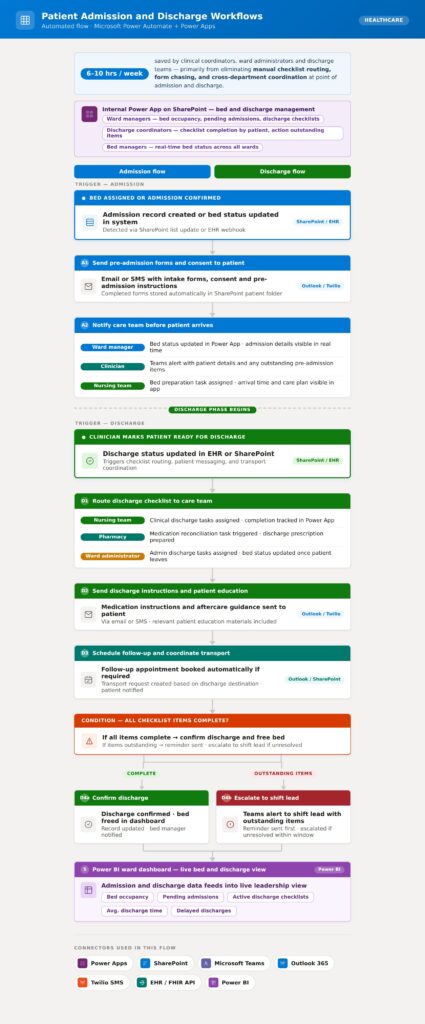
For discharges, the flow kicks in when a clinician marks a patient as ready for discharge. A discharge checklist is sent to the right team members – nursing, pharmacy, and the ward administrator – with each task assigned to the right role and tracked to completion. Medication instructions and patient education materials are sent directly to the patient. A follow-up appointment is scheduled automatically if needed, and transport is arranged based on the patient’s discharge destination. If any checklist item isn’t completed within the required window, a reminder goes out and the issue is escalated to the shift lead.
We build an internal Power App alongside the flow to give ward managers, discharge coordinators, and bed managers a live view of admission and discharge status across the department. Ward managers can see the whole bed occupancy picture with pending admissions and active discharge checklists all in one view. Discharge coordinators can track completion of checklist items by patient and can action any outstanding items straight from the app. Power Automate brings it all together using SharePoint for task and status records, Teams and Outlook for care team notifications, and Twilio or Outlook for patient-facing messages. The diagram below gives you the full view of the trigger, action, and integration structure.
Automatic document generation is one of the most common RPA use cases. Healthcare organisations crank out a ton of documents every day — referral letters, discharge summaries, consent forms, admission instructions, procurement requests, and internal approvals. Manual document creation and emailing them around leads to version confusion, missed signatures, and no one having a clear view of where a document is in the approval process. Based on workflows we’ve built for healthcare clients, digging in and automating document generation and approvals can save administrative and clinical support staff between 5 and 9 hours a week, mainly by getting rid of document creation, signature chasing, and filing.
The flow starts when a document request comes in – via a Power App, a form, a system trigger like a patient discharge or a new referral. Power Automate fills out an approved template with the right data, sends the document to the right reviewer or approver, and collects a digital signature when needed. Version control is taken care of automatically, with each new version stored in SharePoint and linked to the original document. Once approved, the document is saved to the right folder, the requester gets a notification, and any linked tasks – like sending a copy to a referring doctor or updating the patient record – are done without needing any extra human intervention.
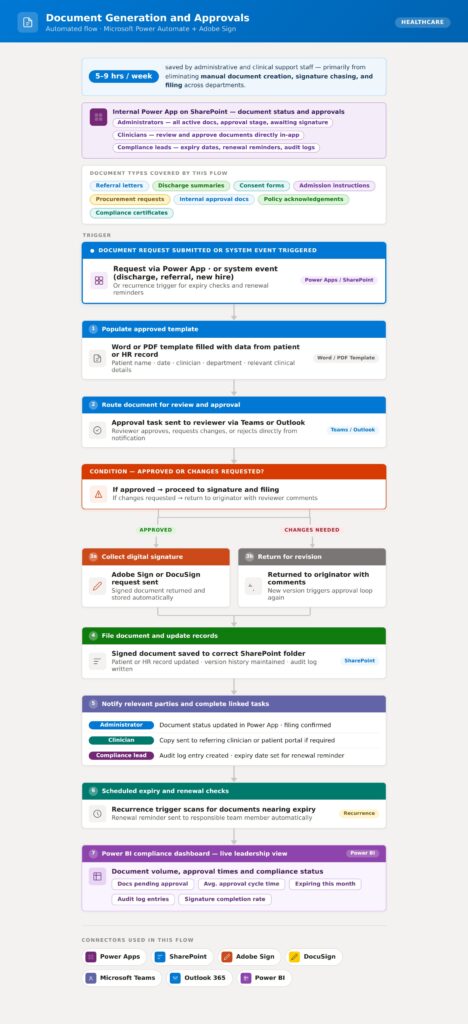
We build an internal Power App alongside the flow so that document status is visible to every team member who needs to see it. Admins can see all active documents, their current approval status, and any items waiting for a signature or review. Clinicians can review and approve documents straight from the app without having to log into a separate system. Compliance and governance leads get a live view of document expiry dates, renewal reminders, and audit logs – giving them everything they need for a regulatory inspection without needing to put in extra time for reports.
Power Automate keeps the flow going using SharePoint for document storage and version control, Microsoft Word or PDF templates for generating documents, and the Adobe Sign or DocuSign connector for digital signatures. Teams and Outlook handle approval notifications and reviewer alerts. A Recurrence trigger runs scheduled checks for documents getting close to expiring and sends renewal reminders to the right team member automatically. The Power BI connector puts document volume, approval cycle time, and compliance status right into a live dashboard for leaders to see. The diagram below gives you the full view of the trigger, action, and integration structure.
Patient feedback only really counts if you collect it consistently, look at it right away, and get the right people on the case. When you do it all manually, some patients get sent a survey and others don’t, low scores sit around getting no attention for days, and complaints take ages to make their way to the team that can fix them up. Based on workflows we’ve built for healthcare clients, automating feedback collection saves quality and patient experience teams anywhere between 4 – 6 hours a week – mainly by ditching manual survey distribution, score monitoring and complaint chasing.
The flow kicks in automatically after a visit or discharge is recorded. A survey gets sent to the patient via email or text message, asking for their net promoter score and any comments they’ve got. If a patient says something wasn’t great, an alert goes off right away to the right team member so they can sort it out before it gets any worse. Complaints get sent straight to the right department, with a task created and a response deadline set automatically. If patients are happy, the system can trigger a review request, sending satisfying patients to leave feedback on the right platform.
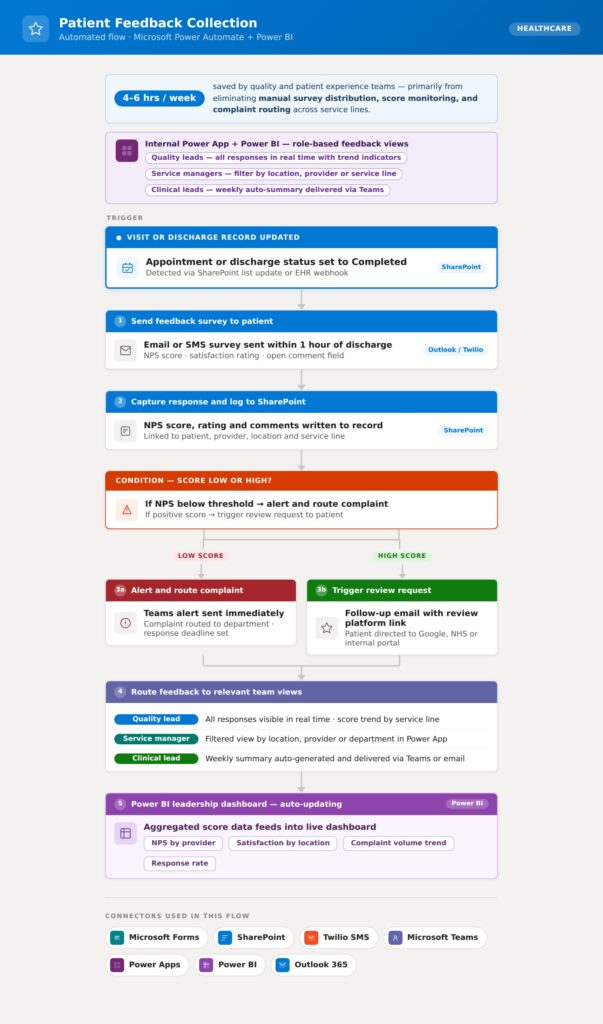
As part of the flow, we build a custom Power BI report for quality leads, service managers and clinical leads to see how feedback is coming in. Quality leads see all the incoming responses in real time with some trend indicators by score band. Service managers can filter by location, provider or service line. Clinical leads get a summary of feedback relevant to their team every week, automatically generated and delivered via Teams or email – no one has to lift a finger to get the report.
Power Automate manages the flow using a SharePoint trigger on the appointment or discharge record, Microsoft Forms or a connected survey tool for the patient-facing survey, and Outlook and Teams for alerts and routing. The Power BI connector feeds all the aggregated score data into a leadership dashboard that updates automatically as responses come in. The diagram below shows the whole trigger, action and integration setup.
Healthcare teams can’t afford to find out they’re running low on a vital supply when the nurse is already halfway to the ward. When you track inventory manually, low stock often goes unnoticed till it becomes a real crisis – leading to last-minute orders, temporary shortages or delays in treatment. Based on the RPA procurement workflows we’ve built for healthcare and operations clients, automating inventory monitoring and reordering saves procurement and operations teams between 5 – 8 hours a week – mainly by ditching manual stock checks, supplier communications and approval chasing.
The flow automatically keeps an eye on stock levels against set thresholds. When a level drops below the min, an alert goes off to the right team member, a supplier request is created, and a procurement approval is routed to the right person – all without anyone having to check a spreadsheet. Stuff that’s getting close to expiring gets flagged up before it’s a write-off. Equipment that’s due for maintenance generates a scheduled task automatically, with a reminder sent to the facilities team if it’s not done in good time.
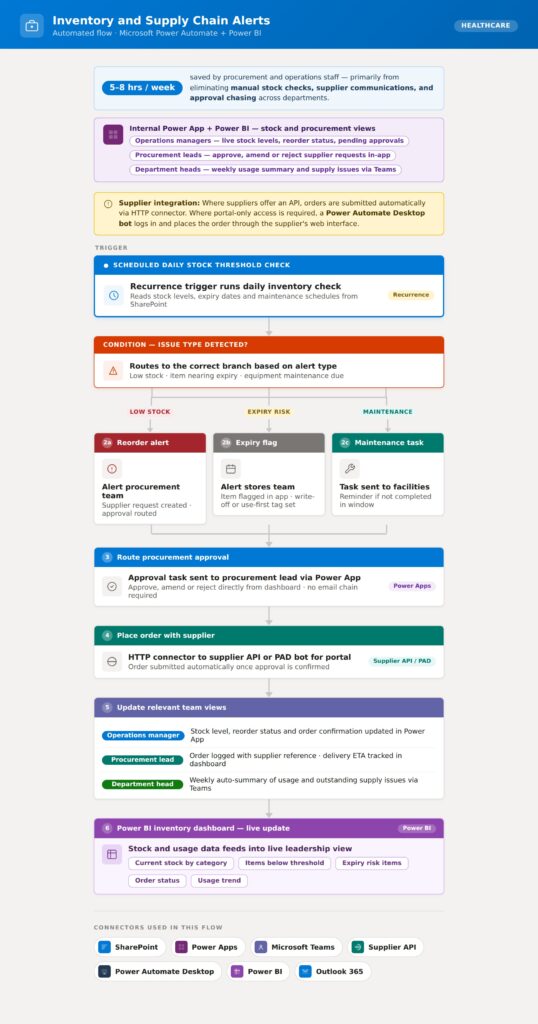
We’ve built a live inventory view for operations teams, proc’r leads, and department heads using an internal Power App so they can see stock levels across all locations in real-time. Operations managers can see current stock levels, reorder status, and pending approvals all in one place. Procurement leads get supplier requests right in the app and can approve, amend or reject them without having to leave the platform. Department heads get a weekly summary of usage and any outstanding supply issues relevant to their team area, all delivered automatically to their Teams chats.
Power Automate runs the flow from a SharePoint list that serves as our inventory record, with a daily trigger checking for anything that needs to be reordered. When a supplier gives us an API, we put in an automatic order request through the HTTP connector. If that’s not an option, we use a Power Automate bot to log in and submit the order through the supplier’s portal. The Power BI connector feeds our live leadership dashboard with up-to-date stock and usage data, so it always shows the latest numbers. The diagram below shows how all the pieces fit together.
HR teams in healthcare do a lot more than just recruitment. Onboarding, training, leave requests, policy acks, performance reviews, staff transfers and exit processes all go through HR – and in busy hospitals or multi-site organisations, that means paperwork piling up, approvals stalling and critical steps being missed. From what we’ve built for healthcare HR teams, automating these processes saves HR folk and department managers between 7-12 hours a week – primarily by cutting out the manual document chasing, approval routing and task assignment from their daily workload.
The principle is the same across all HR workflow types. Someone submits a request – via a Power App, Microsoft Form or an HR system trigger – and the flow collects any necessary documents or info, routes it to the right manager for approval, assigns follow-up tasks to HR or department leads and tracks completion status all the way through. If a step isn’t completed within the time required, they get an automatic reminder and the issue gets escalated if it’s still not sorted.
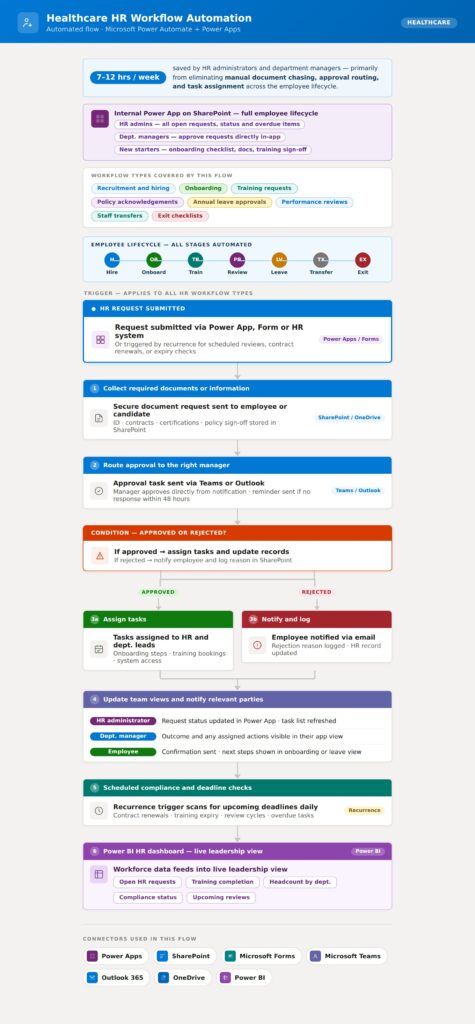
We’ve built a Power App on SharePoint so that each role has a relevant view of active HR workflows. HR folk see all open requests, their current status and any that are overdue or waiting action. Department managers get approval tasks right in the app and can handle them without having to navigate a separate system. New starters see their onboarding checklist and can complete the necessary tasks – document uploads, policy acks, training sign-offs – all from a single view. The same app supports the employee lifecycle from offer acceptance to exit.
Power Automate brings everything together using SharePoint for storing records, Microsoft Forms or the Power App for getting submissions, and Teams and Outlook for sending notifications and getting approval. A Recurrence trigger kicks in at set times to check for upcoming review deadlines, contracts on the verge of expiring, and training that’s past due. The Power BI connector puts workforce data right into a live HR dashboard for leaders to see headcount, open requests, training completion rates, and compliance status by department. The diagram below gives you a full view of the trigger, action, and integration structure across the key HR workflow types.
Prescription refill management’s one of the toughest workflows to get your head around when done manually – especially for clinics with a lot of patients dealing with long-term conditions. Staff have to dig out patient records, ring pharmacies, chase provider sign-offs and follow up with patients all on their own, often jumping between multiple different systems. Based on workflows we’ve built for healthcare clients, automating all this saves clinical admins and care coordination staff anywhere between 5 and 8 hours a week, with the biggest wins coming from not having to make all those manual reminder calls and approval chasing.
The system kicks in automatically as the refill date gets close. It sends a patient a reminder to confirm they still need the medication – via email or text message. If they say yes, the system sends an approval request off to the provider if one’s needed, then lets the pharmacy know as soon as that’s sorted. If the patient doesn’t get back to them, the system sends a follow-up automatically. If a refill gets declined or the pharmacy flags up a stock issue, the system creates a task for the care team and lets the relevant person know so the problem can get sorted out before the patient runs out of meds.
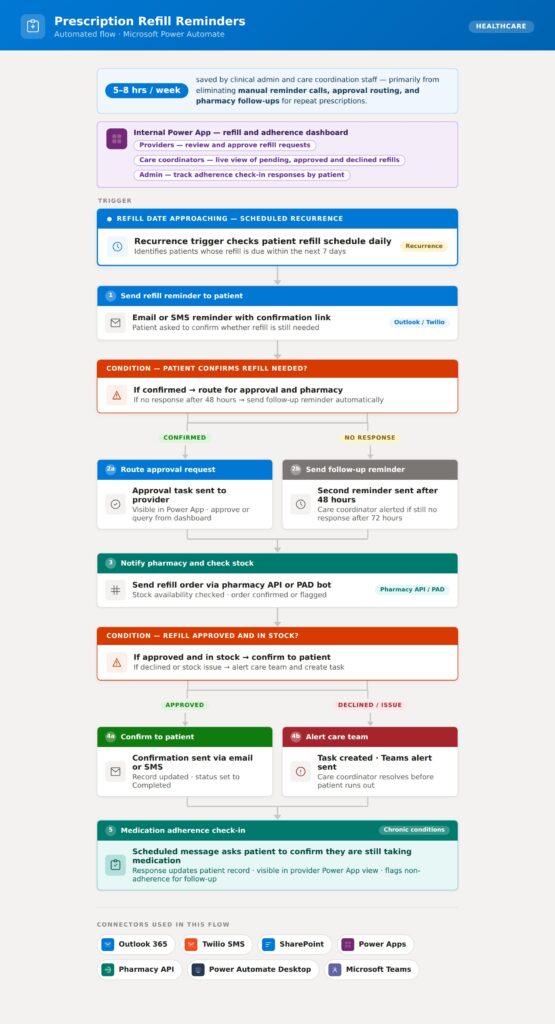
For patients struggling with long-term conditions, the workflow also has check-in’s on patient adherence. It sends a separate scheduled message asking if they’re still taking their medication as prescribed. Any response updates the patient’s record automatically, and shows up in the care team’s Power App dashboard – giving providers a live view of how well patients are sticking to their treatment plans without any manual data entry.
Power Automate manages the whole shebang using a Recurrence trigger to get reminders going on schedule, Outlook and Twilio for patient facing messages, SharePoint for approval routing and task creation, and either the pharmacy connector or HTTP integration for stock checks and order submission. Where pharmacies don’t have an API, a Power Automate Desktop bot logs in and submits orders automatically. The diagram below shows the whole trigger, action and integration shebang.
Lab workflows require close coordination between providers, lab teams and clinical staff – and when that coordination happens manually, orders get delayed, results go untracked, and patients wait longer than they need to for updates. Based on the workflows we’ve built for healthcare clients, automating the lab order and results process usually saves clinical coordinators and admin staff between 6 and 10 hours per week. We’ve seen the biggest gains from getting rid of manual result chasing and follow-up task creation.
The flow kicks in when a provider asks for a lab test. Power Automate creates the lab order from the patient record, sends it to the right lab, and starts tracking result status automatically. When results come back, the assigned provider gets notified straight away. If a result comes back abnormal, the system flags it up to the care team, creates a follow-up task, and updates the patient portal – all without anyone manually checking a queue. A reminder also gets triggered if expected results haven’t arrived within the defined window, so nothing slips through the net.
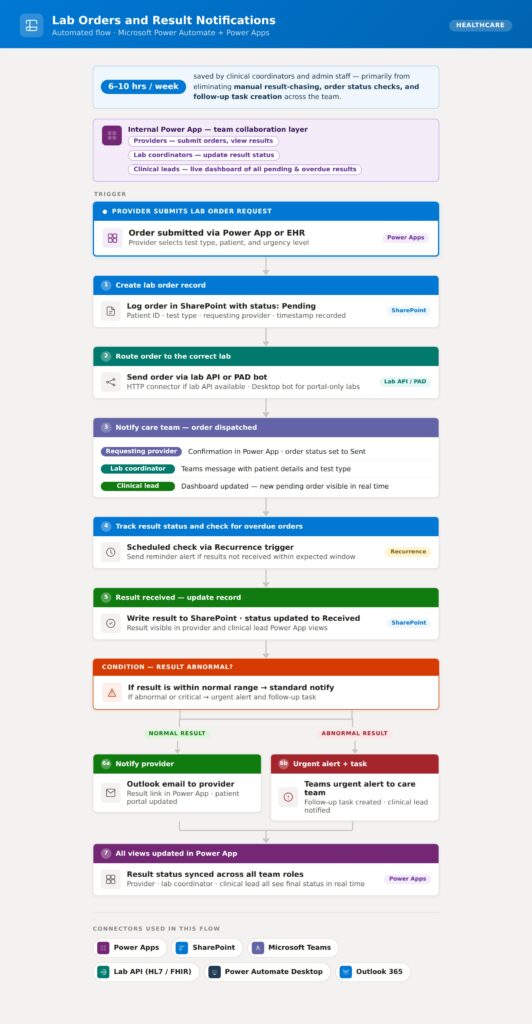
To help team collaboration we build an internal Power App alongside the flow. Providers log in to submit lab orders directly from the app, view result status across their patient list, and action follow-up tasks from a single dashboard. Lab coordinators see incoming orders in real time and can update result status, which triggers notifications to the requesting provider. Managers and clinical leads get a live view of pending, received and overdue results across the team – no manual status updates or chasing between departments needed.
Power Automate sorts this out by using SharePoint for order & result records, Outlook & Teams for provider notifications, and HTTP connectors to integrate with lab systems where APIs are available. Where labs only have portal-only access, a Power Automate Desktop bot handles order submission and result retrieval by automating the user interface. Below is a diagram showing the full trigger, action and integration structure so you can replicate it in your own environment.
1. Faster Access to Operational Data
This benefit means healthcare leaders can access updated operational information without waiting for manual reports. It is achieved by connecting systems such as CRMs, finance tools, patient management platforms, device logs, SharePoint, SQL databases, and Power BI dashboards.
For a medical device company, Vidi Corp created Power BI reports that made machinery data easier to read and improved adoption among customers and internal service teams. The client reported a 20% increase in service revenue while decreasing costs after using the reports to identify device utilisation changes earlier.
2. Reduced Manual Administration
Process automation removes repetitive steps such as copying data, updating spreadsheets, sending reminders, and preparing recurring reports, through automated extraction, approval flows, notifications, and scheduled refreshes.
For Hakim Group, an optical organization, Vidi Corp implemented RPA and SharePoint workflows to streamline operations. The client reported saving around 10 working hours a month and improving data accuracy through less manual handling.
3. More Accurate Reporting
This benefit means healthcare teams can rely on cleaner, more consistent data when making decisions. It is achieved by reducing manual data handling, centralising information, and automating refreshes from approved data sources.
A health, wellness, and fitness client worked with Vidi Corp to improve GA4 tracking for its marketing website. Vidi Corp identified inaccuracies, fixed missing data layer variables, and adjusted consent mode to support GDPR compliance.
4. Better Visibility Across Teams
Healthcare automation improves visibility by giving staff, managers, and executives one place to track process status. This is achieved through dashboards, structured request systems, automated alerts, and centralised data storage.
For a client in the digital marketing sector serving fitness and healthcare industries, Vidi Corp built Looker Studio dashboards for 80+ clients and automated data extraction from sources including Facebook Ads, Google Ads, SEMrush, forms, and GA4. The client reported that automated reporting saved 50 hours per week and increased reporting accuracy based on GA4 data by 40%.
5. Faster Decision-Making
Automation helps leaders act faster because the data is already collected, refreshed, and presented in a usable format. This is achieved through real-time dashboards, automated data pipelines, exception alerts, and drill-down reporting.
In one Vidi Corp project, a client reduced report generation time from 48 hours to under 5 minutes, enabled daily dashboards instead of weekly or monthly reports, and achieved a 40% faster turnaround on strategic decisions. Review link:
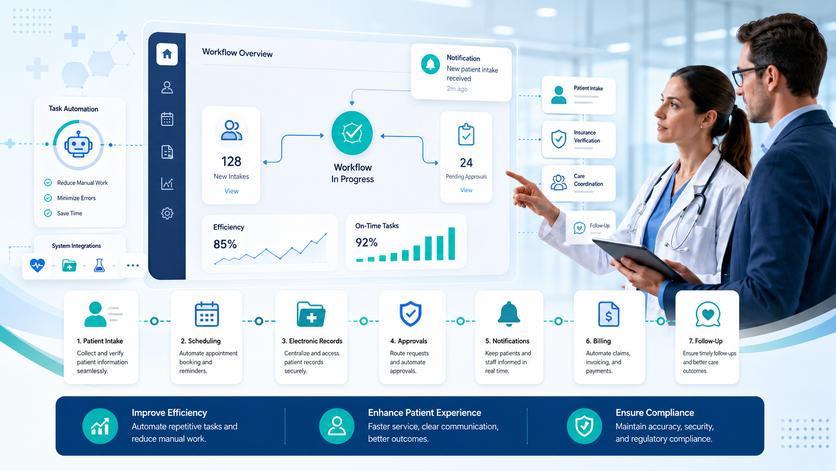
You don’t need a massive program to get started. A steady, seven-step approach works far better than trying to automate everything at once.
Step 1: Find the workflows worth automating. Look for the work that’s repetitive, slow, error-prone, or tied closely to patient experience and revenue. Appointment reminders, patient intake, insurance verification, claims processing, lab notifications, follow-ups, inventory alerts, and staff scheduling are all strong candidates. As a rule, start with the high-volume, rule-based tasks that are easy to measure and low risk to change.
Step 2: Map how the process works today. Before you automate anything, write down how the workflow actually runs: who kicks it off, what information is gathered, which systems are involved, who approves each step, where things stall, and what counts as success. This is what keeps you from automating a broken process and simply making the mess move faster.
Step 3: Decide what success looks like. Set clear goals up front so you can prove the value later. Pick a handful of metrics that matter to you, such as time saved per task, fewer no-shows, a lower claims denial rate, faster approvals, or improved patient satisfaction. A clear baseline makes ROI easy to demonstrate.
Step 4: Choose the right tool. The best fit depends on your systems, budget, and compliance needs. Prioritize HIPAA readiness and a business associate agreement where required, solid integration with your EHR and billing systems, role-based access, encryption, and audit logging. Then weigh the practical stuff: ease of use, scalability, reporting, and the quality of vendor support.
Step 5: Start with a pilot. Pick one workflow, like appointment reminders or digital intake, and run it small before touching complex revenue cycle work. A pilot lets your team test the process, surface issues, gather feedback, and prove the value before you scale.
Step 6: Bring your team along. Automation only sticks when staff understand how it helps their day. Show them how the workflow starts, what their part is, how exceptions are handled, where to check status, how to flag problems, and how patient data stays protected. Adoption is what makes it last.
Step 7: Monitor and keep improving. Once it’s live, watch how it performs. Keep an eye on completion times, error rates, bottlenecks, compliance logs, and feedback from both patients and staff. Treat the workflow as something that evolves alongside your patients’ needs, changing regulations, and shifting priorities.
Healthcare automation must be designed with privacy, security, and compliance in mind. Any workflow that touches protected health information must be carefully governed.
Key compliance considerations include:
Automation can improve compliance by enforcing required steps and creating clear audit trails, but only when implemented with the right safeguards.
Most healthcare process automation problems come from planning and people, not the technology. These are the ones that derail projects most often, and how to avoid them.
| Challenge | How to Solve It |
|---|---|
| Protecting PHI and staying HIPAA compliant. Every system an automation touches is another point where protected health information could be exposed. | Sign business associate agreements with vendors, encrypt data in transit and at rest, restrict access by role, and keep full audit logs. Keep PHI out of any tool that is not covered by a BAA. |
| Legacy systems that will not integrate. Many EHR, lab, and billing systems were never built with APIs. | Use RPA or Power Automate Desktop to work through the existing screens where there is no API, and rely on API integration where a system provides one. |
| Automating a process that is broken or undocumented. RPA on a messy process just makes the mess run faster, which is why 30 to 50 percent of first RPA projects fail. | Map how the process runs today and fix it before automating. Start with high-volume, rule-based tasks that are stable and easy to measure. |
| Poor data quality. Duplicate patient records and inconsistent formats feed the automation bad inputs. | Clean and de-duplicate the source data first, often through data integration across systems, then set naming standards, formats, and clear ownership before the automation goes live. |
| Bots that break when a system changes. A single EHR update or a moved field can stop a bot. | Build in exception handling and monitoring, route exceptions to a person, and plan for ongoing maintenance rather than treating the build as finished at go-live. |
| Clinical staff resistance and low adoption. Staff will not use what they do not trust, and clinicians worry automation will replace their judgment. | Involve frontline staff before you build, keep a human in the loop for any clinical or financial decision, and show the team that automation removes admin, not care. |
Automation in the healthcare industry is moving beyond rule-based workflows toward systems that predict what is needed and act with less supervision. The next stage pairs healthcare process automation with AI, predictive analytics, and real-time data exchange, so more of the work runs before a person has to step in.
Trends worth watching:
As the healthcare industry keeps digitizing, automation becomes core infrastructure for wider care access and less administrative waste, rather than a set of one-off projects.
Healthcare process automation helps teams reduce admin work, improve visibility, and act on operational data faster.
The strongest results come from automating specific processes rather than trying to automate everything at once. Start with one workflow, connect the right systems, and build a solution that fits how your healthcare organisation actually works.
Vidi Corp helps healthcare and healthcare-adjacent organisations build custom Power Automate workflows, Power Apps, Power BI dashboards, and data integrations. Contact us to discuss your process and identify the best automation opportunity for your team.


