

Most law firms already pay for SharePoint through Microsoft 365. The question is whether it can handle client documents, matters and confidentiality rules properly, or whether the firm needs a dedicated legal document management system.
Our SharePoint consultants regularly deliver legal document management solutions in SharePoint and the technologies around it. We have delivered projects for law firms including Shankman Leone, P.A. and Tenaglia & Hunt, P.A., and we build solutions that sit inside SharePoint to extend what it can do.
This guide covers what SharePoint does well for legal work, how to structure documents and matters, how to control access, and where it falls short. Every section is written from implementation experience rather than product marketing.
SharePoint is Microsoft’s document management and collaboration platform, included in most Microsoft 365 business plans. In a legal context, it becomes the central store for client files, matter documents, precedents and internal process knowledge.
Legal firms typically use it in one of two ways. Some run it as their primary document management system, replacing shared network drives. Others run it alongside a legal DMS, using SharePoint for internal knowledge, intranets and non-matter content.
The people configuring it are usually practice managers, office administrators or an outsourced SharePoint developers. The people living in it every day are attorneys, paralegals and support staff, which means the structure has to be obvious without training.
Yes, for many small and mid-sized firms, provided it is configured properly. Out of the box, SharePoint is a general-purpose intranet platform which is ideal for internal communications and organised file management. It becomes a legal document system only after you design the matter structure, metadata and permissions around how the firm actually works.
It is strong on cost, integration and familiarity. It is already licensed, it connects to Outlook, Teams and Word, and staff recognise the interface. Search, version history and co-authoring are built in. SharePoint is also already built for compliance with many regulatory standards like HIPPA and ISO 27100 although you need to configure it to make regulatory audits easy.
It is weaker on legal-specific features. There is no native matter-centric model, no email filing from Outlook without additional tooling, and no built-in conflict checking. However, it also integrates with many other Microsoft tools like Power Apps and Power Automate that help to work around these limitations.
SharePoint document management is where most firms get the majority of the value, and where most poor implementations go wrong. The common mistake is recreating the old network drive as nested folders inside SharePoint. That reproduces the original problem in a new location.
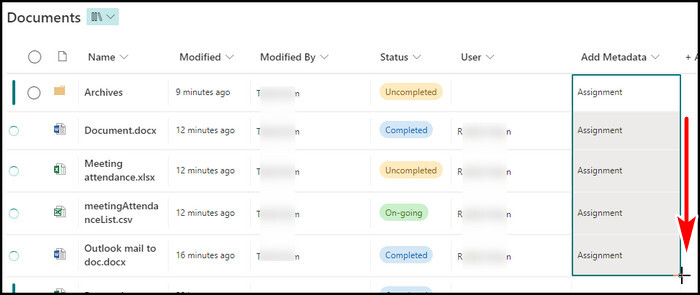
A better approach uses metadata instead of deep folder trees. Each document is tagged with fields such as client, matter number, document type, author, practice area and status. Staff then filter and search by those fields rather than clicking through six levels of folders.
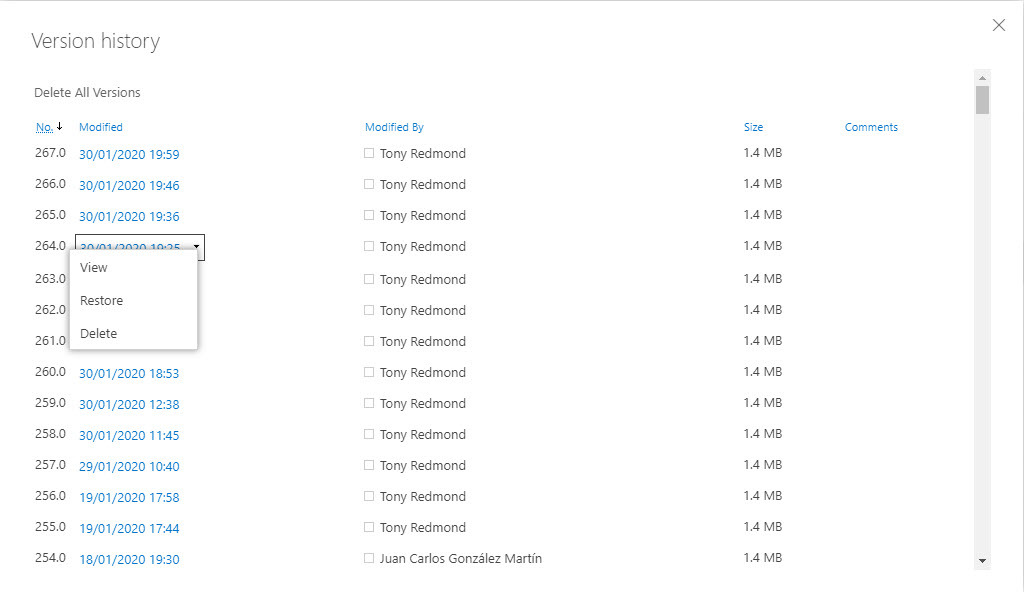
Version history matters more in legal work than in most industries. SharePoint keeps a full version record automatically, so you can see who changed a document and when, and restore an earlier draft. Check-out prevents two people overwriting each other on the same agreement.
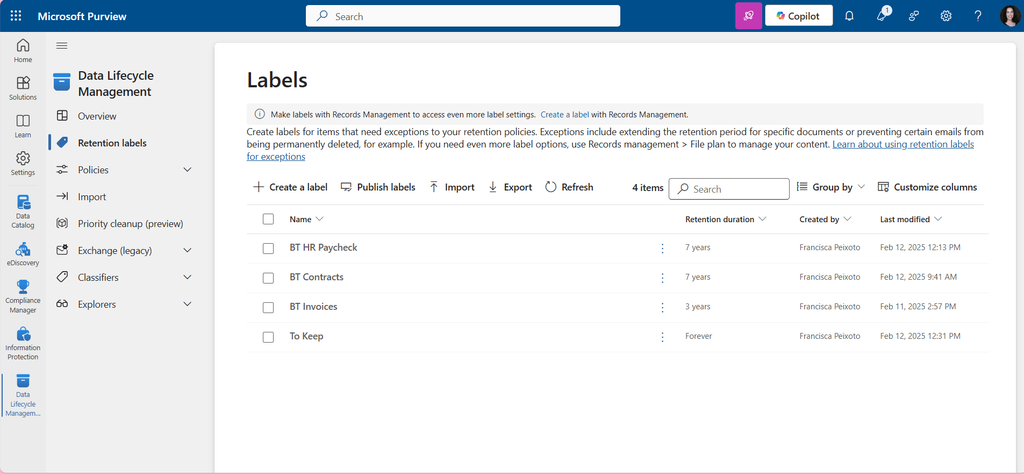
Retention and disposal should be planned at the start, not bolted on later. You can control these settings inside Microsoft Purview which is a governance tool embedded in SharePoint. Microsoft Purview retention labels let you apply rules such as keeping matter files for a set number of years after closure, then reviewing them for deletion. This is far easier to defend than a manual clear-out.
Search quality depends almost entirely on the metadata work above. When documents are tagged consistently, a paralegal can find every settlement agreement in a practice area in seconds. When they are not, search returns noise and staff go back to asking colleagues where things are.
Legal work is organised by matter, so the SharePoint structure should be too. The most reliable pattern is a matter-centric model where each matter has a consistent, predictable home. Broadly speaking there are 3 ways to organize your files in SharePoint: by site, document library and folder.
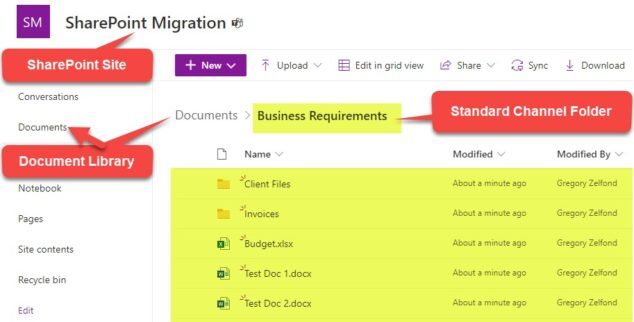
A site is the top-level container. It holds everything for a team, department or practice area, including documents, lists and permissions. Most firms have several.
A document library lives inside a site. It is where files are actually stored, similar to a folder on a shared drive but with version history, metadata and permissions attached.
Folders and metadata organise files within a library. Folders work like the ones you already know. Metadata is the better option: tags such as client, matter number or document type that let staff filter and search instead of clicking through folders.
There are three common structures. Small firms often use a single site with one document library per practice area, separating matters through metadata. Mid-sized firms tend to use a site per practice area. Firms with large, long-running matters sometimes create a site per matter, which gives the strongest separation but needs automated provisioning to stay manageable.
Our SharePoint developers recommend that whichever you choose you make matter creation a template. A new matter should always produce the same folders, the same metadata fields and the same permission settings. Consistency is what makes the system usable when a colleague picks up an unfamiliar file.
Matter closure needs a defined process as well. Decide what happens when a matter ends: whether it becomes read-only, moves to an archive location, or has a retention label applied. Without this step, active workspaces fill with dormant files.
Confidentiality obligations make permissions the highest-stakes part of any SharePoint build for law firms. The goal is simple to state and easy to get wrong: people should see the matters they work on and nothing more.
The easiest way to achieve that is to build permissions on groups, not individuals. Create Microsoft office groups by practice area, matter team or role, then assign access to those groups. Assigning permissions to named people creates a structure nobody can audit two years later.
Ethical walls are handled through unique permissions on the relevant site or library. Break inheritance for that matter, restrict it to the assigned team, and remove broader firm-wide access. Document the wall so it can be evidenced if it is ever questioned.
Access should also be logged. Microsoft 365 audit logs record who opened, edited, downloaded or shared a document, which supports both internal governance and client security questionnaires. Sensitivity labels can add a further layer, restricting whether a document can be forwarded outside the firm.
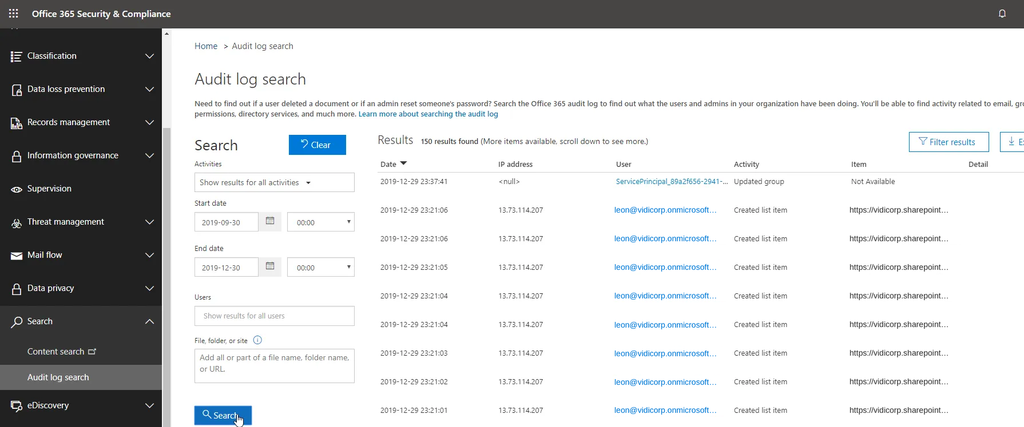
Row-level security is SharePoint allows you to hide some rows inside of a SharePoint list or a Power BI report. For example when we built a secure employment law comparison application for Shankman Leone, P.A., row-level security controlled which jurisdictions each user could see, with a logged login system and timestamped activity records. The same principle governs matter access in SharePoint: restrict at the data layer, not just the interface.
The main criticism of SharePoint in legal circles is that it lacks legal-specific features. That criticism is fair about SharePoint on its own, and it is also solvable. The platform is designed to have other tools built into it, and this is where most of the additional value sits.
Power Automate handles the repetitive process work and is essential for SharePoint automation. Firms use it for document approval workflow automation, to send notifications when a matter file is updated, apply metadata automatically on upload, and log activity for audit purposes. It removes the manual steps that staff otherwise forget.
Power Apps provides interfaces that SharePoint does not offer natively. Instead of asking an attorney to complete a library form, you can give them a simple matter intake screen, a document submission form or a client information app that writes directly into SharePoint. You can view our Power Apps examples if you are interested in seeing what those look like.
Power BI turns stored data into Law firms KPI dashboards. Matter volumes, document activity, turnaround times and workload distribution can all be reported on, with access restricted so partners see firm-level figures and teams see only their own.
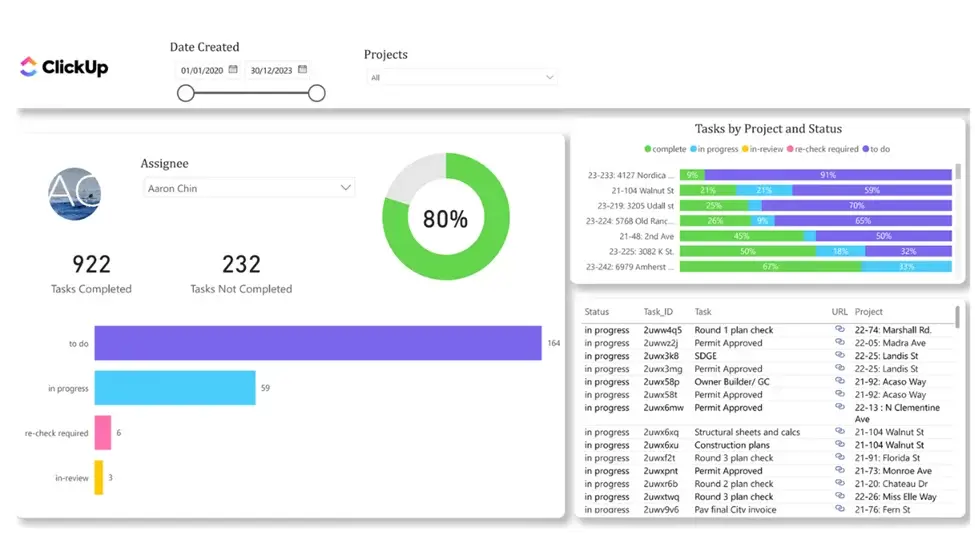
Our work for Shankman Leone, P.A. combined all three. As part of our SharePoint managed services we built a secure web application that let users compare employment law across multiple states, with Power Automate extracting content from supplied documents, a Power Apps interface for submission and filtering, and Power BI providing the data model with row-level security. That is the pattern we apply inside SharePoint environments: keep documents in SharePoint, then embed the applications, automations and reporting that make it work for legal teams.
Storing documents is only part of case work. A case also has deadlines, tasks, key contacts, court dates and a status that changes over time. SharePoint can track all of this alongside the files, so the full picture of a matter lives in one place.
The tool for this is a SharePoint list. A list works like a structured table inside a site, and each row can represent a case, a task or a deadline. Firms typically run a case list with columns for matter number, client, responsible attorney, case stage, next action and due date.
Tasks and deadlines can then be tied to each case. A task list records what needs doing, who owns it and when it is due, and it can link back to the relevant case record. Views can filter this to show only overdue items, or only tasks for one attorney, without anyone building a report.
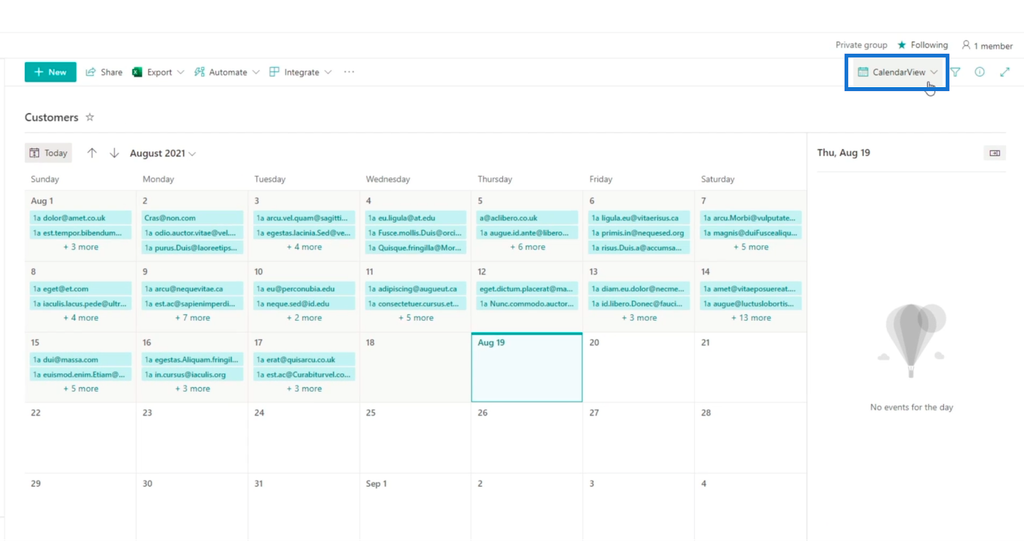
Calendars and key dates work the same way. You can choose to view SharePoint lists in calendar view to surface upcoming court dates, filing deadlines and limitation dates, and Power Automate can send a reminder a set number of days before each one. This is often where firms feel the difference first, because missed dates carry real consequences.
Case status is the thread that ties it together. By giving each case a stage such as intake, active, on hold or closed, the firm gets an at-a-glance view of the whole caseload. Partners can see workload distribution, and support staff can see what needs attention today.
It is worth being clear about the limit. SharePoint case management suits firms with reasonably standard workflows and a willingness to configure it. Firms needing specialist features such as conflict checking, trust accounting or court e-filing will still need dedicated case management software, and SharePoint can sit alongside it as the document layer.
Start with the matter lifecycle, not the technology. Document how a matter opens, who touches it, what documents it produces and what happens at closure. The structure should reflect that reality rather than an idealised version of it.
Choose the matter model that matches the firm’s size and matter length. Define the metadata columns before creating anything, because retro-fitting metadata across thousands of documents is slow and disruptive.
Set up groups, break inheritance where confidentiality requires it, and test access by logging in as a restricted user. Do not rely on the permission report alone. Verify what a user can actually open.
Once the foundation is stable, add the layers that remove manual work: automated metadata tagging, approval routing, notifications, intake forms and reporting. Introducing these early, before the structure settles, usually means rebuilding them.
Migrate in stages, starting with one practice area, and clean data as you go rather than moving everything as-is. Train staff on searching and tagging specifically, because those two habits determine whether the system holds up after six months.
SharePoint is not the right answer for every firm, and it is worth being direct about that. Dedicated legal systems such as iManage and NetDocuments are built around matters from the ground up, with email filing, conflict checking and legal-specific search included as standard.
Consider a dedicated DMS if the firm files very high volumes of email to matters, needs matter-centric features immediately without a configuration project, has strict client audit requirements naming a legal DMS, or has no internal capacity to maintain the system.
SharePoint is usually sufficient if the firm is already invested in Microsoft 365, has reasonably standard document workflows, and can commit around 30 working hours to the initial setup work. The deciding factor is rarely the software. It is whether the firm has the time and support to configure and maintain it properly.
Need help configuring a SharePoint site for you legal firm? Reach out to our SharePoint consultants for help!
SharePoint works well for law firms when it is designed around matters, secured properly and extended with the tools that fill its gaps. It works poorly when it is treated as a network drive with a new interface.
If you are planning a SharePoint setup or want to get more out of the environment you already have, we can help you scope it. Get in touch with our team to talk through your firm’s requirements.
No. SharePoint Online remains a core part of Microsoft 365 and continues to receive active development, including AI features through Microsoft Copilot.
The confusion usually comes from SharePoint Server, the on-premises version, where individual releases reach end of support on published timelines. That affects firms running their own servers, not those using SharePoint Online through Microsoft 365.
For many small and mid-sized firms, yes, once matter structure, metadata and permissions are configured. Firms with heavy email filing needs or strict legal DMS requirements are usually better served by a dedicated system.
Break permission inheritance on the relevant site or library, restrict access to the assigned matter team only, and remove firm-wide groups. Record the restriction so it can be evidenced later.
Yes, when configured correctly. Encryption, audit logging, multi-factor authentication, sensitivity labels and retention policies are all available. Security failures in practice almost always come from permission configuration, not the platform.
A straightforward structure for a small firm can be configured in a few weeks. Larger implementations with migration, automation and training typically run over several months.
Not in a matter-centric way natively. Firms usually add a third-party tool or a custom Power Automate process to file emails against the correct matter.


