
HubSpot quietly records a huge amount about your business. Every new contact, form submission, email open, call log, deal stage change and closed sale sits somewhere in your account. The built-in reports are a fine starting point, but the moment you need custom calculations, historical pipeline tracking, or CRM data sitting next to your finance and operational numbers, you run into the limits of what HubSpot’s own reporting will do.
Getting that data into a SQL Server database is what fixes it. Once your HubSpot records live in your own structured database, you can query them directly, join them to anything else you keep in SQL Server, and point any reporting tool you like at a single clean source that refreshes on its own
Our business intelligence consultants have delivered API-based pipelines that load business-system data into Azure-hosted SQL databases and other relational database environments. These projects include secure REST API extraction, incremental refreshes, data validation, and automated reporting.
This guide covers why that matters, the simplest way to do it, and the exact steps we follow at Vidi Corp using our HubSpot connector.
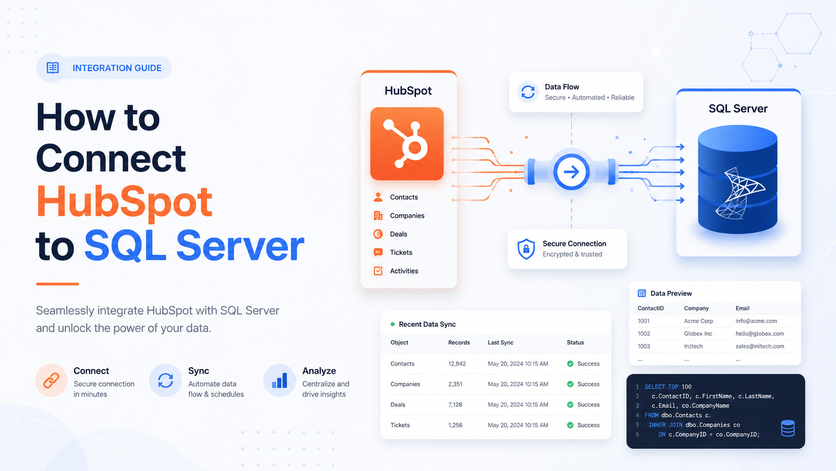
A HubSpot to SQL Server connection extracts CRM records from HubSpot, transforms the returned data, and stores it in SQL Server tables.
In practice, you do not open a conventional database connection directly to HubSpot. An integration calls CRM APIs, or uses a HubSpot connector that handles those API calls, before loading the returned data into SQL Server.
A typical architecture starts with HubSpot CRM and uses a private app or OAuth to authenticate the connection. The data then moves through the HubSpot API or a managed connector into a staging layer, where it is validated and transformed before being loaded into SQL Server or Azure SQL Database.
A SQL Server database gives you a stable home for that data. It holds your full history, it is fast to query, and it sits at the centre of your reporting rather than behind an API rate limit. Once HubSpot contacts, deals and activity land in SQL Server, they can feed Power BI, Tableau, Looker Studio, Excel or plain SQL queries, and they can be joined to finance, marketing and product data in one model. That is the difference between reporting on HubSpot in isolation and reporting on your business as a whole.
The most reliable approach is to stop pulling live data out of the HubSpot API every time you need a report. HubSpot’s API was built to run an application, not to serve a reporting model, so hitting it directly for large or historical datasets runs into rate limits and slow refreshes fast. Instead, extract the data once into a structured cloud database and keep it refreshed on a schedule. Your queries and reporting tools then read from the database, which is stable, quick and always available.
That is exactly what the Vidi Corp HubSpot connector does. It extracts your data from the HubSpot API and loads it into an Azure SQL Server database, ready to query. The flow is deliberately simple:
HubSpot → Vidi Corp Connector → Azure SQL Server
Once the connector is installed and the first load is done, nobody needs to keep exporting CSV files or manually refreshing spreadsheets. You have a proper HubSpot reporting database in SQL Server that stays current on its own.
The connector is a no-code solution built for teams that want HubSpot data in SQL Server without developing custom API scripts or maintaining their own pipeline. It creates the required database tables, authenticates with HubSpot, loads your historical records, and then refreshes the data automatically on a schedule.
The standard model gives you clean, structured HubSpot tables for Contacts, Deals, Engagements, Emails and Tasks. If your reporting needs go beyond that, custom additions can be requested. This structure matters because HubSpot data is awkward to work with in its raw API form. Objects are linked through relationships, activities are logged across different entities, and useful sales metrics often depend on historical tracking. A clean data model in SQL Server does that shaping once, so every report built on top of it is easier to produce and easier to maintain.
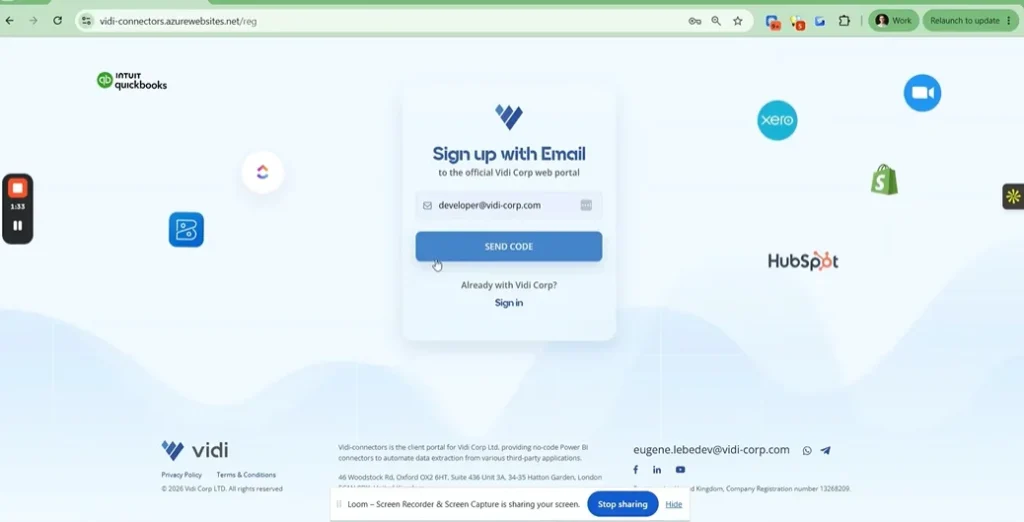
Open the Vidi Corp connector portal, and register an account with your email
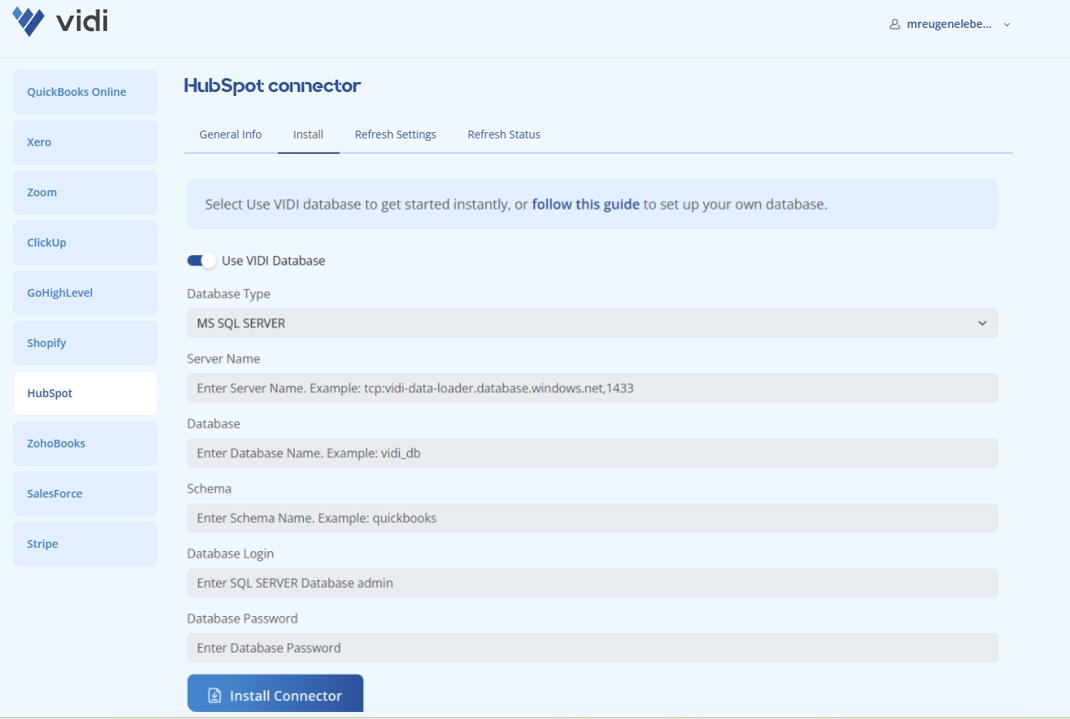
Select which database you want to load the data to. Go to the install tab. If you have your own SQL database, unselect “Use Vidi Database” and enter your details (server name, database name, schema name, username and password. For an explanation of how to create a database on Azure, see this video. If you don’t have technical knowledge on Azure, you can just put a tick next to “use vidi database”. Then wait a couple of minutes while our system is creating a database and all the underlying tables on our Azure account.
Click the “connect to HubSpot ” button and authenticate. After this wait for your data to load for 10-20 min depending on your data size. You can monitor the progress on the “refresh status” tab. Once every table there reaches 100% the data is ready to use.
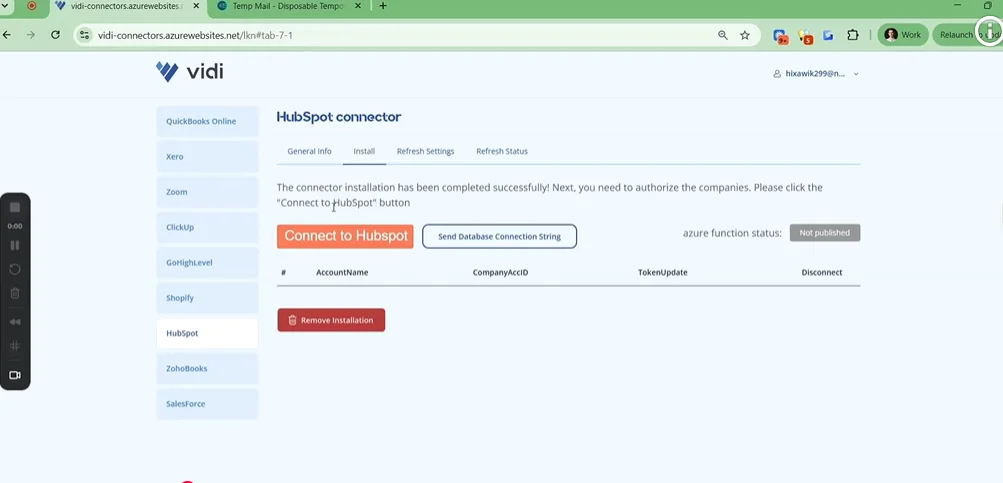
Click “send database connection string” on the install tab. Our system will send you an email to your registered email address with your connection details. The blue hyperlink inside of this email contains the Power BI Hubspot template. You can click it to download and then install.
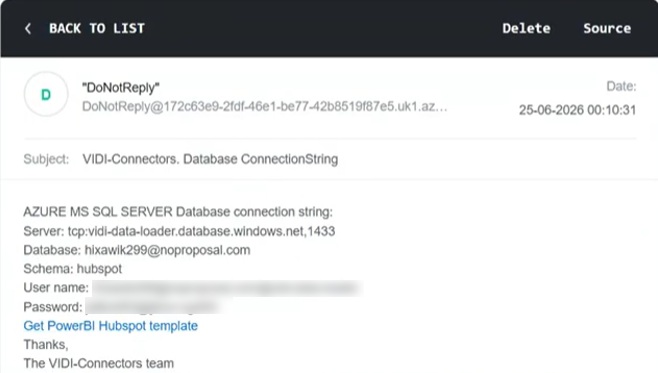
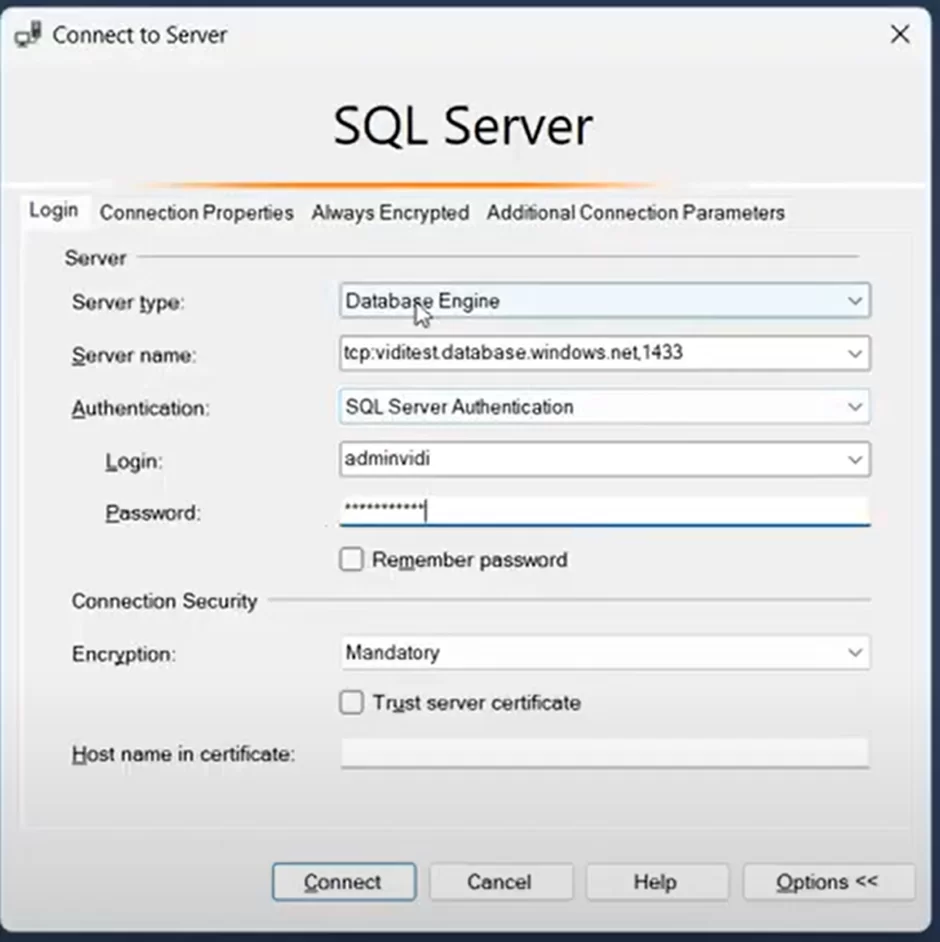
You can copy details from the email and insert them into SQL Server Management Studio.
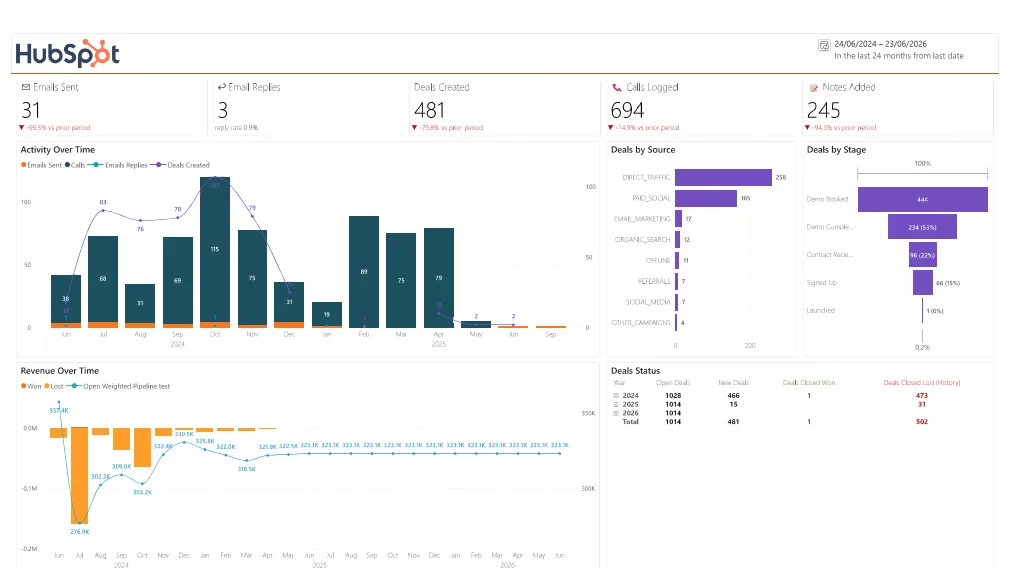
Vidi Corp provides a free HubSpot Power BI template when you connect your data using the connector. The template gives you a working report layout that you can start using quickly, then modify in Power BI if needed.
This is useful because most teams do not want to start from a blank report. They need a first version that already includes common sales and CRM analytics.
The template is designed to help answer practical questions around sales activity, emails, calls, pipeline movement, and current open deals.
The integration stores HubSpot contacts, companies, deals, and activities in relational tables. These tables can then be joined to invoices, transactions, subscriptions, advertising costs, service data, or other operational records using consistent identifiers.
Vidi Corp built a secure REST API pipeline and central relational database for War Room Operations. The client reported a 95% reduction in manual consolidation, reduced six separate data silos to one database, and cut report-generation time from 48 hours to under five minutes.
An incremental pipeline requests only records created or modified since the previous successful load. A scheduler then runs the process at a defined interval without requiring users to export files or update reports.
Vidi Corp implemented an automated Python pipeline that loaded SAP Ariba data into an Azure SQL database for Mercy Corps. The integration saved approximately five hours per month and allowed the organisation to refresh its reporting more frequently.
A reliable integration validates data types, uses record IDs as primary keys, loads through staging tables, and performs repeatable upserts. Reconciliation checks then compare SQL outputs with the source system before the data reaches dashboards.
During a reporting migration for ProFundCom, Vidi Corp achieved at least 99% parity with the legacy reports. The completed solution ran daily refreshes with a success rate above 95% and required no manual intervention after deployment.
The biggest challenge is usually data structure. HubSpot spreads CRM activity across many objects, and the relationships between contacts, deals, emails, calls, companies and owners have to be modelled correctly or your reporting quietly misses the links that make the data useful. A prepared data model handles this so you do not have to reverse engineer it yourself.
Historical tracking is the next one. Teams often want to know how the pipeline looked on a particular date, not just how it looks today, and that needs a model that can preserve snapshots or track stage changes over time rather than simply overwriting the current state.
API limits cause trouble when extraction is not designed carefully. Large HubSpot accounts hold years of emails, calls and deal changes, so the first load has to be handled properly and every refresh after that should move only what has changed. Getting this wrong is how a pipeline grinds to a halt after a few thousand records.
Finally, resist the urge to load everything into one place with no plan. HubSpot contains a lot of data, and a clean SQL Server model is far more useful when it is organised around the questions your team actually asks.
The connector is a strong fit when you want automated HubSpot data in SQL Server without building your own API integration. It is especially useful if:
The connector costs 1,000 US dollars per year and includes a 14-day free trial, unlimited HubSpot accounts, and unlimited customer support.
Connecting HubSpot to SQL Server turns a CRM you can only report on from the inside into a data source you fully own. Instead of wrestling with the API or living off stale CSV exports, you extract your data once into a structured Azure SQL Server database and keep it refreshed automatically, ready for any reporting tool or query you care to run.
The Vidi Corp HubSpot connector makes that straightforward. It creates the tables, authenticates with HubSpot, loads your history and keeps everything current, so the work of getting HubSpot into SQL Server takes three steps rather than a build project. From there, what you do with the data is up to you.
Ready to get your HubSpot data into SQL Server? Vidi Corp’s HubSpot connector loads your CRM data into Azure SQL Server automatically, giving you a clean reporting database you can build on straight away.
Yes. HubSpot data can be extracted through its API and loaded into a SQL Server database such as Azure SQL Server. Vidi Corp’s HubSpot connector does this for you, creating the tables, authenticating with HubSpot and keeping the data refreshed.
No. HubSpot does not offer a built-in connector that writes to SQL Server. You either build your own extraction against the HubSpot API or use a ready-made connector that lands the data in a database for you.
The first load can take a few hours because it pulls your full history, and the emails table takes the longest, as it can include full message bodies. Later refreshes usually finish in a few minutes.
The connector costs $1,200 per year and includes a 14-day free trial, unlimited HubSpot accounts, and unlimited support.


