
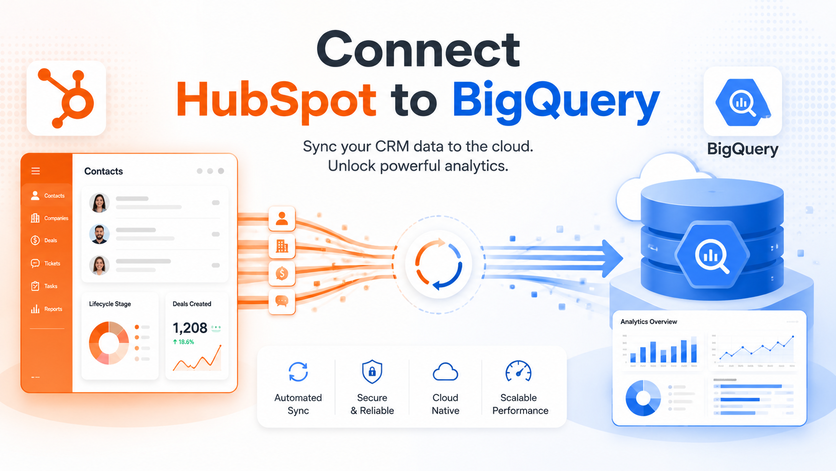
HubSpot quietly records a huge amount about your business. Every new contact, form submission, email open, call log, deal stage change and closed sale sits somewhere in your account. The built-in reports are a fine starting point, but the moment you need custom calculations, historical pipeline tracking, or CRM data sitting next to your advertising, finance and product numbers, you run into the limits of what HubSpot’s own reporting will do.
Getting that data into Google BigQuery is what fixes it. Once your HubSpot records live in a warehouse you control, you can query them with SQL, join them to anything else you keep in BigQuery, and point any reporting tool you like at a single clean source that refreshes on its own.
Our HubSpot BigQuery connector gives you a clean, reliable way to move your HubSpot data into BigQuery without the usual headaches of building and maintaining a pipeline yourself. Once the connector is installed, your contacts, deals, marketing activity, and engagement data flow straight into your warehouse on a schedule you control, ready to query alongside everything else you store there.
This guide covers why that matters, the different ways to connect HubSpot to BigQuery and the honest trade-offs of each, the exact steps for the native integration, and when a managed pipeline is the better call.
A HubSpot to BigQuery connection pulls your CRM records out of HubSpot, reshapes the data, and lands it in BigQuery tables.
The thing to know upfront is that you never open an ordinary database connection directly to HubSpot. Instead, an integration calls the HubSpot CRM APIs, or leans on a HubSpot connector that manages those API calls for you, and then loads the returned data into a BigQuery dataset.
A typical setup begins in HubSpot CRM and uses a private app or OAuth to authenticate the connection. From there, the data flows through our connector into a staging layer, where it is validated and transformed before being loaded into BigQuery.
BigQuery is where that data finally gets a stable home. It keeps your full history, runs queries across enormous datasets in seconds, and sits at the heart of your reporting rather than being stuck behind an API rate limit. Once your HubSpot contacts, deals and activity are in BigQuery, they can feed Looker Studio, Power BI, Tableau or straight SQL, and you can join them to your marketing spend, finance and product data in a single model.
Whatever tool you settle on, the most dependable approach is to stop pulling live data out of the HubSpot API every time you need a report. HubSpot’s API was designed to run an application, not to serve a reporting model, so hitting it directly for large or historical datasets bumps into rate limits and slow refreshes very quickly. The better move is to extract the data into BigQuery once and keep it refreshed on a schedule. Your queries and reporting tools then read from the warehouse, which is stable, fast and always there when you need it.
That is exactly what a Vidi Corp managed pipeline does. It pulls your data from the HubSpot API and loads it into a BigQuery dataset that is ready to query, then keeps it up to date automatically. Once the pipeline is running and the first load has finished, nobody has to keep exporting CSV files or manually refreshing spreadsheets. You have a proper HubSpot reporting dataset sitting in BigQuery that stays current on its own. And if you already hold other sources in the warehouse, such as our Shopify to BigQuery or ClickUp to BigQuery integrations, HubSpot just joins them in the same place.
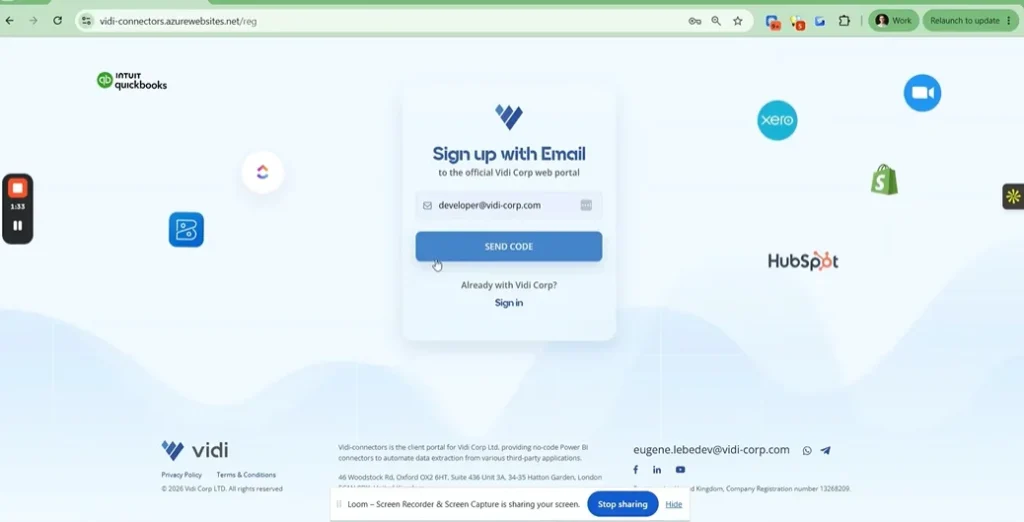
Head to the Vidi Corp connector portal and set up an account with your email.
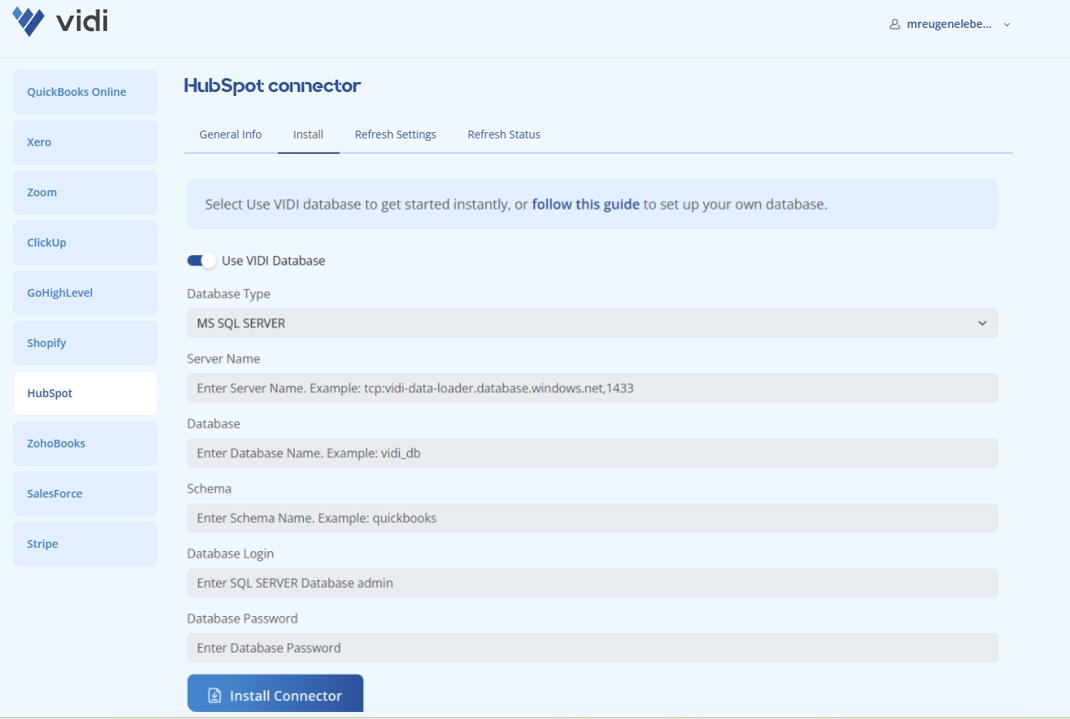
Choose which database you want to load the data into. Go to the install tab. If you have your own database, untick “Use Vidi Database” and enter your details: server name, database name, schema name, username and password. If you want to know how to create a database on Azure, have a look at this video. And if you are not comfortable with the technical side of Azure, you can simply tick “Use Vidi Database” instead. Then give it a couple of minutes while our system creates a database and all the underlying tables on our Azure account for you.
Click the “Connect to HubSpot” button and authenticate. Once that is done, give your data 10 to 20 minutes to load, depending on how much of it there is. You can keep an eye on how it is going over on the “refresh status” tab. As soon as every table there hits 100%, your data is ready to use.
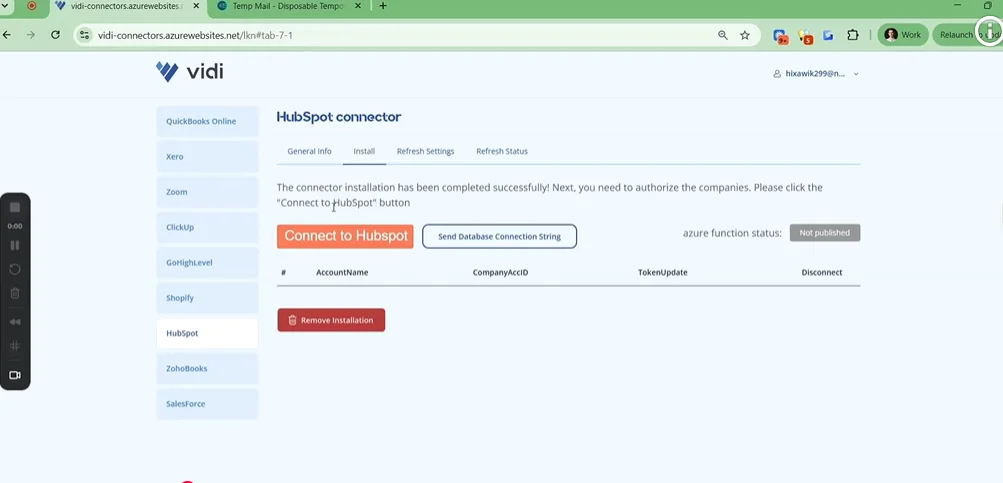
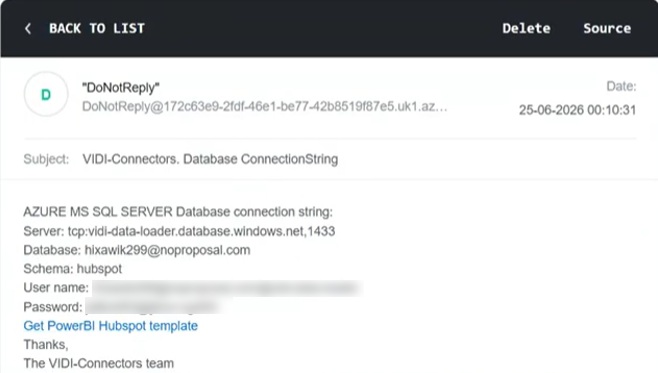
Click “Send database connection string” on the install tab. Our system will email your connection details to the address you registered with. Inside that email you will find a blue hyperlink containing the Power BI HubSpot template, which you can click to download and then install.
With the data in place, you can query it directly in BigQuery. From here it behaves like any other warehouse source, ready to be joined to the rest of your business data.
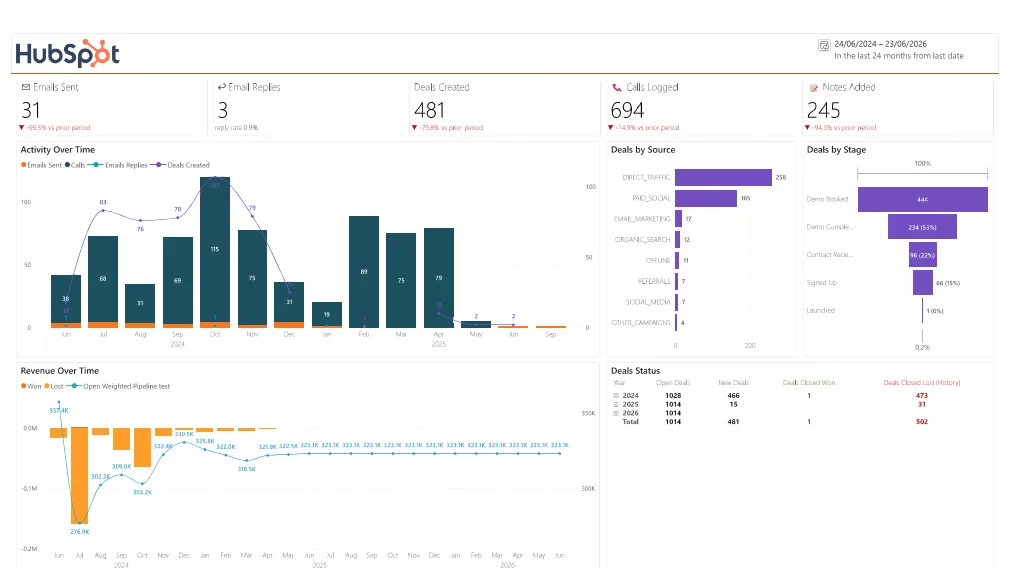
Vidi Corp gives you a free HubSpot Power BI template when you connect your data through the connector. The template hands you a working report layout you can start using straight away, then tweak in Power BI whenever you need to. That matters because most teams do not want to stare at a blank report. They want a first version that already covers the usual sales and CRM analytics. The template is built to answer the practical questions you actually care about: sales activity, emails, calls, how your pipeline is moving, and which deals are currently open.
Once the integration is running, your HubSpot contacts, companies, deals and activities land in warehouse tables. From there you can join them to advertising spend, invoices, transactions, subscriptions, service data or any other operational records using shared identifiers, and that is where the real cross-channel analysis begins.
Vidi Corp built a secure REST API pipeline and central relational database for War Room Operations. The client saw manual consolidation drop by 95%, six separate data silos collapse into a single database, and report generation fall from 48 hours to under five minutes.
An incremental pipeline requests only records created or modified since the previous successful load. A scheduler then runs the process at a set interval without anyone exporting files or updating reports by hand.
Vidi Corp built an automated Python pipeline that fed SAP Ariba data into a cloud database for Mercy Corps. The integration freed up around five hours a month and let the organisation refresh its reporting far more often.
A reliable integration validates data types, uses record IDs as primary keys, loads through staging tables and runs repeatable upserts. Reconciliation checks then compare what lands in the warehouse against the source system before any of it reaches your dashboards.
During a reporting migration for ProFundCom, Vidi Corp hit at least 99% parity with the legacy reports. The finished solution ran daily refreshes at a success rate above 95% and needed no manual intervention once it went live.
BigQuery is built for volume, so once your CRM history sits there, you can run analysis that HubSpot’s own reporting will not stretch to. Think marketing mix modelling that joins HubSpot campaigns to spend across channels, full-funnel attribution, revenue forecasting on years of pipeline history, and machine learning scores that you can push back into HubSpot as contact properties.
Data structure. This is usually the biggest one. HubSpot spreads CRM activity across many objects, and the relationships between contacts, deals, emails, calls, companies and owners have to be modelled correctly, or your reporting quietly misses the links that make the data useful. A prepared data model handles this so you do not have to reverse engineer it yourself.
Historical tracking. Teams often want to know how the pipeline looked on a particular date, not just how it looks today. That needs a model that can preserve snapshots or track stage changes over time rather than simply overwriting the current state. The native integration is limited here, which is a common reason to move on from it.
API limits. These cause trouble when extraction is not designed carefully. Large HubSpot accounts hold years of emails, calls and deal changes, so the first load has to be handled properly and every refresh after that should move only what has changed. Getting this wrong is how a pipeline grinds to a halt after a few thousand records.
BigQuery cost. Worth planning for too. BigQuery bills on storage and on the volume of data your queries scan, so a tidy, well partitioned model is not just cleaner, it is cheaper to run. Loading everything into one place with no plan tends to produce both messy reporting and surprising bills.
Connecting HubSpot to BigQuery turns a CRM you can only report on from the inside into a data source you fully own. Instead of wrestling with the API or living off stale CSV exports, you extract your data once into BigQuery and keep it refreshed automatically, ready for any reporting tool or query you care to run.
The native integration is a reasonable starting point for small accounts on the right plan. When you need custom history tracking, objects it will not sync, or reliability at scale, a managed pipeline takes the build and the maintenance off your plate. Either way, the goal is the same: HubSpot data in BigQuery that stays current on its own.
Ready to get your HubSpot data into BigQuery? Vidi Corp builds and runs the pipeline for you, loading your CRM data into a clean BigQuery dataset that refreshes automatically, so you have a reporting model you can build on straight away.
Yes. There are several ways to do it: HubSpot’s native BigQuery integration, a private app with a custom API pipeline, manual CSV export, a third-party ETL tool, or a managed pipeline built for you. The right one depends on your HubSpot plan, your data volume and how much control you need.
Yes. HubSpot offers a native integration that syncs objects such as contacts, companies, deals and tickets into a BigQuery dataset on a schedule, installed from the App Marketplace. Availability depends on your subscription tier, and it comes with limits: sensitive data is not synced to BigQuery, a few object views are not supported, and very large or complex datasets can strain it. Many teams start there and move to a managed pipeline once they outgrow it.
Use the native integration if your plan supports it, or a third-party ETL tool, both of which are no code. If you want a model tailored to your reporting and no maintenance on your side, a managed pipeline gives you a no code experience while someone else runs the plumbing.
It depends on how much history you hold. The first load can take a while because it pulls everything, and the emails and engagements tables usually take the longest. Later refreshes are incremental, so they only move what has changed and normally finish in a few minutes.


