
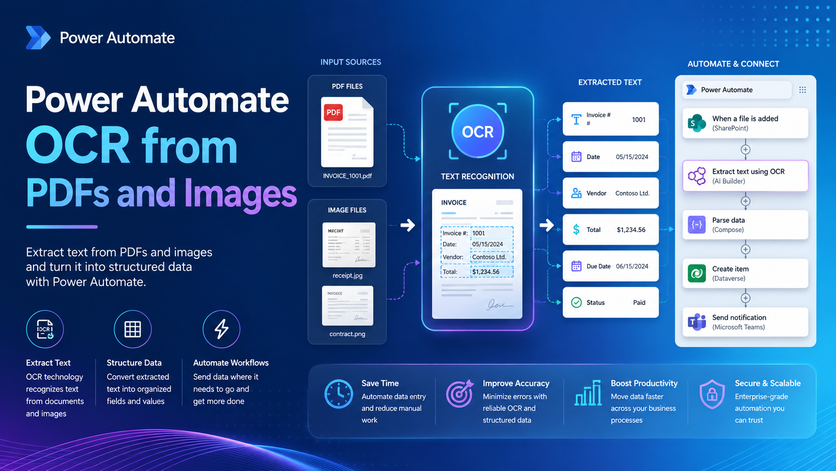
Microsoft Power Automate OCR (Optical Character Recognition) turns the text inside scanned PDFs and images into data that business systems can actually use. With a flow, you can read a document, extract the specific fields you need, then validate the results before saving that information to Excel, SharePoint, Dataverse, SQL, or some other application.
Vidi Corp’s Power Automate consultants have worked on over 200 automation projects, using document extraction to process invoices, bank statements, customer orders, team calendars, and all sorts of scanned forms that otherwise required manual data entry.
In this article, we’ll run through what OCR is in Power Automate, compare the cloud and desktop options, and take a look at how we built a Power Automate OCR PDF flow for bank-statement analysis.
OCR stands for Optical Character Recognition – essentially it’s what lets computers read printed or handwritten text inside a PDF or image and turn it into a format the computer can read.
In Power Automate, OCR usually just one part of a bigger workflow. The flow gets a file, reads its contents, identifies what information it needs, and then sends the results on to another system. For example, it can extract an invoice number, supplier, date, line items, and total, then add those values to an Excel spreadsheet, accounting system, or document approval workflow.
Now, OCR and document processing aren’t the same thing. OCR just reads the text in a document – document processing is when the computer figures out which bit of the text is what information – for example, the invoice number, transaction date, account balance, or other defined field.
OCR works on both PDFs and images – so an employee could photograph a receipt in a Power App, and AI Builder would just read the merchant, date, and amount straight into an expense-approval flow. Common RPA use cases include:
● Invoice processing – extracting supplier info, invoice number, PO, date, tax, line items and total, so you can validate, route for approval and update your finance system.
● Bank statement extraction – converting transaction descriptions, dates, withdrawals, deposits and balances into structured data for reconciliation and reporting.
● Customer orders – pulling customer names, order references, product codes, quantities, prices and delivery dates to update your inventory and fulfillment systems.
● Team rotation calendars – reading names, dates, shifts and assignments to create reminders or update your SharePoint.
● Forms and applications – turning scanned or photographed forms into Dataverse, SharePoint or CRM records, and routing uncertain submissions to a review queue.
● Legacy applications – using Power Automate Desktop to read text from software that has no API or export.
Short answer: yes – and you can do it through either AI Builder or Power Automate Desktop.
AI Builder’s ‘Recognize text in an image or a PDF document’ action gives you the full document text, plus lines, page numbers and text coordinates and works with scanned documents, photographs and PDFs. For more structured extraction, its ‘Process documents’ action uses a custom model to return defined fields and tables with a confidence score for each value.
Power Automate Desktop, on the other hand, has an ‘Extract text with OCR’ action that reads an image or window region or full screen using Windows OCR or Tesseract, both of which run right on your machine.
You can see our Power Automate flow examples that involve Desktop and Cloud flows in our detailed guide.
The right choice will depend on what you need to extract and where the document lives – and here are some guidelines:
| Requirement | Recommended option |
| Extract all text from a PDF or image | AI Builder text recognition |
| Extract defined fields or tables | AI Builder document processing |
| Process common invoice fields | AI Builder invoice processing |
| Read text from desktop software | Power Automate Desktop OCR |
| Keep image processing on a local machine | Power Automate Desktop OCR |
| Send extracted data to Power Apps for review | AI Builder with Power Apps |
| Load extracted data into Power BI | Store it in Excel, Dataverse, SharePoint, or SQL |
The walkthrough below is based on a real project our Power Automate developers did. A client had a folder full of PDF bank statements and wanted the key figures pulled out of each one and then dumped into a single Excel spreadsheet. Rather than have someone re-type each statement by hand, we built a flow that reads every PDF, extracts the text using OCR, uses AI to pick out the fields we care about, and writes them to a spreadsheet automatically.
You don’t have to be a Power Automate expert to follow along – just click + New step (or the + between two existing actions), search for the connector by name, and fill in the fields as you go.
Before the flow can read the document, it needs to get the file itself. Add a Get file content action (we used OneDrive for Business – SharePoint has an equivalent) and point it at the PDF in the File field. This hands the file’s raw bytes to the next step – in Code view the same settings appear as JSON – the long id value is just OneDrive’s internal reference for the file, filled in by the file picker.
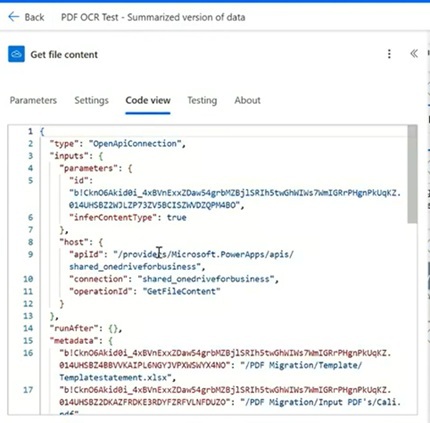
In our project: To process whatever PDF lands in a folder, start the flow with a trigger – like ‘When a file is created’ – then pass its file identifier into this action instead of hard-coding one file.
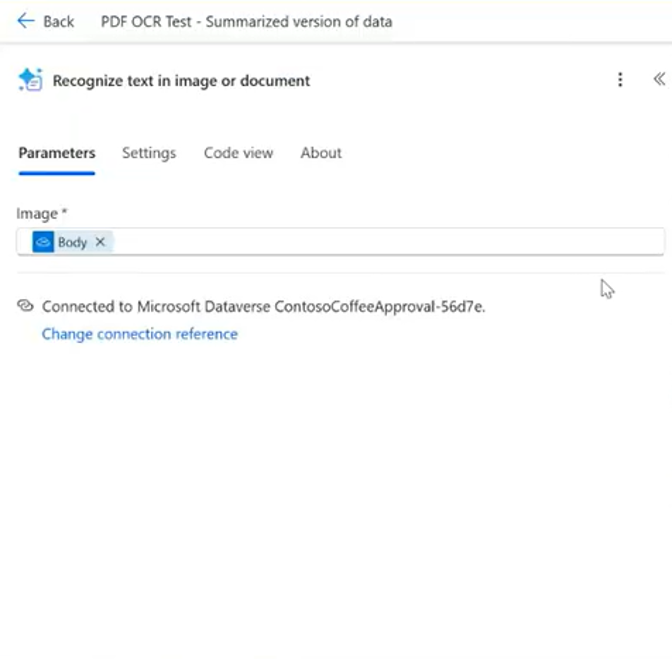
This is where the OCR magic happens. Add the Recognize text in image or document action from the AI Builder connector – in its Image field insert the Body output from Step 1. Its only job is to turn the picture of the page into machine-readable text – it doesn’t decide anything yet, just turns the page into words it can work with.
OCR output can be a real pain to deal with, coming back long & sometimes empty, so we start by tidying it up with a Compose action – a nifty little box that holds a value for reuse. Our expression performs a couple of safety jobs: if the page text is missing it substitutes an empty string, and it trims the text to a maximum length to stop it getting too long and pushing past the AI prompt’s size limit – which keeps costs down.
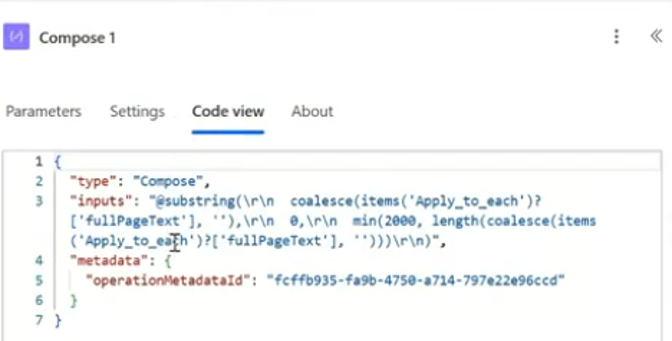
In our day to day experiment: The trimming keeps the text to 2,000 characters – which is just about okay for a short statement, but you might want to raise this limit if your key figures appear lower down a long page.
Different layouts need different handling so we add a Condition to split the flow into a True and a False branch. We check if the recognised text contains one of a set of tell-tale phrases (for example “account summary”) and we join these with Or so any one of them will be enough. We wrap each of these values in toLower() so that the check ignores capitalisation.
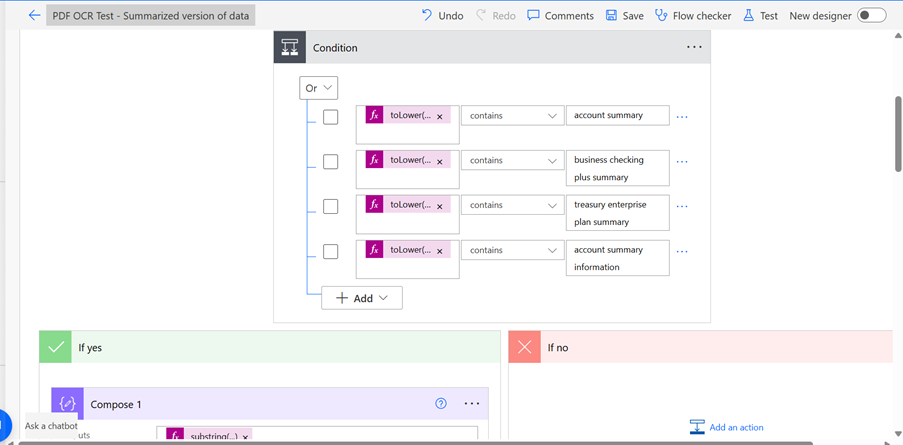
In our project: Keyword matching works pretty well when documents have reliable headings. Just watch out for phrases that overlap (“account summary” fits inside “account summary information”) and delete the empty placeholder row at the bottom of the Condition or the flow will start complaining about an incomplete expression.
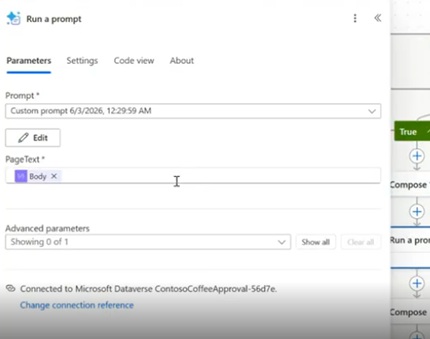
Inside the matched branch, we add a Run a prompt action (also known as AI Builder). This is where the real extraction magic happens: our custom prompt tells the AI to read the statement text and return the fields we care about – bank name, account number, balances – as JSON. We pass the cleaned text into the PageText field; click on Edit to see what’s going on or make any changes.
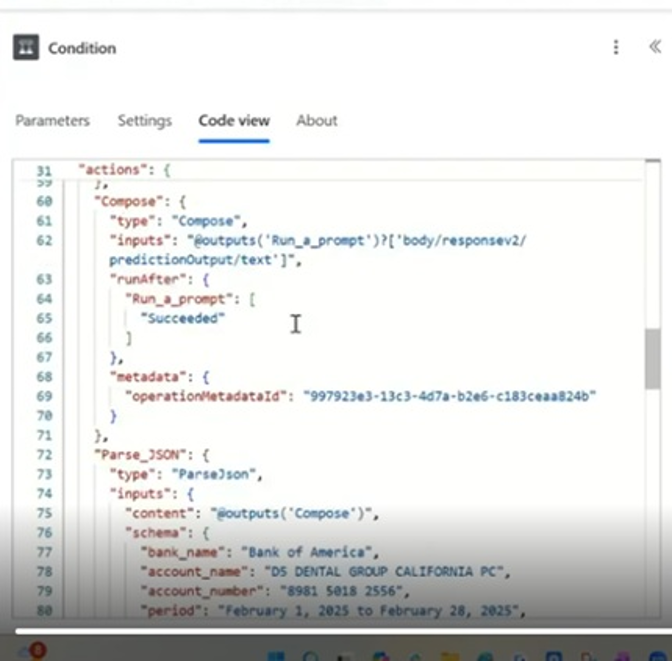
Add another Compose action to get just the text the prompt produced (its prediction output). This stops the next step having to rummage through a long nested reference – which just keeps the flow a lot easier to read and maintain.
The prompt returns its answer as text that looks like JSON, but Power Automate thinks of it as a plain string. Add a Parse JSON action to convert it into something you can actually use. Parse JSON needs a schema that tells it what the fields are and what type they are – click on Generate from sample and paste one example of the prompt’s output, and Power Automate sorts out the details for you. The example values only need to show the shape of the output, Parse JSON reads what the current document produced every time.
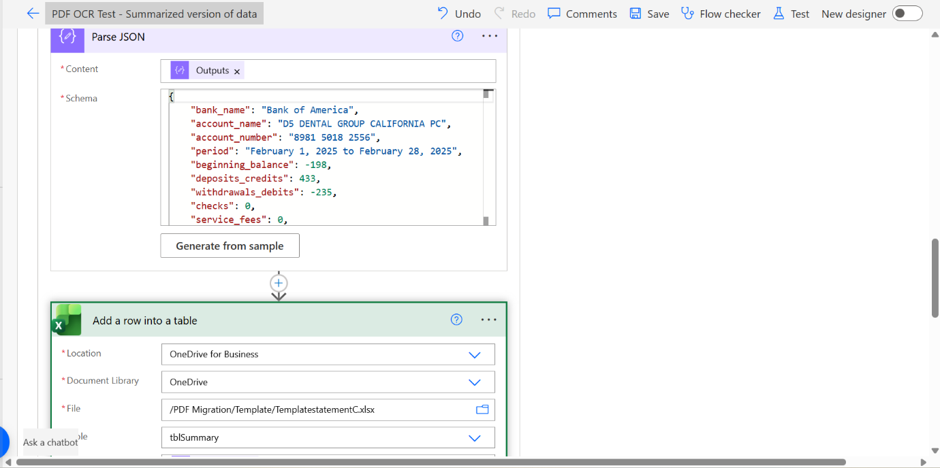
In our experience: Parse JSON is where the flow is most likely to go wrong – if the prompt returns text that isn’t valid JSON or omits a field, Parse JSON will go off the rails. Make sure that in the schema any fields that might be missing are set to be nullable so that a missing value won’t break the flow.
Finally, add Add a row into a table from the Excel Online (Business) connector. Choose the workbook and table, and Power Automate lists every column as a field to fill in. Map each column to its Parse JSON field – Bank Name to bank_name, Beginning balance to beginning_balance, and so on. Each processed document then adds one neat row to your spreadsheet.
Raw OCR output is hardly ever ready for use. It often includes repeated headers, unwanted line breaks, inconsistent number formats and text that still needs to be separated into individual fields. You can clean it up with a Compose action in Power Automate using expressions such as the replace() function, trimming out unwanted bits, splitting on labels like “Invoice Number” and “Total”, and using the substring() function. For example, you might use this to remove recurring page headers or split the text on labels such as “Invoice Number” and “Total.” You may also need to set up different paths for parsing depending on the layout used by your suppliers or banks.
For quality control, it’s a good idea to store the original OCR text alongside your parsed fields. This way you can easily investigate a value without having to re process the document. AI Builder document processing models also return confidence scores between zero and one; low-confidence values can be routed to a person with a Start and wait for approval action, which pauses the flow until someone confirms or rejects the data.
OCR results are more of an educated guess than a certainty. Based on our experience in RPA consulting, any production flow needs to take account of input quality, document variation, extraction errors, capacity and any sensitive information involved.
Try to use straight, correctly orientated pages with clear text and good contrast. Avoid using documents with shadows, cropped text, handwriting over printed fields and low resolution photos. A 300 dpi scan is a start but you don’t have to stick to it – Microsoft notes that text embedded in PDFs usually extract more reliably than scanned pages.
Test out real files from each bank, supplier or department. Accuracy can drop when dealing with handwriting, multiple languages, multi column pages and complex tables. AI Builder document processing does not support fields split across page boundaries so you need to test that as well. Measure the accuracy of critical fields – totals, account numbers, dates – before rolling it out rather than just relying on the overall model score.
Try to avoid re-sending the same PDF through AI Builder in a pointless loop. Keep a record of the file ID, processing date, run ID, status and destination record to prevent duplicates and make it easier to troubleshoot. For large documents, you can limit the Process documents action to a specific page range which Microsoft recommends if the target form only appears on part of the document.
AI Builder runs consume capacity, and different capabilities use up credits at different rates. Microsoft is also moving AI Builder usage towards Copilot Credits so be sure to check your licensing when planning. Estimate the number of documents, pages and retries you will need to do – this includes test runs, exception runs and reprocessing, not just the ideal production run.
If you’re dealing with sensitive information like payroll, medical, legal and financial PDFs then you need to make sure you’re protecting them properly. Use Power Platform data policies to control which connectors can exchange business data, and store your secrets in Azure Key Vault via environment variables rather than hardcoding them in your actions. Microsoft Purview logs flow changes and permission events, while run-level detail is available through Power Automate analytics, Dataverse or Application Insights.
OCR alone doesn’t finish the job – the data still needs to be validated, stored and delivered to the people or systems that need it. A complete workflow typically receives the document, figures out its format, extracts the relevant fields, cleans and validates them, routes uncertain values for review, stores the structured data, updates a business system, refreshes a Power BI report and notifies the relevant employee. OCR is usually one piece of a larger workflow automation consulting project, feeding clean data into approvals, reporting and downstream systems.
The link between extraction and reporting was what was important in our bank statement project. The flow didn’t stop at reading the PDF, it produced a consistent transaction table that Power BI could analyse.
If you need help with Power Automate OCR from PDFs or images, please contact us. Our consultants will review your documents and explain their approach to extract data from your documents.
Yes it can – AI Builder document processing can extract tables that you’ve defined when training the model. Complex tables, merged cells, and rows that continue on from one page to another all need extra testing.
AI Builder text recognition supports both printed and handwritten text. But how accurate it is depends on the language, the quality of the handwriting, how clear the image is, and the layout of the document.


