

Power BI data integration is the process of automatically extracting data from source systems and making it available for analysis in Power BI. It’s the foundation of every reliable dashboard and determines how accurate, scalable, and maintainable your reporting will be.
As a Power BI consultancy, we’ve implemented 100+ Power BI data integrations across finance, marketing, operations, and e-commerce teams. We’ve seen firsthand what works well, what breaks at scale, and where Power BI’s native tools need additional support.
In this article, we’ll walk through the most common Power BI data integration tools, modes, and real-world connectors. You’ll learn when to use each approach and how to choose the right setup for your reporting needs.
Power BI is capable of integrating multiple data sources and combining data from them into a unified dataset for comprehensive analysis
Most Power BI data integrations follow the same basic process, regardless of the tool or connector you use. Establishing data connections to various sources is a crucial step, as it enables seamless integration and sharing of data. Understanding this flow helps you choose the fastest and most reliable way to bring data into Power BI.
When Power BI connects to cloud-based tools like Salesforce or Google Analytics, it establishes a connection to the data source using APIs. Power BI sends HTTP requests to these platforms, similar to how a browser requests a web page.
The API responds with data in a JSON format. Because many APIs limit how much data they return at once, Power BI often sends multiple requests to build a single table.
Once the data is received, Power BI transforms the JSON into structured rows and columns. This transformation step prepares the data for modelling, analysis, and reporting.
The process is simpler for SQL databases and local files. In these cases, Power BI loads the data directly and stores it in memory, skipping the API and transformation-heavy steps.
Because fewer operations are required, SQL and file-based integrations usually refresh faster and perform better than API-based connections.
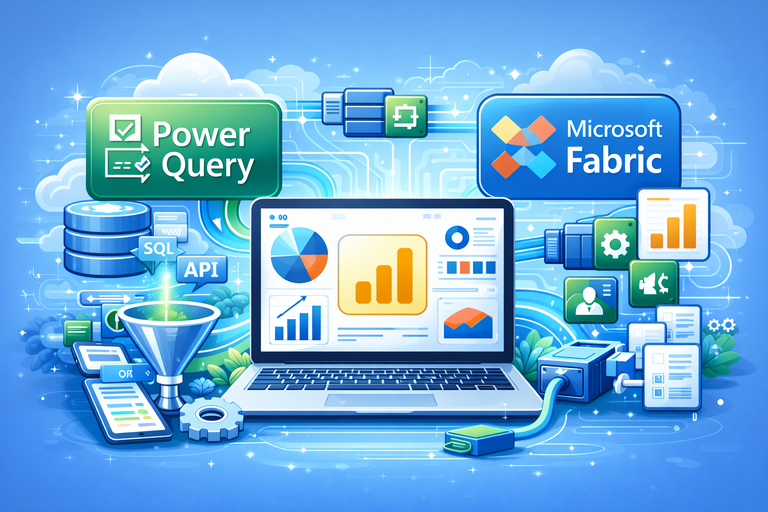
Power Query is the most common tool for data integration in Power BI. You access it directly in Power BI Desktop by clicking Get Data.
Out of the box, Power Query lets you connect to over 250 data sources. These connectors are built and maintained by Microsoft, so you can start pulling data without writing custom code.
Once connected, you use Power Query to clean, transform, and shape the data. This includes tasks like filtering rows, renaming columns, merging tables, and preparing the data model for reporting.
It’s important to understand what happens behind the scenes. When you use Power Query, Power BI is responsible for sending API requests, processing JSON responses, and transforming the data into tables.
This works well for small to medium data volumes. However, when integrations rely on a large number of API requests, refreshes can become slow and less reliable.
Microsoft Fabric dataflows work like Power Query in the cloud. You access them through Microsoft Fabric, and they use the same connectors and transformation steps you’re already familiar with from Power Query.
The key difference is where the work happens. With Fabric dataflows, all API requests and data transformations run in the cloud before the data ever reaches Power BI Desktop.
This makes the process more efficient. Power BI is then used mainly for modelling and visualization, instead of handling heavy data extraction and transformation tasks.
Fabric dataflows are often used to create a single “source of truth” acting as a type of data warehouse for Power BI. Data is cleaned and standardised once, then reused across multiple reports.
Fabric dataflows also help maintain current data for reporting by supporting automated refreshes, ensuring that insights are always based on the latest information.
Because multiple reports can connect to the same dataflow, refreshes stay consistent and everyone works with the
When Power BI doesn’t offer a native connector, third-party data integrations are often the most efficient solution. These tools handle the complexity of API connections for you, so data is extracted automatically without custom development.
Instead of building and maintaining API logic yourself, a third party manages the requests, authentication, and data structure. This significantly reduces setup time and long-term maintenance.
Vidi Corp Power BI data integrations support 15+ popular platforms, including QuickBooks Online, Shopify, Xero, ClickUp, Zoom, and more. These connectors are built specifically for analytics, not just raw data extraction.
When you use our integrations, we automatically create an Azure SQL database for you. No coding, infrastructure setup, or database management is required.
This database layer allows us to standardise, clean, and optimise the data before it reaches Power BI. As a result, you get analysis-ready tables instead of raw API outputs.
You simply connect Power BI to Azure SQL and focus on reporting and insights.
Every integration also includes a free Power BI dashboard template. These dashboards already contain the correct formulas and logic, so your numbers match the source system from day one.
You can use the templates as-is or customise them further to fit your reporting needs, saving weeks of development time.
For businesses with unique requirements, custom Power BI integration services options are also available, allowing you to tailor data flows to specific business needs.
Import mode is supported by all Power BI data connectors. When you use it, data is extracted from the source and stored in a cached Power BI dataset.
Because the data is already in memory, report interactions are fast. When users filter or interact with visuals, Power BI reads from the cache instead of sending new API or database requests.
Import mode also gives you full flexibility during data preparation. All Power Query and Microsoft Fabric dataflow transformations are supported, with no functional limitations.
Refresh frequency depends on your license. With Power BI Pro, datasets can refresh up to 8 times per day. With Power BI Premium per user, this increases to 48 refreshes per day.
For most reporting scenarios, import mode offers the best balance of performance, flexibility, and simplicity.
Direct Query is supported only for certain database-based data sources, such as SQL Server, BigQuery, and SAP BW. Not all Power BI connectors support this mode.
Unlike Import mode, Direct Query does not store data in a cached dataset. Instead, Power BI establishes a live connection to the source database and sends a query to the source database every time a user changes a filter or opens a report page.
Because each interaction triggers a database query, reports tend to be slower. This also means you may incur additional costs from the underlying database, since queries are executed continuously.
Direct Query has more limitations during data preparation. Many Power Query transformations are not supported, and the model is best kept simple. Complex DAX calculations are discouraged, as they often result in poor performance.
With Direct Query, data is always queried live when a page is refreshed or a filter is changed. However, if a user stays on the same page without interacting, the data does not automatically update.
Hybrid mode combines Import mode and Direct Query for supported data sources. It lets you store some data in Power BI’s cache while querying other data live from the source.
This approach allows you to take advantage of fast performance for frequently used or historical data, while still accessing up-to-date information when needed.
Hybrid mode is commonly used when part of the data changes frequently and another part is relatively static. As a developer you choose which tables to update via Import and Direct Query.
By mixing both modes, hybrid setups offer a good balance between performance, data freshness, and flexibility—without fully committing to the limitations of Direct Query.
Streaming datasets work differently from other Power BI integration modes. There are no native connectors for them. Instead, you first create an empty streaming dataset in Microsoft Fabric.
New data is then pushed into Power BI using webhooks or Power Automate. Whenever new rows are detected, data is sent to the Power BI REST API, which inserts the rows into the streaming dataset.
The key benefit of streaming datasets is real-time updates. Numbers on your dashboard change instantly as new data arrives, without refreshing the page or interacting with filters.
This is different from DirectQuery, where data only updates when a user triggers a refresh or interaction.
There are three types of streaming datasets. Some support full Power BI reports with DAX, while others only allow simple visuals in Power BI dashboards.
Streaming datasets are best suited for real-time monitoring scenarios, such as live operations, IoT data, or event tracking.
Reza from Radacad did a great job explaining how to configure a streaming dataset in his video.
Power BI previously offered a native QuickBooks Online connector in beta for several years. It was widely used by accounting agencies, finance teams, and small businesses.
However, the connector had major limitations. It was unreliable, didn’t support multiple QuickBooks organisations, and exposed over 150 poorly documented tables with no clear guidance on how to build financial reports.
To solve this, we built the Vidi Corp QuickBooks Online connector for Power BI. Instead of raw tables, the data is organised into familiar financial structures such as Profit & Loss, Balance Sheet, and Cash Flow.
Each report can be drilled down to transaction-level detail on a daily basis. You can also switch between cash and accrual accounting and combine multiple QuickBooks Online accounts into a single report.
The connector includes a ready-made Power BI template with all calculations prebuilt. This ensures your numbers match QuickBooks Online from day one, without manual reconciliation.
Shopify is one of the most popular data sources for e-commerce brands and agencies. It’s commonly used to analyse customer purchasing behaviour, design new offers, and inform remarketing and retention campaigns.
The biggest challenge with Shopify data is volume. In our experience, direct connectors between Shopify and Power BI often require extracting data batches of 400MB or more. This pushes Power BI beyond its limits and frequently causes refresh failures.
The Vidi Corp Shopify Power BI connector solves this by extracting data into an Azure SQL database first. The database handles the heavy API extraction and processing, while Power BI is used purely for fast and reliable visualisation.
Our connector pulls data from Shopify’s latest GraphQL API, providing a future-proof and scalable integration. It also supports combining data from multiple Shopify stores into a single reporting model.
We include a free Shopify Power BI dashboard with the integration. It comes with ready-made insights such as customer lifetime value, new vs returning customers, cohort analysis, reorder rate, purchasing frequency, and products commonly bought together.
ClickUp is widely used by service-based organisations for project and task management. While it’s a strong operational tool, its native reporting capabilities are limited, which makes Power BI a natural choice for deeper analysis.
Despite high demand, ClickUp still doesn’t offer a native Power BI connector. In fact, the integration request has received around 1,000 upvotes on the ClickUp forum and has remained unresolved for years.
The Vidi Corp ClickUp Power BI integration fills this gap. It allows you to extract data from one or multiple ClickUp workspaces and brings all project data into Power BI automatically.
The connector supports tasks, custom fields, time entries, and other key objects needed for project, utilisation, and performance reporting.
It also includes a free Power BI ClickUp dashboard with all calculations prebuilt. ClickUp’s raw data model can be difficult to work with, and this template saves significant time by ensuring your numbers match from the start.
Power BI data integration choices have a direct impact on performance, reliability, and long-term scalability. The right setup makes reporting fast, consistent, and easy to maintain. The wrong one creates constant refresh issues and manual work.
If you’re looking for a ready-made connector, explore our Power BI data integrations to see what’s already available. If you can’t find a connector for your system, our Power BI integration services can help. We build custom, scalable integrations tailored to your data sources and reporting needs.
If you’d like to discuss your setup or explore the best integration approach for your organisation, contact us and we’ll be happy to help.


