

In this article, we’re sharing real Power Automate examples we’ve built for clients, covering use cases from approvals and document processing to AI-powered workflows and system integrations. Each Power Automate flow was designed to solve a concrete business problem, not just demonstrate technical features.
The Power Automate consultants at Vidi Corp have delivered 200+ projects for clients, including the UK Ministry of Defence, American Express and Delta Airlines. In 2025, we were also named the best data analytics and automation consultancy according to the UK Enterprise Awards.
The Power Automate flow examples in this article are not generic templates or demo flows. They’re proven, client-delivered solutions. If any of the examples resonate with your challenges, we can build a similar Power Automate workflow tailored to your systems and processes.
Power Automate enables organisations to automate processes across systems, applications, and teams without heavy custom development. From simple notifications to advanced AI-driven workflows, it supports a wide range of automation scenarios through 3 core flow types.
Together, these capabilities allow Power Automate to handle everything from basic task automation to complex, end-to-end business processes that combine data, systems, and AI.
Power Automate cloud flows are fully web-based. Power apps are typically used for creating the front-end screens and the
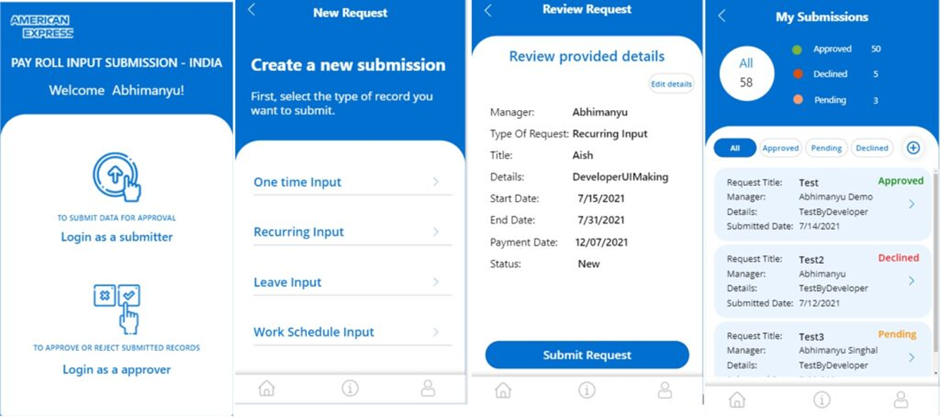
Request-approval workflows are one of the most common Power Automate use cases, especially for processes like annual leave requests and expense approvals. In many organisations, these workflows still rely on emails, spreadsheets, and manual follow-ups, which slows approvals and reduce visibility for finance and managers.
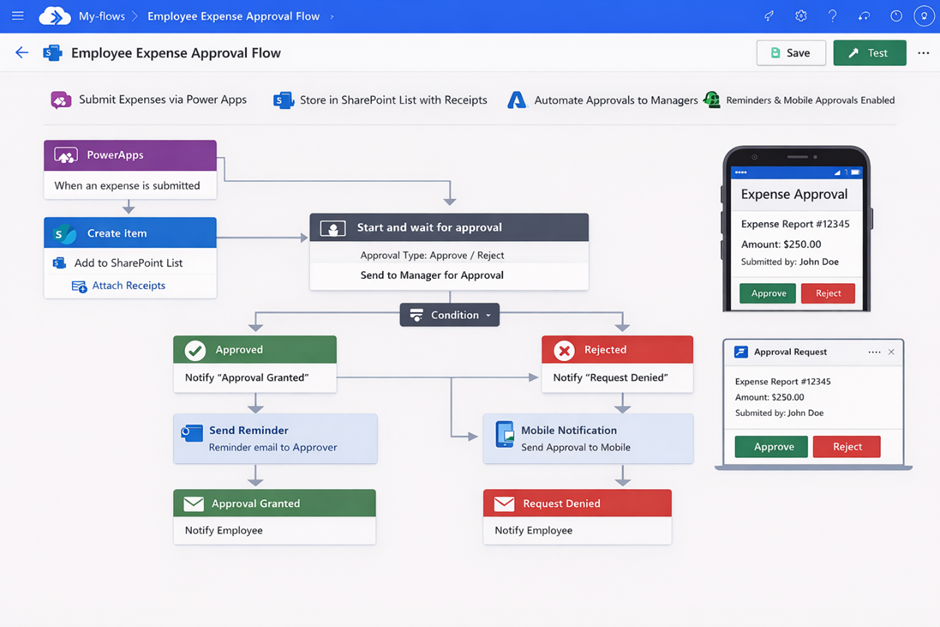
Our Power Automate consultants developed these workflows for American Express, where the finance department received expense claims using Excel sheets and email attachments. Managers frequently missed approval emails, employees had to chase responses, and the finance team struggled to track claim status because data was scattered across inboxes and files.
We streamlined the process by implementing a centralised expense approval workflow using Power Apps and Power Automate. Employees submitted expenses through a simple app, receipts were attached digitally, and approval flows routed requests automatically to the right managers, with reminders and mobile approvals enabled.
The solution reduced approval times by over 65%, eliminated follow-up emails, and gave the finance team a single source of truth for all expenses. As a result, reimbursements were faster, audits became easier, and both employees and managers experienced a smoother, more reliable approval process.
Automatic document creation is a common Power Automate use case for generating customer reports, site inspections, project proposals, and compliance documents. When done manually, people paste data manually into placeholders inside Word documents, which becomes time-consuming and inconsistent as document volumes and teams grow.
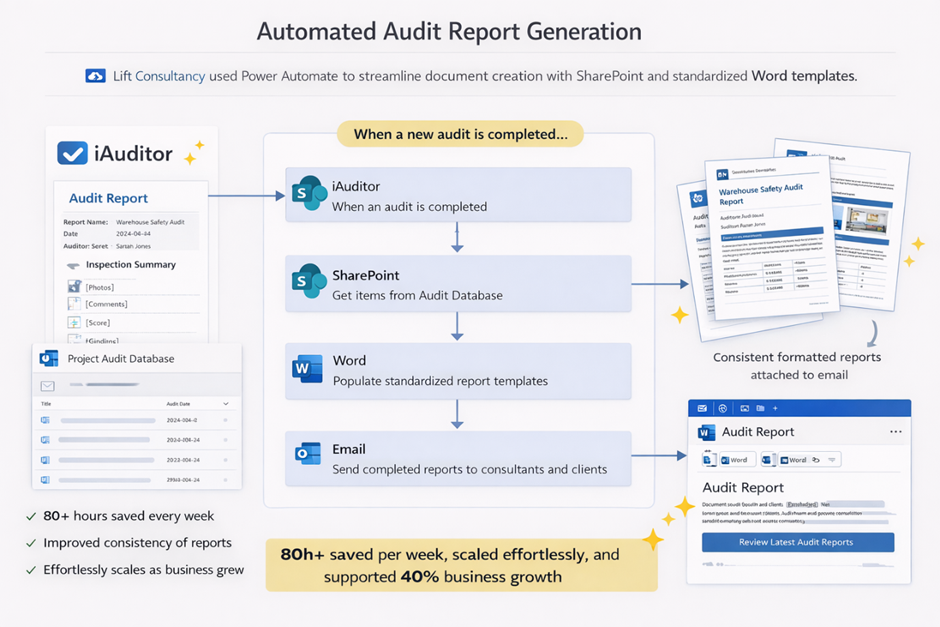
One of our most powerful RPA case studies was for Lift Consultancy, a UK-based engineering consultancy, where consultants manually copied data from iAuditor into Word reports after each client visit. As the business expanded and onboarded new consultants across multiple locations, this manual process created delays, inconsistencies in reporting, and a growing administrative burden.
We automated document generation using Power Automate integrated with SharePoint and standardised Word templates. When new audit data was submitted, Power Automate automatically populated multiple Word documents with the correct project details, applied consistent formatting, and generated reports without manual intervention.
The solution saved Lift Consultancy 80h+ per week, improved consistency across all documents, and scaled effortlessly as the company grew. As a result, Lift Consultancy increased operational efficiency, onboarded new consultants faster, and supported over 40% business growth without increasing administrative workload.
Power Automate is frequently used to automatically process emails from the inbox: downloading attachments, transforming the data in them and launching further automated workflows afterwards. This is a common need when third-party systems send scheduled CSV or when finance teams receive invoice PDFs over email.
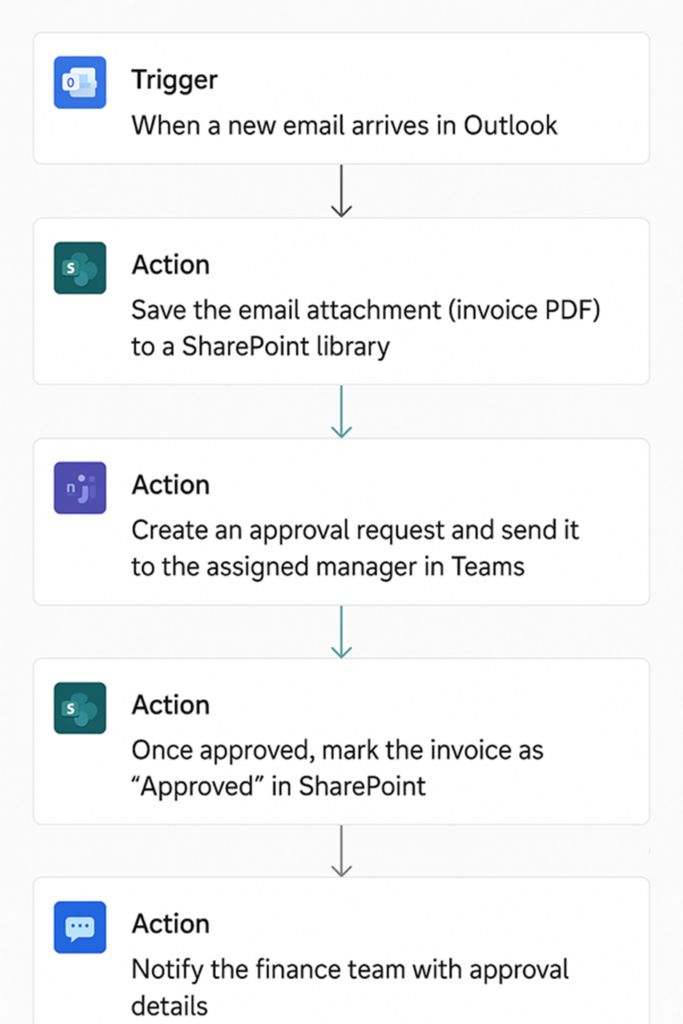
Our Power Automate developers worked with a finance team that was overwhelmed by the daily volume of supplier invoices arriving via email. Each invoice had to be downloaded manually, saved to a shared folder, forwarded for approval, and then entered into finance systems. These steps caused approval bottlenecks, outdated records, and occasional late payments that strained vendor relationships.
We automated the end-to-end invoice process using Power Automate, SharePoint, and Microsoft Teams. Incoming invoices were captured automatically from a shared mailbox, stored securely in SharePoint with metadata, and routed to the right approver via Teams, where managers could approve or reject with a single click. Once approved, invoice records were updated automatically, and finance was notified instantly. The solution removed hours of manual work, reduced approval delays through real-time notifications, and centralised all invoices in a single system for audit readiness. Faster approvals led to more timely supplier payments, improving both finance efficiency and vendor satisfaction.
Automatic notifications are a common Power Automate use case when teams need to react quickly to changes in data. Instead of checking dashboards manually, alerts ensure the right people are notified as soon as something moves outside an expected range.
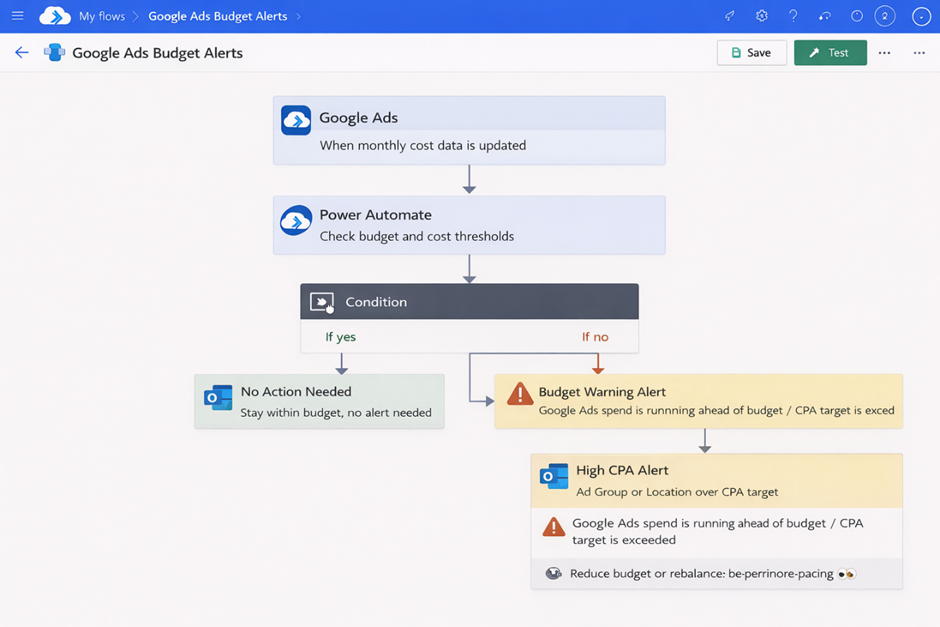
Our RPA consultants built automated notification flows for a marketing team to help to keep their Google Ads spending within the allocated monthly budget.
Using Power Automate, we set up flows that continuously monitored Google Ads cost and cost per conversion. When Google Ads spend started running ahead of plan, the team received an early alert so they could reduce budgets and rebalance pacing. Additional notifications flagged ads or locations where cost per conversion exceeded targets, prompting quick action such as pausing underperforming segments or adjusting bids.
As a result, the marketing team improved budget control, reduced wasted ad spend, and reacted to performance issues in real time rather than after the fact. Automated notifications turned dashboards into proactive decision tools, helping the team maintain consistent performance across their campaigns.
Power Automate is frequently used to automate Power BI reports by refreshing datasets, distributing reports, and triggering actions when data changes. This removes the need for manual refreshes and ensures stakeholders always work with up-to-date insights.
We worked with teams that relied on Power BI dashboards for daily decision-making but still refreshed datasets manually or sent reports by hand. As a result, reports were sometimes outdated, refreshes were missed, and stakeholders had to log into Power BI to access information instead of receiving it proactively.
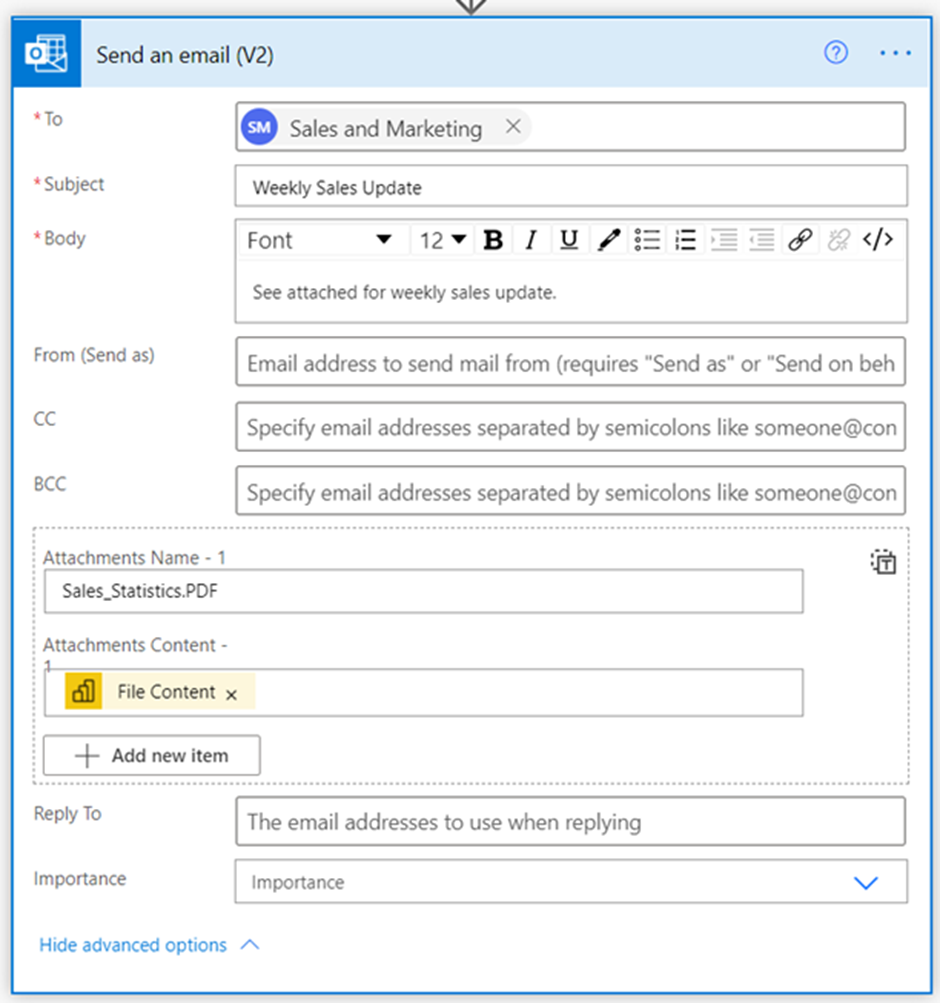
We implemented Power Automate flows to refresh Power BI datasets automatically based on schedules or data-driven triggers, such as new rows being added to SharePoint or databases. Additional flows exported Power BI reports to PDF and distributed them via email, while alerts and subscriptions ensured key users were notified when metrics changed.
The result was a fully automated reporting cycle with no manual intervention. Dashboards stayed consistently up to date, reports were delivered automatically to stakeholders, and teams could focus on analysis and action rather than managing refreshes and report distribution.
Third-party system integrations are a common Power Automate use case when organisations need to connect Microsoft tools with external platforms. These integrations are typically built using custom connectors, which allow Power Automate to trigger workflows in third-party systems or react to events coming from them.
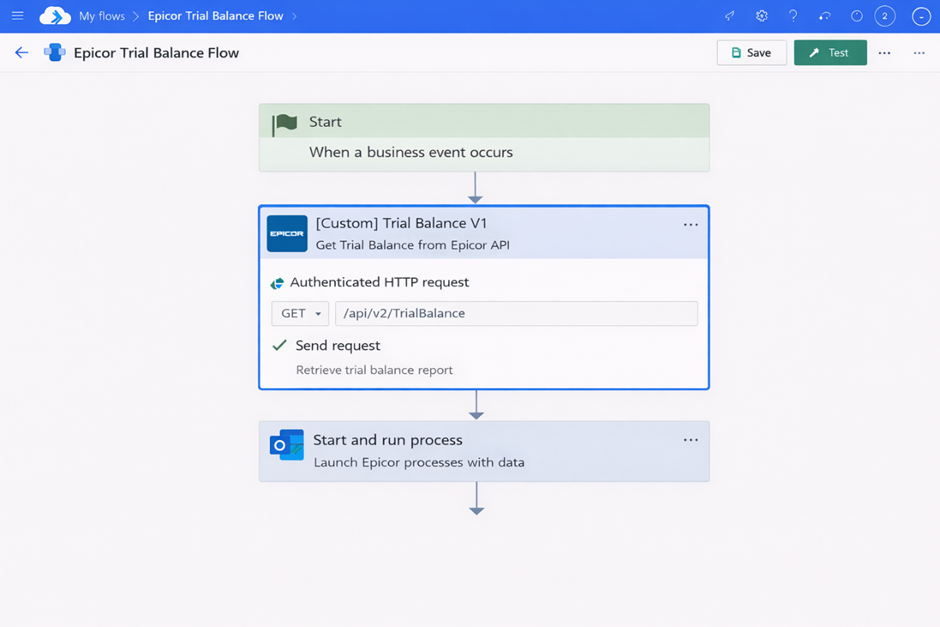
Our RPA developers worked with a finance team using Epicor, where critical processes, such as extracting trial balance reports, still required manual intervention. Although Epicor stored all the required data, there was no out-of-the-box connector to trigger report extraction automatically or pull the data into downstream workflows.
To solve this, we designed a custom Power Automate connector that communicated directly with Epicor’s API. The connector sent authenticated HTTP requests to extract the trial balance report whenever a workflow was triggered, enabling Power Automate to query data and launch Epicor processes automatically based on business events.
The result was a fully automated, API-driven integration that removed manual data extraction and improved the reliability of financial reporting. By leveraging Epicor’s API through a custom connector, the client streamlined finance workflows and ensured critical data was always available when needed.
AI builder within Power Automate is used either for integrations with AI models like ChatGPT or for reading data from PDFs. We have used the AI builder to create a number of powerful Power Automate flows in the past.
Pro tip: Power Automate AI builder does not like a Microsoft Word file. If you want it to work properly, use PDF instead of Word.
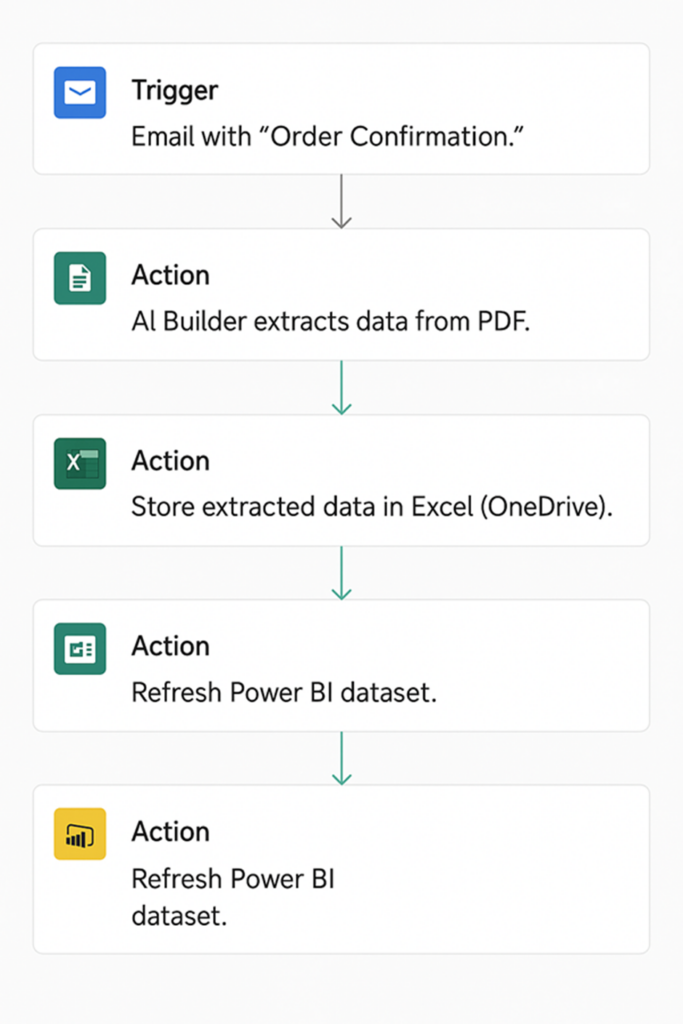
Power Automate is commonly used to extract data from PDFs such as invoices, order confirmations, contracts, and operational reports. In our experience, these documents often contain critical data that teams still enter manually because the information arrives in unstructured formats. Automating PDF data extraction is usually one of the fastest ways to reduce admin workload and improve data accuracy across finance, sales, and operations.
In 2025, we worked with a sales team that spent hours each day manually extracting order data from PDF customer order confirmations and typing it into Excel. This slow, error-prone process led to mistakes in stock allocation and invoicing and pulled the team away from selling.
We automated PDF processing using Power Automate and AI Builder. Incoming PDFs were captured automatically from email, key order details were extracted using Optical Character Recognition (OCR), and the data was written directly into a SharePoint List, with notifications sent for quick review.
The solution removed 5 hours of manual work per week, improved data accuracy, and scaled to handle hundreds of PDFs daily. Order processing became faster and more reliable, allowing the sales team to focus on customers instead of administration.
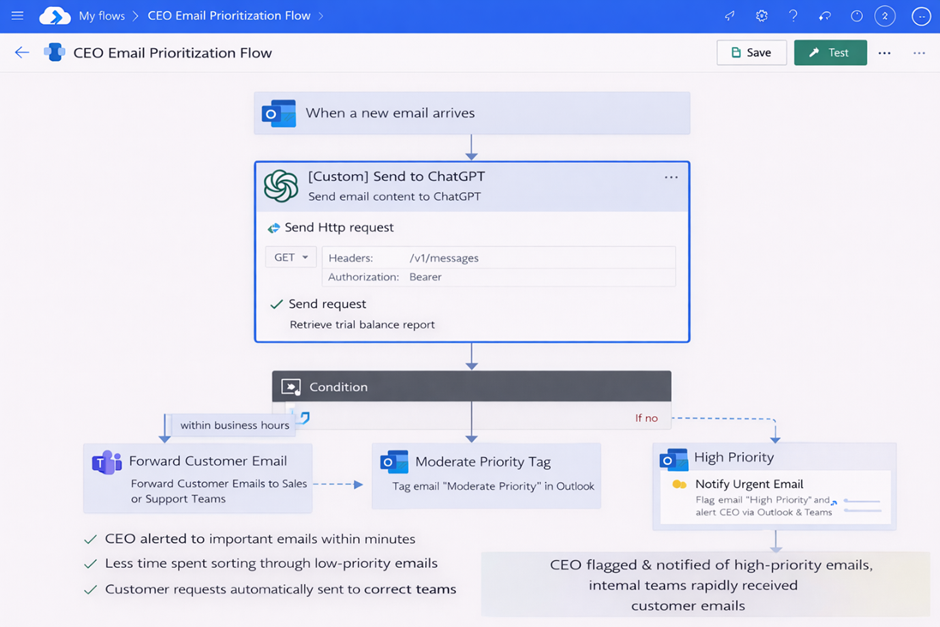
Power Automate can also be integrated with ChatGPT to introduce AI-driven decision-making into everyday workflows.
For example, we worked with a CEO who received a high volume of emails every day and struggled to quickly identify which messages required immediate attention. Important emails were often buried among newsletters, CCs, and low-priority updates, making inbox management time-consuming and distracting.
We built a Power Automate flow that monitored the CEO’s Outlook inbox and sent incoming email content to ChatGPT via an API call. ChatGPT assessed each email’s importance and urgency, returned a priority classification, and Power Automate used this response to flag, tag, or notify the CEO through Outlook or Teams. The Power Automate bot also automatically forwarded customer emails to relevant internal teams freeing up more CEO time while processing customer service requests quicker.
The result was a smarter, AI-assisted inbox that automatically highlighted high-priority emails and reduced cognitive load. By combining Power Automate with ChatGPT, the CEO could focus on critical decisions, without manually reviewing every message.
Power Automate Desktop enables users to create bots that automate mouse clicks and keyboard strokes. As a result, a bot can perform the same operations as a person would: open a website or a desktop application, navigate to a relevant page, automatically perform an action etc.
In our practice, we use Power Automate desktop for web scraping and automating workflows on desktop applications.
Pro tip: Even though it is possible to scrape web data with Power Automate, this process works slowly with large amounts of data. In our experience, data scraping with Python is usually more efficient for large volumes of data.
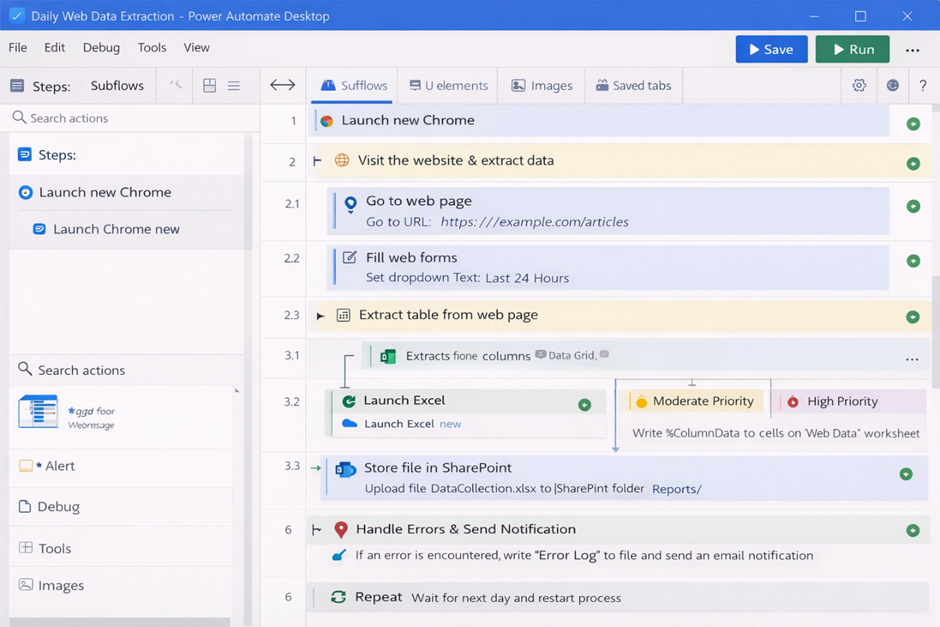
Web scraping is the process of collecting data from public websites for market analysis, price monitoring, competitor tracking, or lead research. Many teams still gather this data manually, even though it changes frequently and feeds directly into reporting and decision-making.
We worked with a client who needed to track regularly updated data from a public website and consolidate it into Excel for analysis. The data was being copied and pasted manually, which was time-consuming, inconsistent, and quickly became unmanageable as the volume and frequency increased.
We automated the process using Power Automate Desktop to interact with the website, extract the required data, and store it in a structured Excel file stored in SharePoint. The flow was scheduled to run automatically and included error handling and notifications to ensure reliability.
As a result, manual data collection was reduced by over 80%, data accuracy improved, and stakeholders always had access to up-to-date information. The solution scaled easily to additional website sections and enabled faster, more confident decision-making based on real-time insights.
Desktop workflow automation is commonly used when critical data sits inside legacy or specialist software that doesn’t offer APIs or easy data export options. In these cases, Power Automate Desktop allows businesses to automate the exact steps users take on screen, removing repetitive manual work.
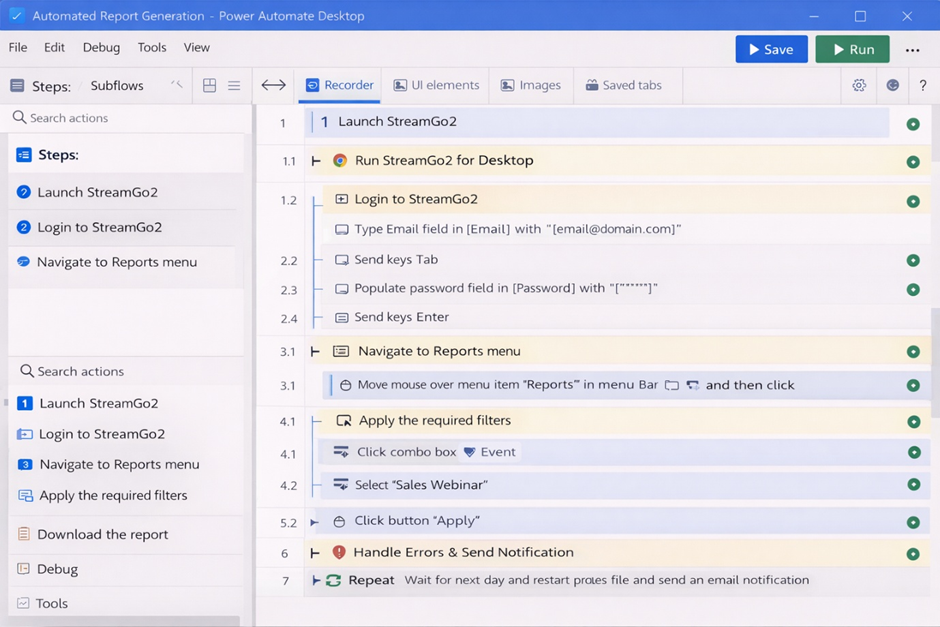
We worked with a client who needed to extract operational data from a specialist system called StreamGo2. The process needed to be completed daily and required navigating through multiple menus, selecting date ranges, and manually exporting a summary report.
We used Power Automate Desktop to automate the full workflow by replicating the keyboard strokes and mouse clicks a user would normally perform. The bot opens StreamGo2, navigates through the menus, applies the correct filters, and exports the required report automatically on a virtual machine with a Power Automate Desktop licence.
As a result, data extraction became fully automated, consistent, and repeatable without manual intervention. The team eliminated routine desktop work, reduced the risk of human error, and ensured reports were generated on time every time.
The Power Automate examples in this article show how the biggest gains come from applying automation to real business processes, not generic workflows.
If you’re considering Power Automate for your organisation, the key is designing flows around your systems and objectives. If any of these examples resonate, contact us, and the Power Automate consultants at Vidi Corp will help you design and implement a solution tailored to your business.


